App installation issues on Galaxy S26 using Smart Switch

If certain apps do not install or transfer to your Galaxy S26 using Smart Switch, you can manually download them from your preferred store (e.g., Galaxy Store, Play Store) or the app's official website. However, if the app still does not install, it may be due to service termination. For further assistance, don't hesitate to contact the app provider directly.
A hand holding a Galaxy S26 Ultra showing the Galaxy Store with various app icons floating nearby.

App installation issues on Galaxy S26 using Smart Switch

Download apps from the Galaxy Store

Navigate to and open the Galaxy Store app, and then tap the Search icon. Search for the desired app, then tap the Install icon next to it.
Read more
Read less

Download apps from the Google Play Store

Navigate to and open the Play Store app, then tap the Search tab. Tap the Search bar and search for the desired app, then tap Install next to it.
Read more
Read less

Download apps from the Internet

Warning
Installing apps from unknown sources can expose your device to security risks. You are responsible for any damage or data loss resulting from such installations.

If you need to install an app from an official website or an unknown source, follow these steps:

  1. Swipe down from the top right corner of the screen to open the Quick panel.
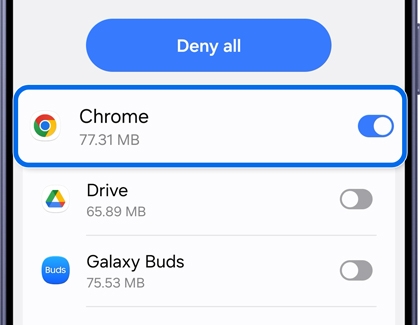
  2. Tap the Settings icon (it looks like a gear), then tap Security and privacy > More security settings > Install unknown apps. Tap the switch next to the source (e.g., Chrome) to allow installations.
    A Galaxy S26 Ultra screen showing a list of apps with a blue toggle switch turned on for Chrome within a blue highlight box.
    Note: You can tap Deny all if you prefer not to allow installations from any unauthorized sources.
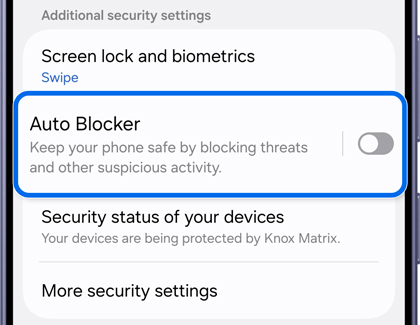
  3. Tap the Navigate up icon twice to return to the 'Security and privacy' menu, and then tap Auto Blocker. Turn off the switch to disable the feature if enabled.
    A Galaxy S26 Ultra screen showing the Auto Blocker setting highlighted in blue with the toggle switch turned off.
  4. Try installing the app from the source. If prompted, allow Google to inspect the app for security.
Read more
Read less

Cannot install apps

If you continue to encounter issues when trying to manually install apps on your Galaxy S26, refer to our other support guide for detailed troubleshooting steps and solutions.
Read more
Read less
Was this content helpful?
We're here for you

Contact Samsung Support

Contact us online through chat and get support from an expert on your computer, mobile device or tablet. Support is also available on your mobile device through the Samsung Members App.
auto-contact_us-pc-2x auto-contact_us-pc-2x