Audio delay in Sound Tower when playing videos via Bluetooth

When you play videos, you might notice that the sound is delayed by about 8 seconds if you connect Samsung Sound Tower models MX-ST50F/ST40F to TVs or mobile devices from other brands using Bluetooth. This happens because some devices don't follow the Bluetooth AVRCP (Audio/Video Remote Control Profile) rules. To fix this, follow the steps in this guide to ensure the audio and video play together smoothly.
A Samsung TV showing a sci-fi scene next to a Sound Tower with colorful LED lights.

Audio delay in Sound Tower when playing videos via Bluetooth

Note
The Sound Tower does not support network or OTN connections, so firmware updates must be performed via USB.
1

Prepare the USB device.

Ensure the USB drive is empty and formatted to FAT32.

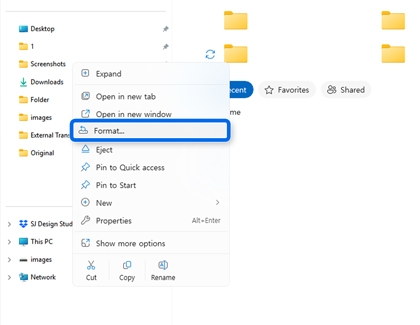
  • Format with a PC: Insert the USB drive into your computer's USB port. Open File Explorer, right-click on the USB drive listed under "This PC" or "Removable Drives," and select Format from the menu. In the Format USB Drive dialog box, ensure the file system is set to FAT32. Click Start to begin the formatting process, review the warning message, and select OK to confirm. Wait for the formatting process to complete, and if prompted, select OK to finalize.
    A PC screen showing a file explorer menu with the Format option highlighted in blue.
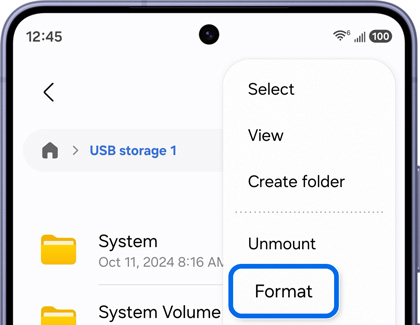
  • Format with a phone: Connect the USB drive to your phone's USB port. Then, navigate to and open the My Files app or Files app on your device. Select the connected USB drive under "Storage," and then tap the More options icon (three vertical dots) in the top right corner. Tap Format, and then follow the on-screen instructions to confirm and complete the formatting process.
    A Galaxy S26 Ultra showing the USB storage menu with the Format option highlighted in blue.

Once formatted, the USB drive is ready for use. Proceed with copying the update files as instructed.

Note
USB-OTG adapter may be needed. 
2

Download the latest firmware update.

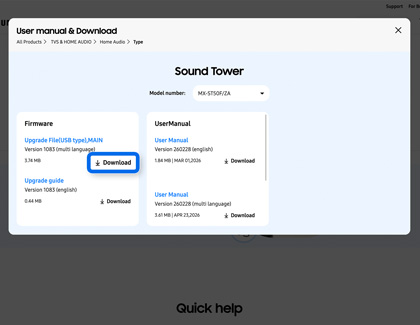
Visit the Samsung Download Center. Go to Samsung.com, and then select Support. Select TV & Home Audio, and then select Home Audio. Using the search field, enter and select your model code (e.g., MX-ST50F). Select Manuals & Software, and then locate the Upgrade File (USB type), MAIN for your Sound Tower under the "Firmware" section. Select Download next to the latest firmware version to download the file.
A Sound Tower support page with the firmware Download button highlighted in blue.
3

Extract the downloaded file.

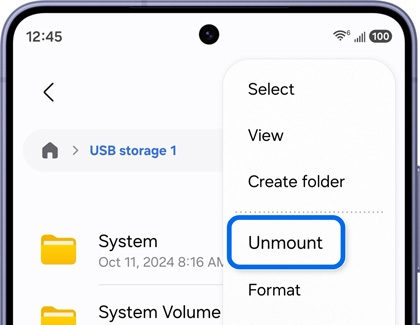
Locate the downloaded file on your PC or phone, and unzip it. Copy or move all the files from the extracted folder to the root directory of the USB drive. Do not place the files inside any additional folders on the USB drive. Safely disconnect the USB drive by clicking Safely Remove in Taskbar on your PC or tapping Unmount from the USB storage Notification on your phone.
A Galaxy S26 Ultra showing the USB storage menu with the Unmount option highlighted in blue.
Caution
Do not rename any of the firmware update files stored on the USB drive. 
4

Update the firmware.

Turn on the Sound Tower, and then insert the USB drive into the USB port on the back of your Sound Tower. Next, press the Source button on the top panel and select the USB mode. The update will start automatically in less than one minute. Do not turn off the power or remove the USB drive during the update (updates usually take a few minutes). Once the upgrade is completed, the LED lights on your Sound Tower will all show green, and the unit will automatically reboot.
Important
  • If the upgrade fails, check if the USB drive contains the upgrade file and the file names are correct, or if the USB drive is defective, and try again.
  • If the upgrade takes more than 10 minutes and appears stuck, press and hold the Power button on the top panel for 10 seconds. Wait 1 minute, then restart the device and retry the upgrade.
  • We recommend initializing the unit after the firmware update is completed. Turn off the Sound Tower and insert the power cord. Press and hold the Play button on Sound Tower for 15 seconds.
Note
  • Cycle and duration of update may differ by version.
  • If the firmware version applied to the unit is lower or the same, it will not be updated. 
5

Contact Samsung Support.

If you're unable to install the firmware or if the problem persists after updating the firmware, reach out to Samsung Customer Support for further assistance.
Was this content helpful?
We're here for you

Contact Samsung Support

Contact us online through chat and get support from an expert on your computer, mobile device, or tablet. Support is also available on your mobile device through the Samsung Members App.

