Samsung Browser is slow or lagging

As you visit websites, the Samsung Internet browser downloads files, cookies, and other data. Sometimes, too much data builds up over time and slows down the browser. To fix this problem, you need to clear the cached data from the browser.
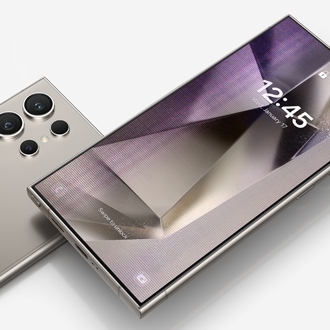
A hand holding a Galaxy phone showing the Samsung website in the Samsung Browser.

Samsung Browser is slow or lagging

1

Open the Samsung Browser app.

If you don't see the app, check inside the Samsung folder.
2

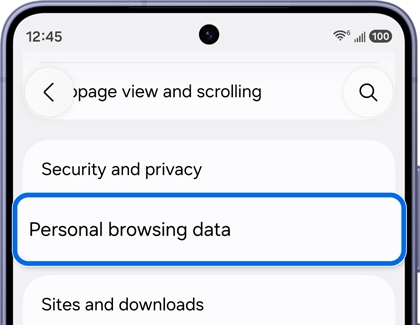
Navigate to Personal browsing data.

Tap the Tools icon (three vertical dots) in the lower right corner, then tap Settings, and then tap Personal browsing data.
A Galaxy phone showing the Samsung Browser settings with Personal browsing data option highlighted in blue.
3

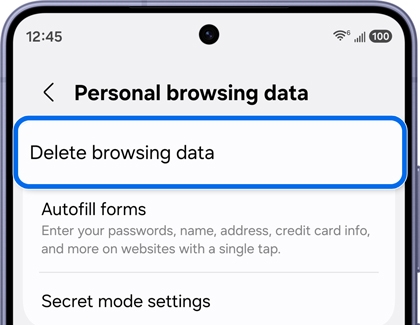
Delete browsing data.

Tap Delete browsing data, select from the options, then tap Delete data, and then tap Delete to confirm.
A Galaxy phone showing the Personal browsing data screen with Delete browsing data option highlighted in blue.
4

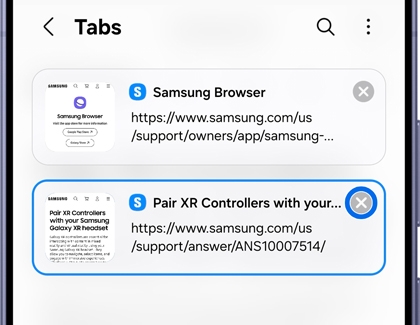
Close unused tabs.

In the bottom row of the Samsung Browser app, you'll see a square with a number in it. This is the tab icon, and it shows the number of tabs you have open.

Tap the tabs icon to see your open tabs, and then tap the X to close any you no longer need.
A Galaxy phone showing the Samsung Browser Tabs screen with a Pair XR Controllers tab highlighted in blue with a close button.

Was this content helpful?
We're here for you

Contact Samsung Support

Contact us online through chat and get support from an expert on your computer, mobile device, or tablet. Support is also available on your mobile device through the Samsung Members App.