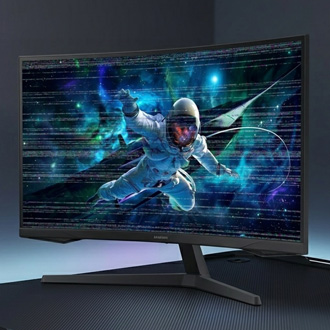
White dots appear on top of the Samsung Smart Gaming Monitor screen
Check the currrent software version.
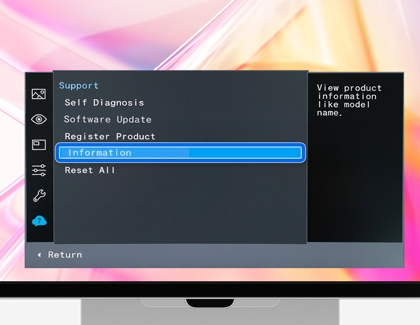
Press the multi-directional JOG button on your monitor to open the Control panel. Push upward on the JOG button to highlight Menu, then press the JOG button inward to select. Use the JOG button to navigate to Support > Information to check the current software version.

Prepare the USB device.
Ensure the USB device is empty and formatted to FAT32.
- Format with a PC: Insert the USB drive into your computer's USB port. Open File Explorer, right-click on the USB drive listed under "This PC" or "Removable Drives," and select Format from the menu. In the Format USB Drive dialog box, ensure the file system is set to FAT32. Click Start to begin the formatting process, review the warning message, and select OK to confirm. Wait for the formatting process to complete, and if prompted, select OK to finalize.

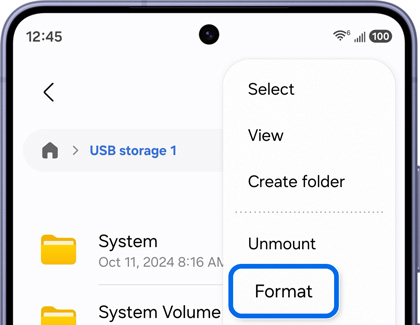
- Format with a phone: Connect the USB drive to your phone's USB port. Then, navigate to and open the My Files app or Files app on your device. Select the connected USB drive under "Storage," and then tap the More options icon (three vertical dots) in the top right corner. Tap Format, and then follow the on-screen instructions to confirm and complete the formatting process.

Once formatted, the USB drive is ready for use. Proceed with copying the update files as instructed.
Download the latest software update.
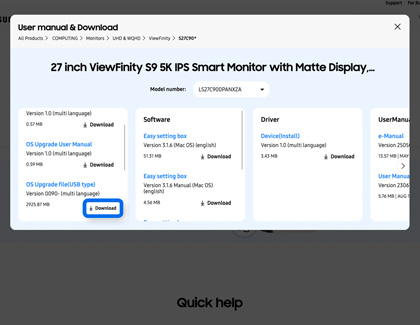
Visit the Samsung Download Center. Go to Samsung.com, and then select Support. Select Computing, and then select Monitors. Using the search field, enter and select your model code (e.g., LS27C900PANXZA). Select Manuals & Software, and then locate the Upgrade file (USB type), MAIN for your monitor under the "Firmware" section. Select Download next to the latest firmware version to download the file.

Extract the downloaded file.
Locate the downloaded file on your PC or phone, and unzip it. Copy or move all the files from the extracted folder to the root directory of the USB drive. Do not place the files inside any additional folders on the USB drive. Safely disconnect the USB drive by clicking Safely Remove in Taskbar on your PC or tapping Unmount from the USB storage Notification on your phone.
Connect the USB device to your monitor.
Insert the USB drive into the USB SERVICE port on the back of your monitor.
Navigate to the Software Update menu.
Press the multi-directional JOG button on the back of your monitor to open the Control panel. Push upward on the JOG button to highlight Menu, then press the JOG button inward to select. Use the JOG button to navigate to Support, then select Software Update. Select Yes if prompted.
Install the latest firmware update.
If you encounter the message "No update files found on your USB device. Please check your USB device and try again," it is likely due to one of the following reasons:
- USB memory not connected to the SERVICE port: Ensure the USB drive is properly connected to the SERVICE port on the monitor
- Incompatible file formats: Verify that the files on the USB drive are in compatible formats (e.g., .bin files).
- No valid update files found: Check that valid update files are saved in the USB memory. Ensure the files are not missing or incorrectly named.
- Avoid interruptions during update: Do not turn off the product until the update is complete. Interruptions may cause the product to revert to its previous version.
- Screen blinking in green during update: If using a DVI-HDMI converter, the screen may blink in green during the update. This is normal, and the update will proceed as expected. Wait until the update is complete.
If the issue persists, double-check the USB drive and its contents, and ensure all steps are followed correctly.
Contact Samsung Support.