Error when changing selfie in Glance on Samsung TV or monitor

If you experience an error while changing your selfie in the Glance mobile app, accompanied by an incorrect pop-up on your Samsung TV or Smart monitor, this issue stems from communication problems between the Glance mobile and TV/Smart monitor apps. Follow the steps below to resolve the issue effectively.
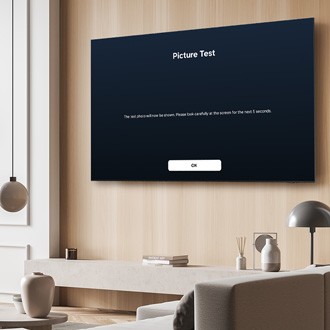
A Samsung TV mounted in a living room displaying the Glance home screen with lifestyle content.

Error when changing selfie in Glance on Samsung TV or monitor

1

Log out and log back in to the Glance app on your TV or monitor.

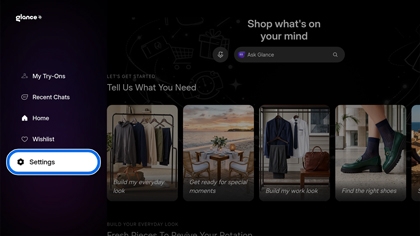
Open the Glance app on your TV or Smart monitor. Navigate to Settings, and then log out of your account. Log back in to sync your profile correctly.

The Glance app screen on a Samsung TV with the Settings option highlighted in blue on the left side menu.

2

Access the QR Code for the Glance mobile browser.

From the Glance app on your TV or Smart monitor, locate the QR code option to access the mobile browser.
3

Scan QR code to access Glance website.

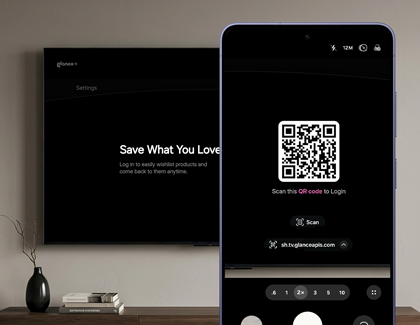
Open the Camera app on your mobile phone or tablet. Point the camera at the QR code displayed on your TV or Smart monitor screen. Once scanned, the mobile browser will open. Use the browser to log out and then log back in to Glance.

This process helps prevent communication errors and ensures a smooth connection between your devices. 

A Galaxy S26 Ultra scanning a QR code on a Samsung TV screen to log in to the Glance website.

Was this content helpful?
We're here for you

Contact Samsung Support

Contact us online through chat and get support from an expert on your computer, mobile device, or tablet. Support is also available on your mobile device through the Samsung Members App.