Galaxy XR headset is sluggish and freezing after a software update

If your Galaxy XR headset experiences sluggish performance, freezing, or tracking loss after a software update, this may be due to system changes impacting tracking results. To resolve this, ensure your device is updated to the latest version. This article provides steps to check for updates, restart your headset, and maintain smooth performance.

Galaxy XR headset is sluggish and freezing after a software update

1

Check for software updates.

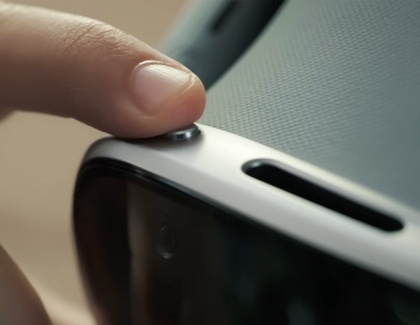
Press the Top button to open the Launcher. Or, use the hand gesture: Hold your palm in front of you until the menu icon appears. Then, pinch your thumb and index fingers together.
Close-up view of a finger pressing the top button on the Galaxy XR headset.

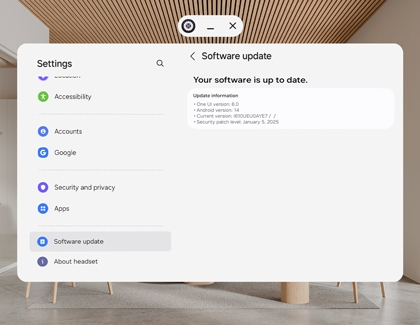
Select Settings, then select Software updates. The headset will automatically check for updates. If an update is available, follow the prompts to download and install it.
Galaxy XR software update screen showing the Software update menu and a message indicating the software is up to date.

Note
Regularly check for updates to ensure you have the latest features, improvements, and security enhancements.
2

Restart the headset.

Press the Top button to open the Launcher. Alternatively, use the hand gesture: hold your palm forward until the menu icon appears. Pinch your thumb and index finger together to open the Launcher. 

Power off icon highlighted in the quick panel on the Galaxy XR headset.

Next, point to and pinch the Quick settings icon to open the panel. Select the Power off icon to open the Power menu, and then select Restart. The headset will shut down and automatically reboot.

Was this content helpful?
We're here for you

Contact Samsung Support

Contact us online through chat and get support from an expert on your computer, mobile device, or tablet. Support is also available on your mobile device through the Samsung Members App.

