Screen flashes green on Galaxy A57 5G
If your Galaxy A57 5G screen briefly flashes green when you turn it on, updating your device to the latest software version can quickly resolve the issue.

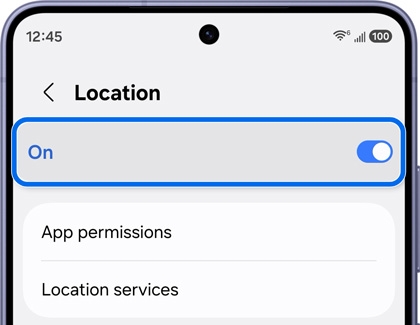
Open the Quick panel on your device and ensure the Location setting is turned on. Or, go to Settings > Location and turn it on.
Ensure your SmartThings app is updated to the latest version through the Google Play Store.
Open the Google Play Store app on your device. Tap your profile icon in the top-right corner. Select Manage apps & devices. Under the Updates available section, you'll see a list of apps that can be updated. Tap Update next to the app you want to update or select Update all to update all apps at once. Follow the prompts to complete the update process.

Swipe down with two fingers from the top of the screen to open the Quick settings panel. Tap the Power icon at the top of the screen. Tap Restart, then confirm by tapping Restart again. Your device will shut down and automatically reboot.



Select CONTINUE to visit HP's website.

