Welcome to the
! Please enjoy our special offers for you

Status bar issues on your Galaxy phone after the One UI 8.5 update

Encountering issues with your Galaxy phone's status bar, such as icons appearing smaller, larger, or unusual display behaviors? This guide provides solutions for common status bar problems, including battery icon changes, antenna icon overlaps, duplicate notification icons, and missing clock or app icons. Follow the steps below to resolve these issues and optimize your status bar experience.
A Galaxy S26 Ultra phone showing multiple status bar icons floating around the screen.

Status bar issues on your Galaxy phone after the One UI 8.5 update

Which issue are you experiencing on the Status bar? Select your issue below.

Status bar icons appear smaller or larger

Status bar icons appear smaller or larger

A hand holding a Galaxy S26 Ultra showing the home screen with widgets and status bar icons.

If your status bar icons appear smaller, larger, or stretched vertically after changing the screen resolution (HD+, FHD+, QHD+), follow these steps:

1

Restart your phone.

Using two fingers, swipe down from the top-right corner of the screen to expand the Quick panel. Tap the Power icon, then tap Restart. Confirm by tapping Restart again. Your phone will automatically restart.
Restart icon selected in the Power off menu on a Galaxy S26.
2

Check for software updates.

Open Settings on your phone. Tap Software update, and then tap Check for new updates. Depending on the carriers, the option may appear as Download and install, Check for system updates, or Check for software updates. A patch is expected to address this issue. Install any available updates to ensure your device receives the latest improvements and fixes. If no update is currently available, check back later.

Software update menu selected in Settings on a Galaxy S26.

Note
The software rollout schedule and version number may vary by region or carrier.
Read less

Battery capacity icon display on the Status bar

Battery capacity icon display on the Status bar

Battery icon appears thinner and smaller:

This is part of the updated design in One UI 8.5 for better visibility. To remove the battery background and show only the number, navigate to and tap Settings. Tap Notifications, and then tap Status bar. Turn off Show battery background.

A Galaxy S26 Ultra screen showing a battery settings menu with the Show battery background option highlighted in blue.

Read more
Read less

Numeric battery percentage remains displayed:

From One UI 8.5, the option changed from "Show battery percentage" to "Show battery background."  Navigate to and tap Settings. Tap Notifications, and then tap Status bar. Turn off Show battery background to hide the battery oval image.
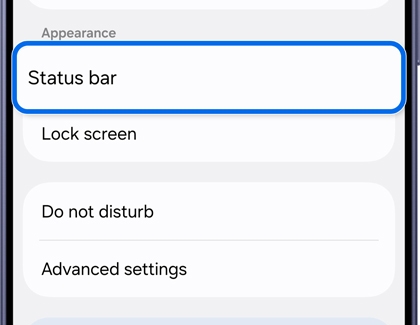
A Galaxy S26 Ultra screen showing an appearance settings menu with the Status bar option highlighted in blue.

Read more
Read less
Read less

Antenna icon overlap on the Status bar

Antenna icon overlap on the Status bar

A Galaxy S26 Ultra on a white desk showing the Quick Panel with overlapping icons in the status bar.

The antenna icon may appear overlapping due to Dual SIM functionality (physical SIM + eSIM). This is a new design in Android OS (AOSP) and One UI 8.5. When you open the Quick panel, the icons will separate and display individually.

Read less

Duplicate notification icons on the Status bar

Duplicate notification icons on the Status bar

Duplicate icons occur due to the Prioritize notifications feature under Notification Highlights. 
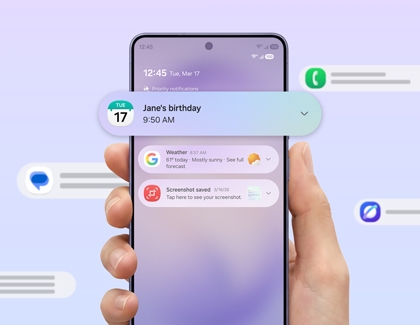
 A Galaxy AI Notification Highlight feature displaying various app icons on a Galaxy phone, showcasing prioritized notifications for a streamlined user experience.

1

Access the Notification highlights setting.

Navigate to and tap Settings. Tap Notifications, and then tap Notification highlights.
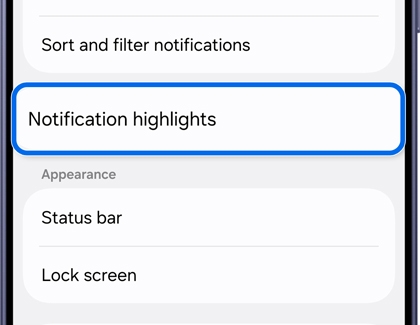
A Galaxy S26 Ultra screen showing a settings menu with the Notification highlights option highlighted in blue.

2

Turn off Prioritize notifications.

Tap Prioritize notifications, and then turn off the switch at the top of the screen.
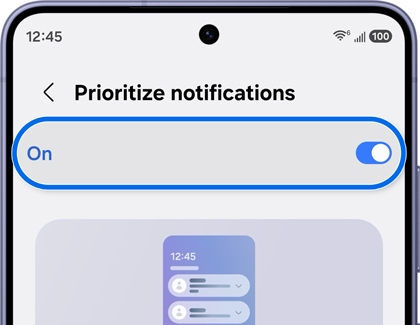
A Galaxy S26 Ultra screen showing the Prioritize notifications menu with the On toggle switch highlighted in blue.

Read less

Missing clock or app icons from the Status bar

Missing clock or app icons from the Status bar

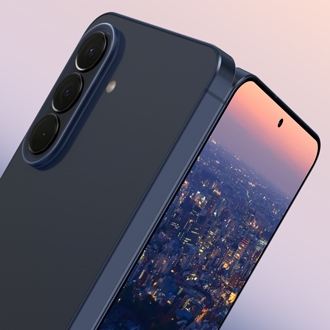
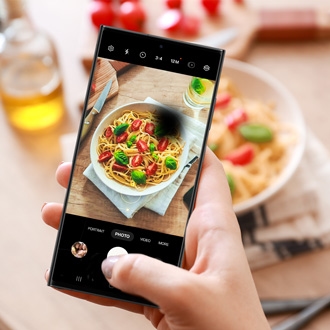
A hand holding a Galaxy S26 Ultra showing the Notes app with a status bar missing the clock and app icons.

If the clock or app icons disappear when launching a specific app, it may be due to the app's configuration of the status bar area. Contact the app developer for support.
Read less
Was this content helpful?
We're here for you

Contact Samsung Support

Contact us online through chat and get support from an expert on your computer, mobile device, or tablet. Support is also available on your mobile device through the Samsung Members App.
Fast, easy checkout with Shop Samsung App
Easy sign-in, Samsung Pay, notifications, and more!
Or continue shopping on Samsung.com
×
The Shop Samsung app
Free standard shipping, exclusive offers and financing options.
GET
×
The Shop Samsung app
Free standard shipping, exclusive offers and financing options.
GET
×

You Are About To Be Redirected To Investor Relations Information for U.S.

Thank you for visiting Samsung U.S. Investor Relations. You will be redirected via a new browser window to the Samsung Global website for U.S. investor relations information.
CANCEL
CONTINUE
×

Redirect Notification

As of Nov. 1, 2017, the Samsung Electronics Co., Ltd. printer business and its related affiliates were transferred to HP Inc.

For more information, please visit HP's website: http://www.hp.com/go/samsung


Select CONTINUE to visit HP's website.

CANCEL
CONTINUE