Cannot access Game Booster settings after software update

After updating your Galaxy phone or tablet to One UI 8.5, you may encounter issues accessing the Game Booster settings menu due to a screenshot format compatibility problem. This guide provides a solution to reset Game Booster settings and steps to update the app for a permanent fix.
A hand holding a Galaxy phone showing the Game Booster Plus settings screen.

Cannot access Game Booster settings after software update

1

Reset Game Booster settings.

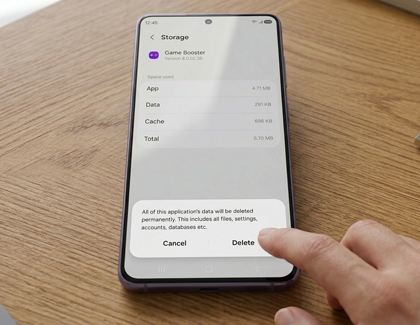
A hand tapping a Galaxy phone on a wooden table showing the Game Booster storage screen with a delete confirmation dialog.

Resetting will delete your custom settings. Navigate to and open the device's Settings, then tap Apps. Tap the Filter and sort icon next to the app list. Turn on the switch next to Show system apps, and then tap OK. Swipe through the app list and tap Game Booster. Tap Storage, and then tap Clear data. Confirm by tapping Delete in the pop-up.

Important
Clearing the data will reset the app to factory default settings. Any personal settings or data saved on the app will be removed.
2

Update the Game Booster app.

Check for updates through the Galaxy Store to ensure your app is up to date for optimal performance and compatibility. Open the Galaxy Store app, and then tap Menu in the bottom right corner. Tap Updates to check for available updates, including Game Booster.

Menu selected in the Galaxy Store.
3

Access for Game Booster settings.

You can access Game Booster settings using the following methods:

  • Device Settings: Open Settings, then tap Advanced features, and then tap Game Booster settings.
  • During gameplay: Tap the Settings icon on the Game Booster main panel.
  • Gaming Hub app: Open Gaming Hub, then tap the More options icon (the three vertical lines) in the top right, and then tap Game Booster.
Was this content helpful?
We're here for you

Contact Samsung Support

Contact us online through chat and get support from an expert on your computer, mobile device, or tablet. Support is also available on your mobile device through the Samsung Members App.