Android Auto requires unlocking on Galaxy phone or tablet

Starting with Android OS 15 (One UI 7.0), Android Auto on Galaxy phones and tablets requires the device to be unlocked before it can start. This security measure prevents unauthorized access when the device is locked. If Android Auto doesn't work, ensure your phone is unlocked and follow the steps to adjust the USB connection mode.
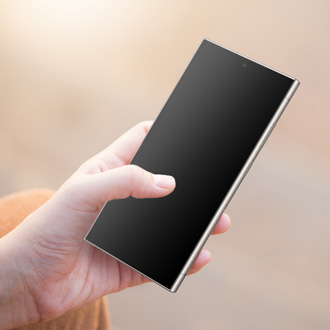
Hands holding a Galaxy S26 Ultra in a car drawing an unlock pattern on the screen.

Android Auto requires unlocking on Galaxy phone or tablet

1

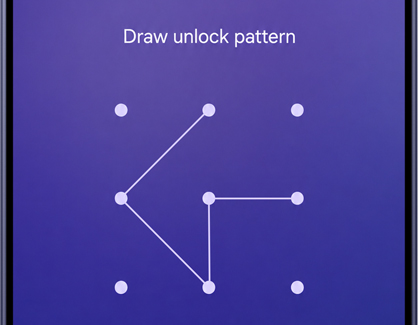
Unlock your device.

Double-tap the screen, and then unlock your device using the security method (PIN, password, pattern, or biometric) you set.

A Galaxy S26 Ultra screen showing a purple lock screen with a pattern of white lines connecting dots under the text Draw unlock pattern.

2

Adjust the USB connection mode (if needed).

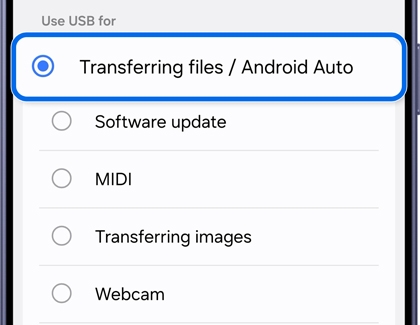
Disconnect and reconnect the USB cable. Then, use two fingers to pull down the Quick panel and tap the USB for charging phone notification. Tap again to select other USB options in the USB settings menu, and then tap the Transferring files / Android Auto mode.

A Galaxy S26 Ultra screen showing the Use USB for menu with the Transferring files and Android Auto option highlighted in blue.

Was this content helpful?
We're here for you

Contact Samsung Support

Contact us online through chat and get support from an expert on your computer, mobile device, or tablet. Support is also available on your mobile device through the Samsung Members App.