Single take mode missing from the Camera app on Galaxy phones

If you can't find the Single take mode in the More menu of the camera on your Galaxy phone, it's because the feature has been removed starting with One UI 8.5. Learn how to enable it as a separate mode using the Camera Assistant app.
A hand holding a Galaxy S26 Ultra phone using the Single take feature to capture a puppy.

Single take mode missing from the Camera app on Galaxy phones

Enable Single take mode

  1. Open the Camera app.
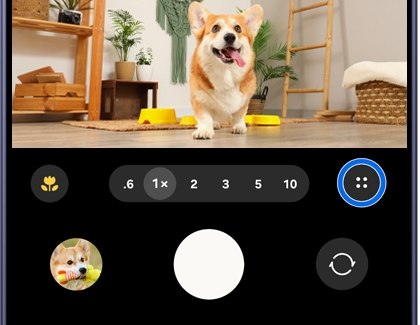
  2. Tap the Quick controls icon (the four circles).
    A Galaxy phone camera screen showing a corgi dog indoors with the four dots icon highlighted in a blue circle.
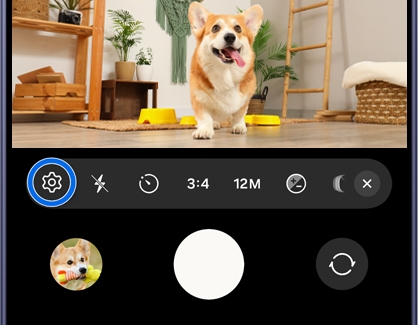
  3. Tap the Go to settings icon (the gear).
    A Galaxy phone camera screen showing a corgi dog indoors with the settings gear icon highlighted in a blue circle.
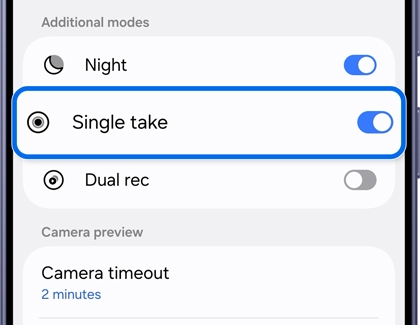
  4. Tap Camera Assistant, and then turn on Single take in the Additional modes section.
    A Galaxy phone camera settings screen with the Single take option highlighted in a blue box.

Now, when you open the Camera app, tap More at the bottom of the menu, and then tap SINGLE TAKE to access it as a separate mode.

Was this content helpful?
We're here for you

Contact Samsung Support

Contact us online through chat and get support from an expert on your computer, mobile device, or tablet. Support is also available on your mobile device through the Samsung Members App.