Samsung Galaxy device appears to be slow or unresponsive
If your Galaxy device appears to be slow, experiences temporary freezes, or stops responding, the issue may be caused by outdated software, apps running in the background, insufficient available memory, or temporary system errors. Follow the troubleshooting steps below to improve performance and restore normal operation.
Samsung Galaxy device appears to be slow or unresponsive
Note
Menu names, settings options, and screen layouts may vary depending on the device model, software version, and app version.
Run Samsung Members Phone diagnostics
Check your device using the Phone diagnostics feature in the Samsung Members app.
Note
Phone diagnostics is available only on Galaxy devices with the Samsung Members app installed.
Read less
Close background apps and free up memory
Apps running in the background may affect device performance and cause slowdowns.
Close all recently used apps
Close all recently used apps and check whether device performance improves.
- Tap the Recent button (three vertical lines).
- Tap Close all.

Clear memory
You can free up memory by closing unused apps running in the background.
- Open Settings, then tap Device care.
- Tap Memory.

- Tap Clean now.

Read less
Restart your Galaxy device
Background processes or temporary software issues may affect device performance. Restarting your device can close all running apps and refresh the system.
Restart using the power menu
- Swipe down from the top right of the screen to open the Quick panel.
- Tap the Power off icon.
- Tap Restart.

Restart using the buttons
If the device freezes or the Restart menu does not appear:
Press and hold the Side key and Volume down key at the same time for more than 7 seconds until the device restarts.

Read less
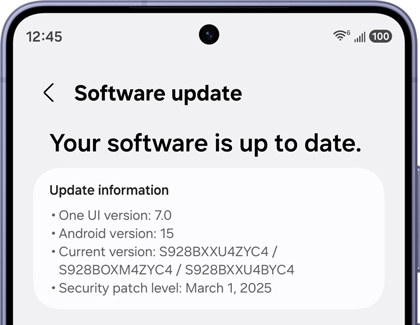
Update your Galaxy device software
Keeping your Galaxy device updated helps improve performance, stability, and compatibility.
Device with One UI 8.0 or earlier
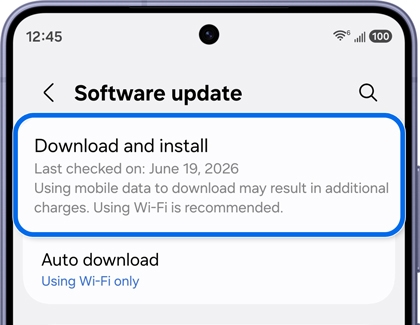
- Open Settings, then tap Software update.
- Tap Download and install.

- Follow the on-screen instructions if an update is available.

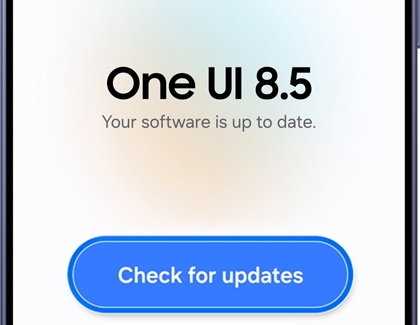
Device with One UI 8.5 or later
- Open Settings, then tap Software update.
- Tap Check for updates.

- Follow the on-screen instructions if an update is available.
Read less
Recommended Articles
We're here for you
Contact Samsung Support
Contact us online through chat and get support from an expert on your computer, mobile device, or tablet. Support is also available on your mobile device through the Samsung Members App.