Troubleshoot unusual screen colors on your Samsung Galaxy device
If your Galaxy device screen colors look different, darker than usual, or tinted unexpectedly, certain display or accessibility features may be enabled. Features such as Adaptive color tone, Color correction, Extra dim, and Eye comfort shield can affect screen color and brightness. Follow the steps below to check and adjust these settings.
Troubleshoot unusual screen colors on your Samsung Galaxy device
Note
Menu names, settings, and screen layouts may vary depending on the model and software version.
Some features may not be supported on all Galaxy devices.
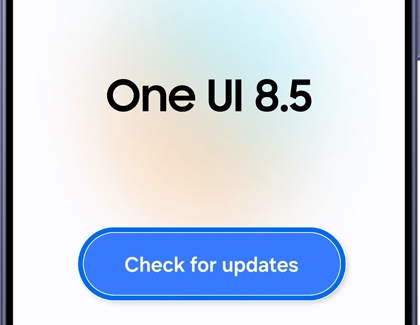
Outdated software may cause compatibility issues or abnormal behavior. Make sure your device software and apps are updated to the latest version.
Open Settings, then tap Software Update.
Tap Check for updates.
Follow the on-screen instructions. A confirmation will appear once the software is up to date.
Read less
Turn off Adaptive color tone
The Adaptive color tone feature automatically adjusts colors and white balance based on ambient lighting conditions to make colors appear natural in different environments. If screen colors suddenly appear different, try turning this feature off.
Open Settings, then tap Display.
Tap the switch to turn off Adaptive color tone and check the screen colors again.
Note
Adaptive color tone is available starting from the Galaxy S24 series and support may vary by mode
Read less
Turn off Color correction
The Color correction helps users distinguish colors more clearly. If the screen colors suddenly appear different while using your device, try turning off the Color correction feature.
Open Settings, then tap Accessibility.
Tap Vision enhancements.
Tap Color correction, then tap the switch to turn off Color correction.
Note
Color correction does not support separate intensity adjustment settings.
Read less
Turn off Color filter
Color filter adds a color filter across the screen to help improve text readability. If the entire screen suddenly appears tinted or covered with a color filter while using your device, check whether the Color filter feature is enabled.
Open Settings, then tap Accessibility.
Tap Vision enhancements.
Tap Color filter, then tap the switch to turn off Color filter.
Read less
Turn off Extra dim
If the screen suddenly appears darker than usual, the Extra dim feature may be enabled.
Open Settings, then tap Accessibility.
Tap Vision enhancements.
Tap the switch to turn off Extra dim.
Read less
Turn off Eye comfort shield
If the screen colors appear yellow or warmer than expected, the Eye comfort shield feature may be enabled.
Open Settings, then tap Display.
Tap the switch to turn off Eye comfort shield.
Read less
Troubleshoot the screen color in Samsung Members
Note
The Display color menu in the Phone diagnostics is available only on the latest software version of your device.
If you continue to encounter issues with screen colors on your device and want to make additional adjustments, you can manually customize the color balance using the Display color feature in the Samsung Members app.
Open the Samsung Members app.
Tap Diagnostics.
Tap Phone diagnostics.
Select Display color. Note: Start the full diagnostics first, stop the test, then select the item you want to test.
Tap Yes to change the white balance, and then use the slider to set your preferred white balance.
Once you've made the adjustments, check your screen to see if the color quality has improved.
Thank you for your feedback! Your comment has been submitted.
We're here for you
Contact Samsung Support
Contact us online through chat and get support from an expert on your computer, mobile device, or tablet. Support is also available on your mobile device through the Samsung Members App.
You Are About To Be Redirected To Investor Relations Information for U.S.
Thank you for visiting Samsung U.S. Investor Relations. You will be redirected via a new browser window to the Samsung Global website for U.S. investor relations information.