Camera will not open on Samsung Galaxy device

If your Galaxy device displays a message saying the camera cannot be opened, the issue may be caused by a temporary camera error or a problem with the camera module. In many cases, restarting the device or clearing the Camera app data may help resolve the issue.
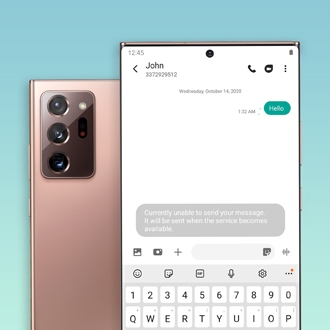
Galaxy phone with an error message pop-up.

Camera will not open on Samsung Galaxy device

Note
Menu names, settings, and screen layouts may vary depending on the model and software version.

Clear the Camera app data

A temporary Camera app error may prevent the camera from opening. Clearing the Camera app data may help restore normal operation.

  1. Open Settings, then tap Apps.
  2. Tap Camera.
    Apps list with Camera selected.
  3. Tap Storage. 

    Camera menu with the Storage option highlighted.
  4. Tap Clear data. 
    Storage screen with the Clear data button highlighted.
  5. Tap Delete to confirm.
Note
Clearing the Camera app data resets camera settings to default values, but saved photos, videos, and other personal data will not be deleted.
Read less

Restart your Galaxy device

A temporary system error may prevent the camera from functioning properly. Restart the device and check the camera again.


Restart using the power menu

  1. Swipe down from the top of the screen to open the Quick settings panel, then tap the Power off icon.
  2. Tap Restart. 
    Power menu with Restart option highlighted.


Restart using the buttons


Press and hold the Side key and Volume down key at the same time for more than 7 seconds until the device restarts.
Image showing a phone with the Side key and Volume down key being pressed simultaneously.

Read less

Run Galaxy phone diagnostics for the camera

You can use the Samsung Members app to check the camera status through Phone diagnostics.
Note
Phone diagnostics is available only on Galaxy devices with the Samsung Members app installed.
  1. Open the Samsung Members app, then tap Support.
    Samsung Members home screen with the Support tab selected.
  2. Tap Get started under Phone diagnostics. The full diagnostics scan will begin. You can stop the process and select specific items to run individual tests.

    Samsung Members support screen with the Get started button highlighted.
  3. Tap Camera.

    Phone diagnostics list with the Camera option selected.
  4. Check the diagnostic results.
Read less
Note
If the camera still does not work after trying the steps above, the camera module or internal circuitry may require inspection. Please visit a Samsung service center for professional diagnosis and repair.
Was this content helpful?
We're here for you

Contact Samsung Support

Contact us online through chat and get support from an expert on your computer, mobile device, or tablet. Support is also available on your mobile device through the Samsung Members App.