Buttons do not properly work on Samsung Galaxy device

If the buttons on your Galaxy device appear to be not responding properly, you may not be able to adjust the volume or turn the device on or off normally. This issue may be caused by temporary software errors, device settings, physical obstruction, or hardware problems. Follow the troubleshooting steps below to check whether the issue is software-related or requires hardware inspection.
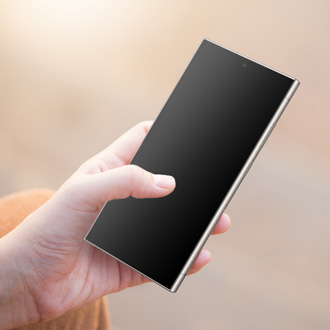
Side button being pressed with a thumb on a Galaxy phone.

Buttons do not properly work on Samsung Galaxy device

Note
Device screenshots, menu names, and settings may vary depending on the device model and software version.

Update your Galaxy device software

Outdated software may affect device performance or button functionality.
  1. Open Settings, then tap Software update.
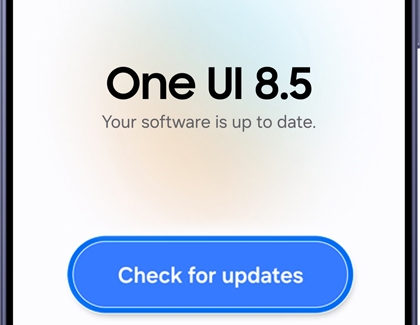
  2. Tap Check for updates.
    Software update screen with the Check for updates option highlighted.
  3. Follow the on-screen instructions. A confirmation will appear once the software is up to date.
Read less

Run Galaxy phone diagnostics for the buttons

You can use the Samsung Members app to diagnose whether the issue is related to the hardware buttons.


Before running diagnostics, check whether a case, dust, or other foreign material is preventing the buttons from being pressed properly.
Run diagnostics in Samsung Members

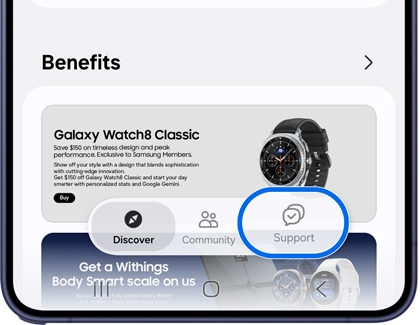
  1. Open the Samsung Members app, then tap Support.
    Samsung Members app with the Support tab highlighted.
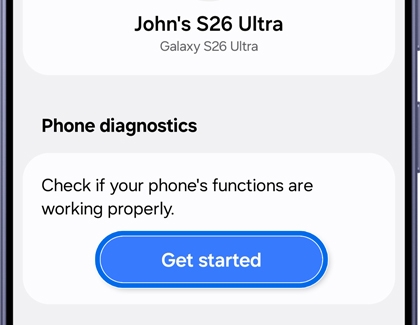
  2. Tap Get started under Phone diagnostics. The full diagnostics scan will begin. You can stop the process and select specific items to run individual tests.
    Samsung Members support screen with the Phone diagnostics Get started button highlighted.
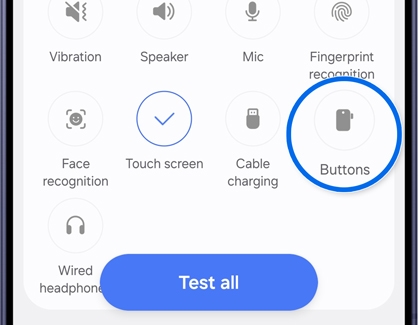
  3. Select Buttons. 

    Samsung Members diagnostics list with the Buttons option highlighted
  4. Follow the on-screen instructions.
  5. Check the diagnostic results.
Read less

Reset all settings

If Samsung Members diagnostics does not detect a hardware issue, resetting all settings may help resolve the problem.
  1. Open Settings, then tap General management.
  2. Tap Reset.
  3. Tap Reset all settings.
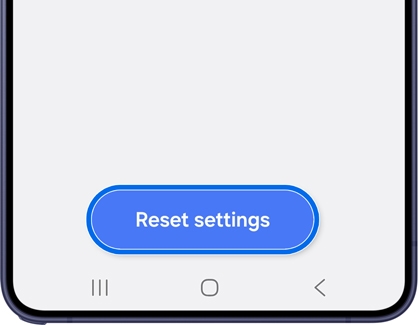
    Reset all settings screen with the Reset settings button highlighted.
  4. Tap Reset settings, then tap Reset again to confirm.
Note
Reset all settings does not delete personal data stored on the device.
Read less
Was this content helpful?
We're here for you

Contact Samsung Support

Contact us online through chat and get support from an expert on your computer, mobile device, or tablet. Support is also available on your mobile device through the Samsung Members App.