NFC is not working properly on a Samsung Galaxy device

NFC on Galaxy devices is a short-range wireless communication technology used for features such as Samsung Wallet payments, transportation cards, and data transfer between nearby devices. If NFC appears to be not working properly on your Galaxy device, the issue may be related to NFC settings, payment configuration, accessories, or the SIM card. Follow the steps below to troubleshoot NFC issues on your Galaxy device.
A person tapping a Samsung Galaxy phone against an NFC reader for payment.

NFC is not working properly on a Samsung Galaxy device

Note
Menu names, settings, and screen layouts may vary depending on the model and software version.

Hold the device correctly near the NFC reader

A smartphone being held flat against the top of an NFC payment terminal.

To make payments or read and write NFC tags, place the area marked for NFC detection close to the NFC reader or payment terminal.

Read less

Turn NFC off and back on

Temporarily turning NFC off and back on may help resolve NFC connection issues.

Add the NFC button to the Quick settings panel

  1. Swipe down from the top right corner of the screen to open the Quick settings panel.
  2. Tap the Edit icon.
    Quick panel screen with the Edit icon highlighted.
  3. Tap Add a control.
    Quick panel editing screen with Add a control highlighted.
  4. Tap NFC.
    Control selection screen with NFC highlighted.
  5. Press and hold the NFC button, then drag it to the top area of the Quick settings panel.
    Quick panel editing screen with the NFC button placed on top.
  6. Tap Done.
    Expandable area screen with the Done button highlighted.
  7. Tap Done.
    Quick panel editing screen with the Done button highlighted.

Turn NFC off and back on from the Quick settings panel

  1. Swipe down from the top right corner of the screen to open the Quick settings panel.
  2. Tap the NFC button to turn it off.
    Quick panel screen with the NFC button turned off.
  3. Tap the NFC button again to turn it back on.
Read less

Check the default NFC payment service

If NFC payments are not working properly, check whether the correct wallet app is set as the default NFC payment service.

  1. Open Settings, then tap Connections.
  2. Tap NFC and contactless payments. Turn on the feature.
    Connections menu with NFC and contactless payments highlighted.
  3. Tap Default wallet app.
    NFC and contactless payments screen with Default wallet app highlighted.
  4. Select Samsung Wallet.
    Default wallet app menu with Samsung Wallet selected.
Read less

Remove cases or accessories that may interfere with NFC

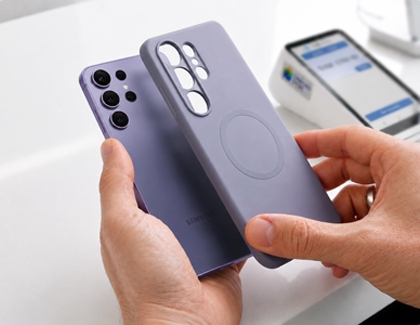
A protective case being removed from the back of a smartphone.

Some non-genuine covers or cases, especially those containing magnets, cards, or metal materials, may interfere with NFC communication.

Remove the case or accessory from the device and try using NFC again.

Read less

Reinsert the SIM card and restart the device

Some NFC services store payment or authentication information on the SIM card. If there is a problem with the SIM card or the NFC-related information stored on it, NFC services may not work properly.

Remove and reinsert the SIM card, then restart the device and check again. If the problem persists, SIM card replacement may be necessary.

  1. Insert the SIM eject pin into the tray hole. Always insert the eject pin straight into the tray hole.
    A SIM eject pin inserted into the tray hole on the side of a smartphone.
  2. Pull out the SIM tray completely.
    The SIM tray being pulled out of the device.
    Important: Do not bend or force the SIM tray.
  3. Replace the SIM card in the tray with the gold contacts facing upward. Make sure the SIM card is properly seated in the tray.
    A SIM card being placed into the tray with gold contacts facing upward.
  4. Reinsert the tray fully into the device.
    The SIM tray being reinserted into the device.
Read less
Was this content helpful?
We're here for you

Contact Samsung Support

Contact us online through chat and get support from an expert on your computer, mobile device, or tablet. Support is also available on your mobile device through the Samsung Members App.