What to do when your Samsung Galaxy device will not charge while connected to a PC

If your Samsung phone or tablet won't charge when connected to a PC, it could be due to USB settings, power delivery, or device compatibility. Here's how to resolve the issue:
Overhead view of a Samsung Galaxy phone connected to a laptop on a wooden table.

What to do when your Samsung Galaxy device will not charge while connected to a PC

Check your charger and charging cable

Using incompatible or damaged charging accessories may cause slow charging, charging interruptions, or charging failure. 
Caution
Using incompatible accessories may damage the device or cause charging issues.

Use Samsung compatible chargers and cables

Even if chargers and cables look similar, charging quality and performance may vary.

  • For optimized charging performance and device safety, Samsung recommends using compatible Samsung chargers and charging cables designed for your Galaxy device.

Check the charging cable connection

If the charging cable is not connected properly, the device may not charge normally.

  • Disconnect the charging cable from the Galaxy device and reconnect it securely to the charging port.
Caution
Damage caused by user misuse or chargers outside the warranty period may require purchasing a new charger.

Check for charging cable damage

A damaged charging cable may prevent normal charging.

  • Try charging the device using another compatible Samsung charger and cable.
  • If charging still does not work, visit a Samsung service center for hardware inspection.
Read less

Check for debri in the charging port

Dust or foreign material inside the charging port is one of the most common causes of charging issues. If dust, lint, or debris builds up inside the charging port, the charging cable may not connect properly to the charging terminals.

Inspecting the charging port with a flashlight.

  1. Turn off the Galaxy device and your PC, and then use a flashlight to inspect the charging port.
  2. If dust or debris is visible, carefully remove it without using metal objects or liquids.
Read less

Check for moisture detection notifications

If moisture is detected in the charging port, charging may stop to help protect the device from damage.
Note
Even on water-resistant Galaxy devices, the charging port must be completely dry before charging.
  1. Check for moisture detection notifications.
    Galaxy screen with moisture detection notification pop-up.
  2. Shake the device gently to remove moisture from the charging port, then wipe the device with a soft, clean cloth.
    Wiping charging port with a cloth
  3. Dry the device in a well-ventilated area using cool air.
Read less

Restart both your Galaxy device and PC

Restart both your device and PC to reset any temporary software glitches.

Restart your device

  1. Swipe down from the top of your screen to open the Quick Settings panel.
  2. Tap the Power off icon.
     Quick Settings panel with the Power icon highlighted.
  3. Tap Restart.
    Power menu with the Restart option highlighted.

Restart your PC

  1. Click the Start Menu in the lower corner of your screen.
  2.  Click the Power icon, and then click Restart.
    Windows Start menu power options with Restart outlined in blue.
After restarting both your device and PC, reconnect your device to the PC's USB port and test charging again. If the issue persists, continue to the next section in this support guide.
Read less

Check the Power deliver from your PC

Note
  • Ensure your PC is powered on and not in sleep mode.
  • Avoid using hubs or adapters, as they may reduce power output.

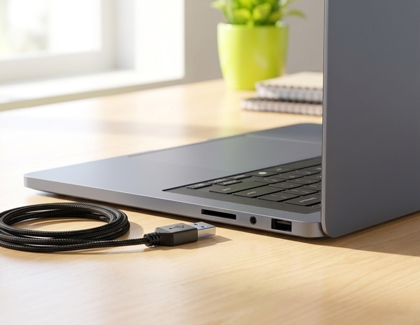
A laptop on a wooden desk next to a coiled USB cable.

Check the USB power output on your PC

If the PC has an available USB 3.0 port, often marked in blue, then faster charging may be available. Try using this port when charging your device.

Some PCs may also have a designated charging port intended to provide higher power output. Check your PC's manual for details.

Update the drivers for Portable Devices

If your Samsung device still won't charge when connected to a PC, outdated or missing drivers could be the issue. Updating drivers ensures proper communication and may resolve charging problems.

  1. On your PC, open Device Manager. 
  2. Locate your device under Portable Devices.
    Device Manager window with Portable Devices expanded and a connected Galaxy S26 Ultra outlined in blue.
    Note: Your phone or tablet must be connected to the USB port on your PC.
  3. Right-click your device, and then select Update driver.
    Device Manager context menu with Update driver option outlined in blue.
Read less
Note
For reliable charging, use a Samsung charger. If the problem continues or you notice significantly reduced battery life, it may indicate a hardware issue. In such cases, visit a Samsung service center for inspection.
Was this content helpful?
We're here for you

Contact Samsung Support

Contact us online through chat and get support from an expert on your computer, mobile device, or tablet. Support is also available on your mobile device through the Samsung Members App.