Samsung Galaxy device will not start or is in a boot loop

If your Samsung Galaxy phone or tablet does not boot to the lock screen or unexpectedly reboots repeatedly, it could be due to software glitches, low battery, incompatible apps, or hardware issues. Follow the steps below to resolve the issue and restore your device to normal operation.

Samsung Galaxy device will not start or is in a boot loop

Note
Menu names, settings options, and screen layouts may vary depending on the device model, software version, and app version.

Inspect your device for damage

Note
We recommend visiting a Samsung service center for professional inspection and repair.

Check for physical damage

  • Look for scratches, cracks, or other damage on the front and back of the device. Obvious cracks on the screen are usually due to an impact on the front of the device.
  • If the device has a round spot of dead pixels, it may have been subjected to a more gradual pressure that left the front glass intact, while damaging the screen underneath.
  • Ensure the connectors in the charging port are not corroded, bent, broken, or pushed in. If you have a removable battery, check the battery connectors as well.

If the display was damaged by a strong external impact, it may not function properly. Stop using the device immediately and visit a nearby Samsung service center to have the device inspected.

Caution
  • If the microphone, speaker, or receiver is not completely dry, call quality may be affected.
  • Some functions, such as touch input, may not work properly when the device is underwater.
  • Improper cleaning or drying methods may cause discoloration, corrosion, or permanent damage to the device.
    • Do not use heat sources such as hair dryers to dry your device.
    • Do not use chemical cleaners, abrasive materials, compressed air or external heat sources to clean your device.
  • We recommend visiting a Samsung service center to have your device inspected for possible damage, even if it appears to work normally after water exposure.

Check for liquid damage

If your Galaxy device supports water resistance and is exposed to dirty water or liquids such as soap water, oil, perfume, sunscreen, hand sanitizer, cosmetics, or alcohol-containing liquids, follow the steps below.
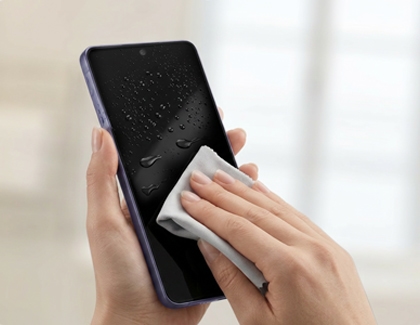
  1. Rinse the device in clean water for 1 to 3 minutes to remove residue, salt, or foreign materials.
  2. Wipe the device with a soft, clean cloth and dry it completely. 

    Do not connect a charger or accessories until the device is fully dry.
    Using a dry microfiber cloth to wipe water droplets off a Galaxy phone screen.
Read less

Restart your device

Background processes or temporary software issues may affect device performance. Restarting your device can close all running apps and refresh the system.

Restart using the power menu

  1. Swipe down from the top right of the screen to open the Quick panel.
  2. Tap the Power off icon.
  3. Tap Restart.
    Power menu showing the Restart option.

Restart using the buttons

If the device freezes or the Restart menu does not appear:


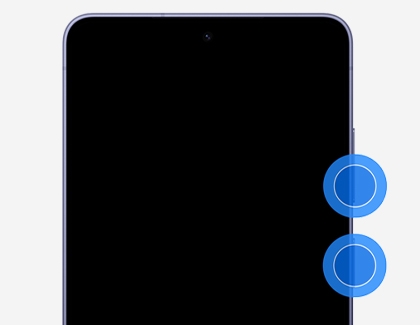
Press and hold the Side key and Volume down key at the same time for more than 7 seconds until the device restarts.
Image showing a phone with the Side key and Volume down key being pressed simultaneously.

Read less

Remove non-genuine accessories from your device

Note
Non-genuine accessories may affect touchscreen performance and device functionality.

Non-genuine screen protectors or cases may affect touchscreen functionality or cause gesture recognition issues, especially around the screen edges.

Remove the screen protector or case and check whether the touchscreen works normally.

Read less

Charge your device with a Samsung-certified charger

The battery may be fully discharged. Connect a Samsung-certified charger and cable.
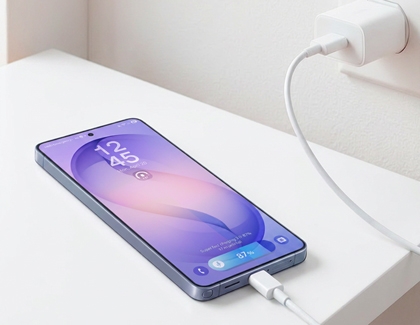
MOB_PH_GS_S26_Charge-your-device-with-a-Samsung-certified-charger-if-the-battery-may-be-fully-discharged.jpg

  • If the battery is completely drained, the charging indicator (lightning icon) may not appear on the screen.
  • Even if nothing appears on the screen, continue charging the device.
     

Charging may not work properly due to an issue with the charger or cable. If you have a spare charger and cable, try using them to charge your device, then turn it on.
Caution
Use only Samsung-approved chargers and cables. Do not use any worn or damaged chargers or cables. Incompatible chargers or cables can cause serious injuries or damage to your device.
Read less

Check for available software updates on your device

Keeping your Galaxy device updated helps improve performance, stability, and compatibility.

Device with One UI 8.0 or earlier

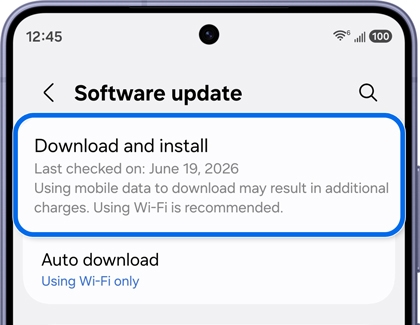
  1. Open Settings, then tap Software update.
  2. Tap Download and install.
    Software update screen with the Download and install option highlighted.
  3. Follow the on-screen instructions if an update is available.
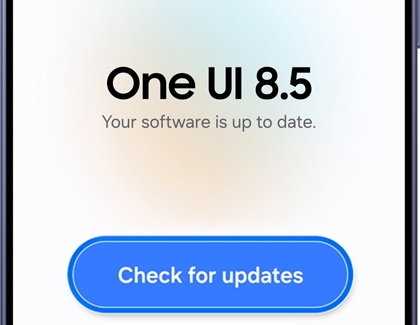
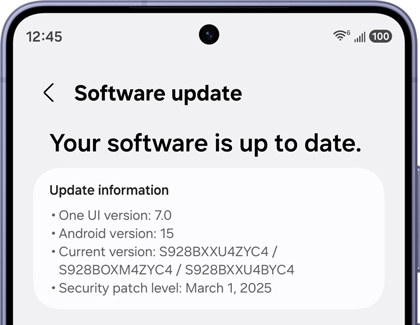
    A screen confirming that the software is up to date.

Device with One UI 8.5 or later

  1. Open Settings, then tap Software update.
  2. Tap Check for updates.
    Software update screen with the Check for updates option highlighted.
  3. Follow the on-screen instructions if an update is available.
Note
When you open Smart Switch on your Mac or Windows PC, you’ll see an option to update to a new software version if one is available.

Check for software updates using Smart Switch on a PC

  1. Make sure your Mac or Windows PC has Smart Switch installed.
  2. Using the USB cable that came included in the box with your Galaxy device, connect the device to your Mac or PC. Some PCs may require a USB adapter.
  3. Open Smart Switch on the Mac or PC and allow it to detect your device. If an update is available, the Update option will appear.
  4. Select Update and follow the on-screen prompts to download and install the update.
    Note: Do not disconnect the USB cable or use your device until the update is complete. Your Galaxy device will reboot as part of the update process.
  5. If you were having issues before the software update, use the phone or tablet normally to verify if the problem has been solved.
Read less

Troubleshoot your device in Safe mode

Safe mode can be used to diagnose potential issues caused by some third-party applications.

Safe mode runs the device using only the core applications; therefore, it can be used to determine if a third-party application is causing the issue.
 

Enter Safe mode

  1. Press and hold the Volume down button and the Side button until the Power off menu appears.

    Volume down button and the Side button highlighted.

  2. Touch and hold the Power off icon until the option for Safe mode appears.

    Power off icon selected from the Power off menu on a Galaxy device.
  3. Tap Safe mode.

    Safe mode selected from the Power off menu on a Galaxy device.

Troubleshoot the issue in Safe mode

If the issue stops when your device is in Safe Mode, this could mean that the issue is being caused by a bug with one of the apps you have installed.

To find out which app is causing the issue: 

  1. Uninstall the most recent app you downloaded before the issue started.
  2. Repeat until the issue stops. You can always reinstall apps if it wasn't causing the issue.

If the issue persists even in Safe Mode, it is likely a hardware issue rather than a software issue. If this is the case, please visit a Samsung walk-in service center or you can schedule a repair service online.

Exit Safe mode

  1. Press and hold the Volume down button and the Side button until the Power off menu appears.

    Volume down button and the Side button highlighted.

  2. Tap Power off to turn off the device.

    Power off icon selected from the Power off menu on a Galaxy device.
  3. Wait until the device completely turns off, and then press the Power button again to turn it on.
Read less

Reset your device to factory default settings

Important
  • Please save any information you need prior to the factory reset because your personal information may not be recovered.
  • If you have encrypted the microSD card, you must decrypt it before resetting the device. Otherwise, your device will not be able to read the data on the card. From Settings, search for and select Decrypt SD card, and then follow the on-screen prompts.
  • A network connection will be required to log out of your Samsung account before you can complete the reset.
  • If you cannot reset your device or complete the initial setup due to the account credentials that are stored on the device, please contact us for assistance.

Resetting your device to factory defaults should only be used as a last resort and after trying the previous steps. A factory data reset will remove all data and content from your device. Before performing a factory reset, be sure to back up your personal data, so you don't lose it all.
  1. Navigate to and open Settings, then tap General management.
  2. Tap Reset, and then tap Factory data reset.
  3. Swipe to and tap Reset, and then tap Delete all.
  4. Enter your Samsung account credentials to complete the reset; your device will reset, and you will need to perform the initial setup process.
Read less
Was this content helpful?
We're here for you

Contact Samsung Support

Contact us online through chat and get support from an expert on your computer, mobile device, or tablet. Support is also available on your mobile device through the Samsung Members App.