What to do when your Samsung Galaxy device battery drains faster

What to do when your Samsung Galaxy device battery drains faster
How to reduce battery drain
- During the first few days of using your Galaxy device, battery consumption may temporarily increase as various apps and services are being optimized. Once this process is complete, battery usage will return to normal.
- An unstable network connection can reduce call quality and signal strength, leading to faster battery drain. Move to an area with a stronger signal to reduce battery consumption.
Restart your Galaxy device to optimize performance and reduce battery consumption
Regularly restarting your phone not only reduces battery consumption but also helps maintain optimal performance.
- Swipe down from the top right of the screen to open the Quick panel.
- Tap the Power off icon.
- Tap Restart, and then tap Restart again.
Turn off unused functions and apps to reduce battery drainage
Applications that use auto sync, Wi-Fi, Bluetooth, or GPS can increase battery consumption. Turn them off when they’re not in use.
- Swipe down from the top right of the screen to open the Quick panel.
- Turn off features that are not in use, such as Wi-Fi or Bluetooth.
Use Device optimization to improve battery performance
Device optimization removes unnecessary files and background apps, helping to reduce battery consumption and improve overall performance.
- Open Settings, then tap Device care.
- Tap Optimize now to optimize your device.
- Sleeping mode apps may not refresh or send notifications immediately.
- Deep sleeping apps do not run in the background at all and only work when opened manually.
- Messages or notifications from sleeping apps may be limited.
Set apps to the sleeping or the deep sleeping mode to reduce battery consumption
Set unused or infrequently used apps to the Sleeping or the Deep sleeping mode to reduce battery consumption on your Galaxy device.
- Open Settings, and then tap Battery.
- Tap Background usage limits.
- Tap Sleeping apps or Deep sleeping apps.
- Tap the Plus icon, select rarely used apps, and then tap Add.
Turn on Power saving mode to reduce battery consumption
When Power saving mode is turned on, your device restricts background data use for unused apps and disables high power features such as Always On Display to extend battery life. You can also customize options like limiting CPU speed, lowering screen brightness, or turning on Dark mode as needed. Infrequently used apps can be set to Power saving mode, so they don’t run automatically in the background.
- Open Settings, and then tap Battery.
- Tap Power saving, and then turn on the switch at the top of the menu.
- Select additional restrictions as needed.
Uninstall downloaded apps that drain your Galaxy device’s battery
Some downloaded apps may drain your Galaxy device’s battery excessively. Identify and uninstall such apps to reduce battery drain.
- Open Settings, and then tap Battery.
- Tap on the battery graph, and then select the apps.
- Check the detailed Battery usage for the app.
- Select the app you want to remove, and then tap Uninstall.
- Tap OK to confirm removal.
Check for signs of battery aging
When to consider replacing the battery
Lithium-ion batteries gradually lose performance over time with continued use. The common signs of battery aging include:
- Battery drains quickly after charging
- The device turns off unexpectedly, especially in cold environments or during winter
These symptoms may indicate that the battery is nearing the end of its lifespan. If you notice these changes, consider checking the battery condition and replacing the battery if necessary.
How to identify battery replacement timing through the alert
When the battery performance significantly declines, your Galaxy device may display a battery performance degradation alert.
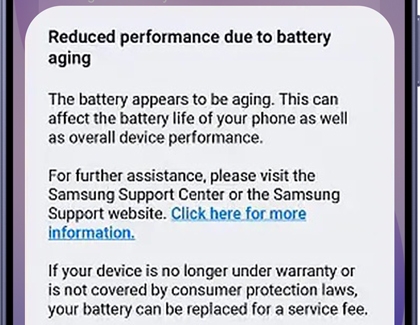
If this notification appears, visit a Samsung service center to have the battery inspected.
Check battery status using Samsung Members app
You can use Samsung Members diagnostics to check the current battery condition of your Galaxy device.
- Open the Samsung Members app, then tap Support.
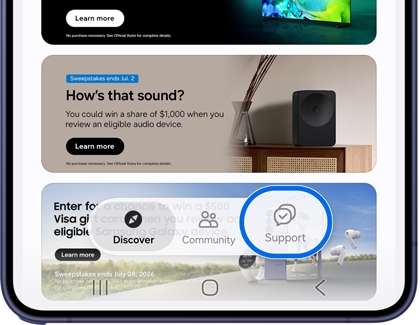
- Tap Get Started. Start the full diagnostics first, stop the test, and then select the item you want to test. If the diagnostics page does not open properly, try using the Samsung Internet app.
- Tap Battery status.
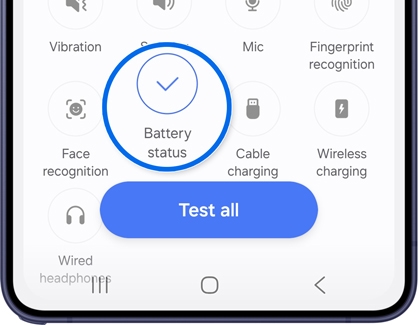
- Check the diagnostic results.