How to Hide Apps on a Galaxy Phone
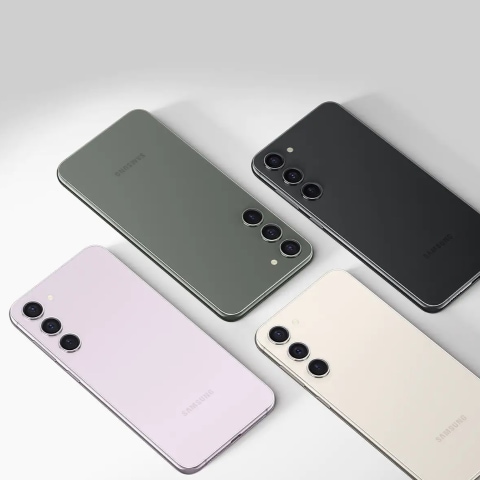
How to Hide Apps on Samsung Galaxy Phones
Why Do You Need to Hide Apps on Your Samsung Galaxy Phone?
Hiding apps on your Samsung Galaxy phone helps declutter your home screen and app tray, especially when you cannot uninstall pre-installed applications. This feature is particularly useful for managing apps you rarely use or want to keep private.
How to Hide Apps on Your Samsung Galaxy Phone
- Open Settings on your Samsung Galaxy device.
- Tap on Apps or Applications.
- Find and select the app you want to hide.
- Tap on Disable and confirm the action.
- The app will be removed from your home screen and app tray.
- Disabling an app stops it from running in the background and removes it from your home screen and app tray.
How to Re-enable Hidden Apps
- Go to Settings on your Samsung Galaxy device.
- Tap on Apps or Applications.
- Select the disabled app you want to re-enable.
- Tap on Enable and confirm the action.
- The app will reappear on your home screen and app tray.
Using Secure Folder to Hide Apps
For added privacy, you can use the Secure Folder feature on your Samsung Galaxy phone. This allows you to store apps and files securely within a password-protected folder.
- Open the Secure Folder app on your Samsung Galaxy device.
- Set up your Secure Folder using biometric authentication (e.g., fingerprint or facial recognition).
- Add the apps you want to hide by tapping the + icon and selecting the desired apps.
- These apps will now be stored securely within the Secure Folder and can only be accessed using your authentication method.
Additional Things to Check
- Ensure your Samsung Galaxy device is updated to the latest software version for optimal performance and security.
- Check if the app you want to hide is a system app, as some system apps cannot be disabled or hidden.
Supported Samsung Galaxy Devices
This feature is available on most Samsung Galaxy devices, including the Galaxy S24, Galaxy S25, Galaxy S26, Galaxy Z Fold, Galaxy Z Flip, and Galaxy A series.
Related Samsung Support Topics
Thank you for your feedback!
Please answer all questions.