How to Fix Sound and Noise Issues on a Samsung TV
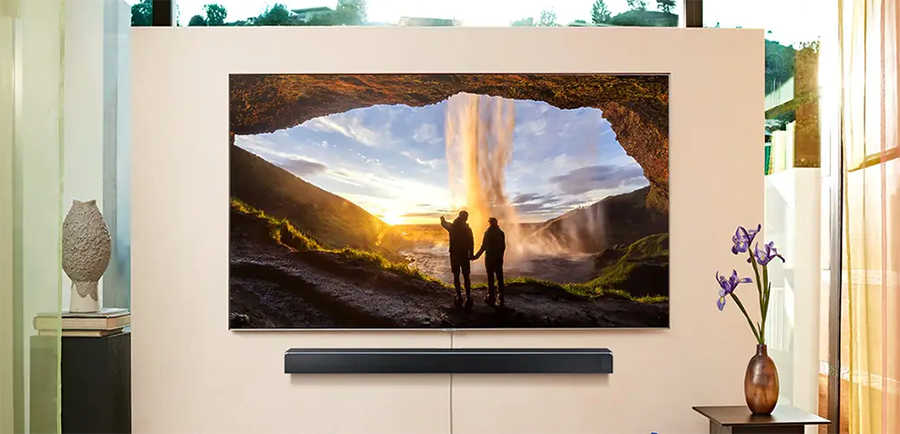
Experiencing sound or noise issues on your Samsung TV? Common problems like no audio, distorted sound, or unusual noises can often be resolved with simple adjustments to volume settings, cable connections, or sound configurations. Follow these steps to troubleshoot effectively and restore optimal audio performance.
1. Why is there no sound on my Samsung TV?
No sound on your Samsung TV can result from incorrect volume settings, loose cable connections, or external device configurations. Here's how to fix it:
- Check the TV's volume control to ensure it's not muted or set too low.
- Verify the volume settings on any connected external devices, such as cable boxes, streaming devices, or gaming consoles.
- Inspect the cable connections between the external device and the TV, ensuring they are securely plugged in.
- Navigate to Menu > Settings > All Settings > Sound > Sound Output and confirm the audio output is set to TV Speaker.
2. Why is the sound distorted or noisy on my Samsung TV?
Distorted or noisy sound can stem from signal interference, incorrect audio output settings, or hardware issues. Try these solutions:
- Check the audio output option on your external device. For example, if using an HDMI cable, ensure the device's audio output is set to HDMI.
- Connect an external speaker to your computer's audio output connector if you're experiencing sound issues while watching computer content.
- Ensure nothing is plugged into the TV's headphone jack, as this can redirect audio away from the TV speakers.
- Reboot the connected external device by unplugging and replugging its power cord.
3. How do I optimize sound quality on my Samsung TV?
Adjusting sound modes and enabling intelligent features can enhance audio performance:
- Go to Menu > Settings > All Settings > Sound > Sound Mode and select an appropriate sound mode for your content.
- Enable Intelligent Mode under Menu > Settings > All Settings > General & Privacy > Intelligent Mode Settings to automatically adjust sound effects based on your environment.
- Activate Adaptive Sound Pro under Menu > Settings > All Settings > General & Privacy > Intelligent Mode Settings for dynamic sound optimization. Note: This feature may not be available on all models.
4. What should I do if the sound issues persist?
If sound problems continue, perform a sound test or check for signal issues:
- Run a Sound Test by navigating to Menu > Settings > Support > Device Care > Self Diagnosis > Sound Test.
- For antenna or cable connections, check the Signal Information under Menu > Settings > Support > Device Care > Self Diagnosis > Signal Information. A low signal level may cause sound distortions.
- If using a Bluetooth speaker, ensure the wireless router is not placed too close to the speaker, as this can cause interference. Opt for a 5 GHz wireless access point if available.
5. Supported Samsung TV Models
These troubleshooting steps apply to most Samsung TV models, including the latest Galaxy S24, Galaxy S25, Galaxy S26, Galaxy Z Fold, Galaxy Z Flip, and Galaxy A series devices. For model-specific features, refer to your user manual.
6. Related Samsung Support Topics
Thank you for your feedback!
Please answer all questions.