Manage notifications on your Samsung Galaxy Watch

Your Galaxy Watch helps you stay updated with calls and notifications. If you’re receiving too many unwanted notifications, you can adjust the settings to control which notifications are shown.
A silver Galaxy Watch showing a notification on a purple screen surrounded by app icons.

Manage notifications on your Samsung Galaxy Watch

Note
Available screens and settings may vary by provider, phone, or watch.

Manage notifications

Customize notification settings


You can manage your notification settings in the Wearable app.

  1. Open the Wearable app.
  2. Tap Watch settings.
  3. Tap Notifications.
  4. Tap Advanced settings to access additional notification features.
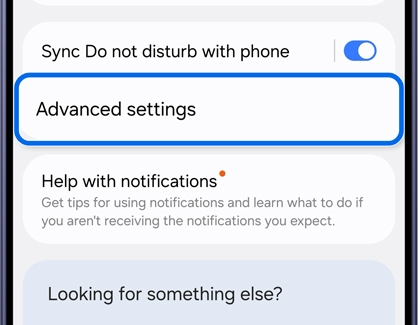
    Notifications screen with Advanced settings highlighted.
  5. Select additional notification features.
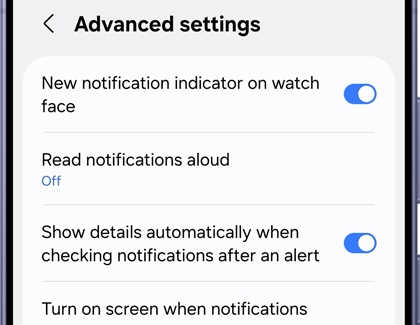
    Advanced settings screen showing the list of additional notification features.

The following options are available in the Advanced settings:

  • New notification indicator on watch face: Displays a small dot on the screen when you have unread notifications.
  • Read notifications aloud: Reads notifications aloud when your watch and earbuds are connected.

    Note: This feature will not work if the earbuds are connected to your phone instead.
  • Show details automatically when checking notifications after an alert: Shows the details of new notifications automatically.
  • Turn on screen when notifications received: Wakes the watch screen when a notification arrives.

    Note: The screen will not turn on for muted notifications.
  • Auto turn on watch notifications for new phone apps: Automatically enables watch notifications for apps newly installed on your phone.

Manage notification settings on previous models


To make your notifications even better, you can choose when and how you receive them.

  1. Open the Galaxy Wearable app on your phone, and then tap Watch settings or the Home tab.
  2. Next, tap Notifications, and make sure the switch at the top of the screen is turned on to receive notifications.
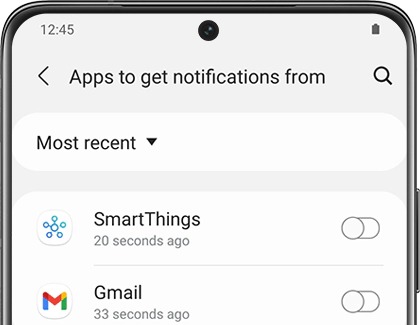
    List of notifications with switches in the Galaxy Wearable app
  3. From here, you can select from the following settings:
    • Show only while wearing: Only show notifications on your watch while it's being worn.
    • Show while using phone: Show phone notifications on your watch while you're using your phone.
    • Turn on for new apps: Set newly installed apps to send notifications.


Tap See all notification settings to access these additional options:

  • Mute connected phone: If Show only while wearing is enabled, this option will prevent your phone from making a sound for notifications.
  • Show while using phone: Show notifications on your watch when you're using your phone.
  • Turn on for new apps: Turn on notifications for newly installed apps.
  • Show with details: Show the details of new notifications.
  • Turn on screen: Turn on the watch screen when you receive notifications.
  • Auto open apps on phone: Pick up your phone to open the relevant app automatically when you get notifications on your watch.


If your watch is connected to an iOS phone, you can manage notifications settings for the watch using the Samsung Galaxy Watch app on the phone. Once you open the app, just tap Notifications, and then tap the switch at the top. From here, you can also enable Show with details, Turn on screen, and Notification indicator. Smart relay won't be available if you activate this.

Read less

Manage app notifications

Manage app notifications on your phone


If you only want notifications from certain apps, you can choose them individually in the Wearable app.

  1. Open the Wearable app, then tap Watch settings, and then tap Notifications.
  2. Tap App notifications, then tap the dropdown arrow, and then select All to see all installed apps. Apps installed on the watch and apps installed on your phone are shown separately as Watch apps and Phone apps.
    App notifications screen showing the dropdown menu for selecting All.
  3. To turn notifications on or off for individual apps, tap the switch next to your desired app.
  4. To turn notifications on or off for all apps, tap the switch next to Allow all.
  5. If notifications are turned off for an app on your phone, you can check it under Apps with notifications turned off on phone at the bottom of the app notifications screen.
    App notifications screen scrolled to the bottom, showing Apps with notifications turned off on phone highlighted.

Manage app notifications on your watch


Use your Galaxy Watch to select which apps are allowed to send you notifications on your wearable device.

  1. Open Settings, then select Notifications.
  2. Tap App notifications.
    Notifications screen on Galaxy Watch with App notifications highlighted.
  3. Tap the app you want to activate or deactivate.
  4. Tap the switch to enable or disable notifications for that app.
    Allow notifications switch enabled on Galaxy Watch.

Manage app notifications on previous models


Keep getting notifications from that puzzle game? You can customize which apps will send notifications to your watch.

  1. Navigate to and open the Galaxy Wearable app on your phone. Tap Watch settings or the Home tab, and then tap Notifications.
  2. Make sure the switch at the top of the screen is turned on.
  3. Tap See all under "Recently sent notifications." Then, tap the drop-down arrow and select All. Now you will be able to view all apps installed on your phone.
    See all highlighted under Recently sent notifications in the Galaxy Wearable app
  4. To turn notifications on or off for individual apps, tap the switch next to your desired app.
  5. If you want to turn notifications on or off for all apps, tap the switch at the top of the screen next to All apps.


Don't forget to set newly installed apps to automatically send notifications. To do this, tap the switch next to "Turn on for new apps" from the Notifications menu.


If your watch is connected to an iOS phone, you can block unwanted notifications for apps that you receive on the watch. These notifications will need to be blocked directly on the watch. However, you can view the notifications you've blocked in the Samsung Galaxy Watch app.

  1. Open the app on the phone, tap Notifications,
  2. Make sure the switch at the top is turned on.
  3. Tap Blocked notifications.
  4. To remove an app from the list, tap the Minus sign.
Read less

Manage notification delivery settings

To receive notifications on your Galaxy Watch while using your phone, first check your notification settings.


  1. Open the Wearable app. Tap Watch settings, then tap Notifications.
  2. Check the setting for Phone notifications on watch.
    Notifications screen with Phone notifications on watch setting highlighted.
    • If Smart device selection is enabled, notifications will not appear on your watch while you are using your phone.
    • If you want to receive watch notifications even while using your phone, change the setting to Always show on both.
Note
If Always show on both is enabled, notifications will sound and vibrate on both your phone and watch, regardless of which device you are using. This may affect battery usage on your phone and watch.
Read less

Manage the notification reminder feature

Note
This option is not available on Wear OS models.

Make your watch remind you of any unread notifications just in case you've missed them.

Notification reminder settings on the Galaxy Watch Active 2

  1. On your watch, navigate to Settings.
  2. Swipe to and tap Accessibility.
  3. Tap Advanced settings.
  4. Tap Notification reminder.
  5. Tap the switch to turn this feature on.


Below the switch, the following settings are available:

  • Vibrate when sound plays: The watch will vibrate when it makes a notification sound.
  • Remind every: Get a reminder about unread notifications. Choose from 3 minutes, 5 minutes, or 10 minutes.

Alternatively, you can also open the Galaxy Wearable app on your phone, then tap Watch settings, and then tap Accessibility. Tap Advanced settings, and then tap Notification reminder. Tap the switch to turn it on.

Read less

Manage notification sounds

List of Notification sound in the Galaxy Wearable app

You may want to apply a unique sound to your watch notifications, like a ringtone. Or, maybe you prefer vibration alerts instead. You can set up your watch’s sounds to match your preferences, whether you’re receiving texts, emails, or app alerts. These options can be applied right from your watch or from the Galaxy Wearable app on your connected phone.


On models with Wear OS, make sure the notification volume is enabled so you don’t miss anything.

  1. Open the Galaxy Wearable app on the connected phone.
  2. Tap Sounds and vibration.
  3. Adjust the settings for Volume and Notification sound.
Read less
Was this content helpful?
Table of contents
We're here for you

Contact Samsung Support

Contact us online through chat and get support from an expert on your computer, mobile device, or tablet. Support is also available on your mobile device through the Samsung Members App.

