Watch Samsung TV Plus on Galaxy phones and tablets

Samsung TV Plus is Samsung's free, ad-supported streaming service. You can find news, sports, movies, music, kids and family entertainment, and more! With a Samsung phone or tablet, you can watch anywhere, anytime.
Galaxy S25 Ultra displaying the Samsung TV Plus app on its screen.

Watch Samsung TV Plus on Galaxy phones and tablets

Important
Samsung TV Plus mobile is only available in the USA.

Compatibility

Note
An internet connection is required to stream. 
Samsung TV Plus is accessible on Galaxy phones and tablets running Android 8.0 or later, as well as on Samsung Family Hub refrigerators. Additionally, it's supported on a wide range of Samsung TVs. For more details about Samsung TV Plus, visit the Samsung TV Plus page.
Read less

Using Samsung TV Plus

Samsung TV plus features hundreds of free live TV channels spanning multiple genres like news, entertainment, sports, and more so there’s always something for everyone. You'll also have access to a huge variety of on demand shows and movies.

Navigate to and open the Samsung TV Plus app, then tap Continue, and then allow the permissions when prompted. You can select from the Home and Live TV tabs.

Live TV tab
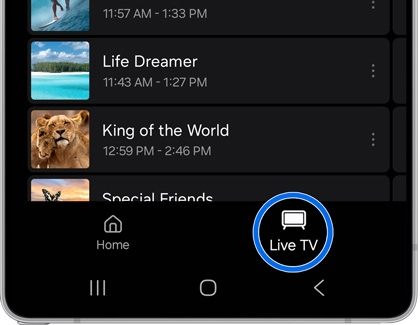
Live TV tab highlighted on a Galaxy S25 Ultra

Tap Live TV to open the tab. You can swipe through the channels or categories to see everything that is currently playing.

If you'd prefer to see a larger range of upcoming shows, tap More options (the three vertical dots), and then tap Settings. Tap Live program guide, and then tap Timeline to see the schedule for the next 5 hours. If you see an upcoming show you don't want to miss, tap it, and then tap Set reminder to be notified when it airs.

If you find that there's a channel you keep watching, tap the Star icon to set it as a favorite, and it will appear near the top of your channel list.

Home tab
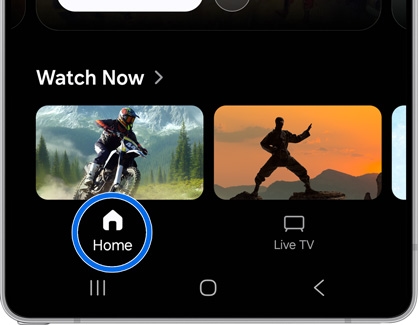
Home tab highlighted on a Galaxy S25 Ultra

Tab Home to open the tab. Swipe up and down to view the available categories, such as Live Now, Comedies, Recommended for you, Trending channels, Watch with the Family, and more.

Read less

Manage your channels

You can edit channels in Samsung TV Plus so you only see your favorites. For a full list of all available channels on Samsung TV Plus, download our channel lineup.
Note
Local news may not be available.
  1. Navigate to and open the Samsung TV Plus app, then tap More options (the three vertical dots), and then tap Settings.
  2. Tap Channels to view a list of all the available channels.
  3. Tap the switch next to the channel you do not want to see.
    Galaxy S25 Ultra showing a channel management screen with toggles for movie categories like Comedy, Romance, and Action.
Read less

TV Plus settings

Samsung TV Plus has plenty of options to help you customize your watching experience. From the Samsung TV Plus app, tap More options (the three vertical dots), and then tap Settings.

Galaxy S25 Ultra showing Samsung TV Plus settings with options for Dark mode and Live program guide.

You will be able to manage TV Plus with the following options:

  • Samsung account: Sign in to your Samsung account for the best TV Plus experience.
  • Dark mode: Samsung TV Plus will follow your device settings, but you can also change the theme if desired.
  • Live program guide: You can view the programs that are currently airing or see a schedule for the next 5 hours.
  • Channels: Manage the channels that are available in the Live TV tab. Tap the switch(es) to enable or disable the channels.
  • Favorite channels: If you’ve set any channels as your favorites, you’ll be able to manage them from here.
  • Watch reminders: If you’ve set a reminder, you can remove it here.
  • Recent channels: Clear your watch history.
  • Play videos on Wi-Fi only: Prevent TV Plus from using mobile data.
  • Video quality: Select Auto, High, or Low, and then tap Done.
  • Picture-in-picture: You can continue watching TV Plus while using other apps.

Privacy options

  • Privacy Notice: View the Samsung TV Plus U.S. Privacy Notice.
  • Notifications: Enable or disable notifications from TV Plus.
  • Do Not Sell or Share My Personal Information: Visit Samsung’s Privacy website if you'd like to manage your personal information.
  • Customization Service: When enabled, you'll receive recommendations based on your device usage.

Ads options

  • Ads privacy: Select your desired privacy settings. You can tap Privacy notice for more details.
  • Ads Privacy Notice: View the Ads Privacy Notice.

Other options

  • About Samsung TV Plus: View the current version of Samsung TV Plus, the Terms of Service, and Open source licenses.
  • Contact us: Send feedback about Samsung TV Plus through Samsung Members.
Read less
Was this content helpful?
Table of contents
We're here for you

Contact Samsung Support

Contact us online through chat and get support from an expert on your computer, mobile device or tablet. Support is also available on your mobile device through the Samsung Members App.
auto-contact_us-pc-2x auto-contact_us-pc-2x

