How to update your Samsung Galaxy Buds software

You can update your Galaxy Buds software to the latest version to help improve performance and stability. Check for updates regularly to make sure your earbuds stay up to date. You can use the Galaxy Wearable app on your phone or tablet, the Galaxy Buds app on your PC, or Galaxy Buds Manager or Gear IconX Manager on your computer to pair and control your earbuds and check for software updates. Depending on your software version, the update option may be available in a different location.
A rear view of a purple Galaxy phone with a pair of white Galaxy Buds4 earbuds floating next to it.

How to update your Samsung Galaxy Buds software

Note
  • During the update, your Galaxy Buds will disconnect from your phone.
  • Once the update is complete, they will reconnect automatically. 
  • These instructions are also applicable to the Gear IconX (2017) version.

Update your Galaxy Buds (One UI 8.0 or later)

You can update your Galaxy Buds through your phone settings.

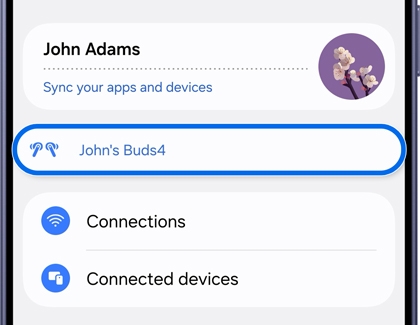
  1. Open Settings, then Tap your Galaxy Buds.
    Settings menu with Connections highlighted.
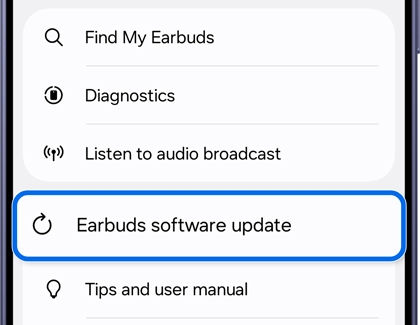
  2. Tap Earbuds software update, then tap Download and install, then follow the on-screen instructions to update if an update is available.Galaxy Buds Settings screen with Earbuds software update highlighted.
    Note: If no update is available, you will see a message indicating your software is up to date.
Read less

Update your Galaxy Buds (One UI 7.0 or earlier)

You can update your Galaxy Buds using the Wearable app.

  1. Open the Wearable app.
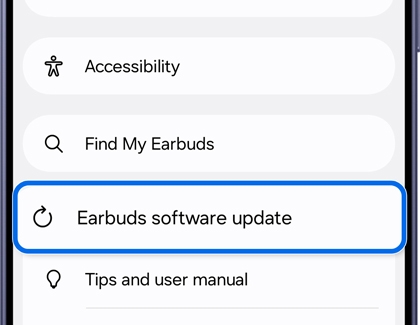
  2. Tap Earbuds software update, tap Download and install, then follow the on-screen instructions to update if an update is available.
    Galaxy Buds screen showing the Earbuds software update option.
Read less

Software updates with the Galaxy Buds PC app

The Galaxy Buds PC app is compatible with the Galaxy Buds3, Buds3 Pro, Buds2, Buds2 Pro, Buds Live, and Buds Pro. This app can be downloaded from the Microsoft Store, and you can use the app to update your buds.

  1. On your PC, navigate to and open the Galaxy Buds app, and then select Start.
  2. Make sure your Galaxy Buds are fully charged and place them in the charging case. Open the case, and then select Connect in the app.
  3. On the Pair device popup, select Allow, and then select Close.
  4. Review the information on the screen, and then select Next.
  5. You’ll see the app screen for your Galaxy Buds; select Earbuds software update near the bottom of the screen.
  6. Select Download and install to check for updates. If an update is available, you’ll be able to install it.
Read less

Update the Galaxy Buds, Buds+, or Gear IconX software from your PC

Note
Galaxy Buds Manager on PC is not compatible with the Galaxy Buds Pro or Galaxy Buds Live.

You can also update your earbuds using the Galaxy Buds Manager or Gear IconX Manager on your PC.

  1. From your PC, whether it's a Mac or Windows, navigate to the Download Center page for the Galaxy Buds or the Gear IconX.
  2. Using the drop-down menu, choose your model (Galaxy Buds, Galaxy Buds+, or Gear IconX), and then select CONFIRM.
  3. Select DOWNLOAD under the Software section to download the installation file for Galaxy Buds Manager or Gear IconX Manager.
  4. Once the download is complete, run the file, and then use the on-screen prompts to complete the installation.
  5. Next, make sure Bluetooth is enabled on both the PC and buds, and then open the appropriate earbuds app on the computer.
  6. Place the buds in the case if they aren't already, and close the lid. Open the case to put them in pairing mode. You can also enable pairing mode by touching and holding both touchpads while wearing the Buds or Gear IconX.
  7. On the computer, open the Galaxy Buds Manager app or Gear IconX Manager app. Make sure the earbuds are connected to the PC, and then select Connect. Once the earbuds are paired, click Check for updates. If an update is available, you can install it from here.
Read less
Was this content helpful?
Table of contents
We're here for you

Contact Samsung Support

Contact us online through chat and get support from an expert on your computer, mobile device, or tablet. Support is also available on your mobile device through the Samsung Members App.

