New Home screen features on your 2024 Samsung TV
New Home screen features on your 2024 Samsung TV
What can I do with the Daily+ Home screen?

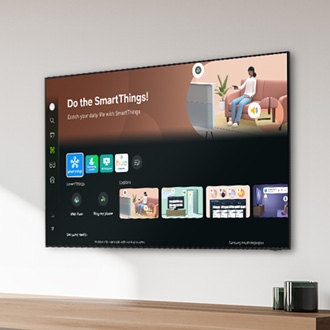
The Daily+ screen includes practical apps that are conveniently located on your TV’s Home screen. To access this, press the Home button on your remote, and then navigate to and select Daily+ on the left. The following apps will be available:
- SmartThings: Use the SmartThings app to connect and manage your home’s smart devices and appliances.
- Chat Together: Watch live TV while chatting with friends and family. A virtual chat room will appear on the TV.
- Workspace: Remotely access other devices, such as a PC, Mac, or phone with wireless screen sharing. You can also access the internet.
Apps on the Daily+ Home screen can be rearranged by navigating to the end of the list and selecting List Edit.
What can I do with Samsung Now+?
Samsung Now+ allows you to use certain functions on your TV when the screen is turned off, such as viewing devices registered to SmartThings and playing songs. You’ll need to wake up the screen using Bixby; just say “Hi, Bixby” to use the following options in Samsung Now+:

- Weather: View the hourly or weekly forecast.
- Notes: Create and send messages using SmartThings.
- Home Status: View details about your SmartThings devices.
- Camera: Monitor the cameras registered to SmartThings.
- Energy: View your SmartThings devices’ energy consumption.
- Music: Play music using a music app.
- Tips: Access the Samsung Now+ user guide.
You can also change a few of the settings for Samsung Now+. Select Edit to change the wallpapers, timeout function, and page transition time.
How can I use the Live Home screen?

TV programs that are currently on the air will be visible from the Live Home screen tab. To find this, press the Home button on your remote, and then navigate to and select Live. You can choose from the following:
- On Now: View a list of live programs and Samsung TV Plus content.
- Guide: View channel schedules, watch programs, and schedule the recordings of programs.
- Genre: Sort through different genres to find channels and content that interest you.

