Change the default messaging app on your Galaxy phone

The newest Galaxy phones come with Google Messages preinstalled. You can also download your preferred messaging app from the Galaxy Store or Google Play Store. Both apps have intuitive interfaces that make it fun and easy to send texts to your contacts. Some carriers provide their own messaging app, and there are plenty of third-party options available as well. However, even if you have multiple apps installed, you can only set one as your default messaging app.
Galaxy phone screen displaying an illustration of a person using a messaging app, with a button to set the default SMS app

Change the default messaging app on your Galaxy phone

Switch the default texting app

Maybe you like your current messages app but want to try out something different. Just switch the default app, and you’ll be ready to send texts, emojis, and images through the new app. All your texts will be available instantly in any app.

In these examples, we'll show you how to switch to Google Messages.

  1. Most messaging apps will need to be set as the default app to operate, and will prompt you to set it as the default when you open them. Open the message app you want to set as the default app. For this example, open Google Messages.
  2. A pop-up should appear asking you to switch the current app to the default messaging app.

    Note: Some apps, like Facebook Messenger, will only show this option on the initial launch of the app.
  3. Choose your desired app, and then tap Set as default. That’s all you have to do to make it your go-to service.
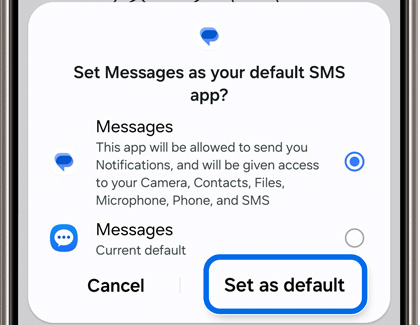
    Confirmation screen on a Galaxy phone to set 'Messages' as the default SMS app, highlighting permissions and the 'Set as default' button.

However, if this isn’t working, there’s another way to assign a message app as the default.

  1. Navigate to and open Settings, and then tap Apps. Tap Choose default apps, and then tap SMS app.
  2. Select your desired message app. In this case, select Google Messages (the icon with the three horizontal dots). Your changes will be applied automatically, and you can begin using your preferred app to send texts and group messages.

Notes
  • Depending on the messaging app, you can send and receive messages over Wi-Fi or data.
  • You may need to grant permissions (SMS, Contacts, Media, Make Calls, etc.) when you switch messaging apps.
  • If you usually open your message app with a shortcut on your Home screen or from your favorite apps section of the Home screen, you'll need to replace the shortcut to the old app with a shortcut to the new one.
Was this content helpful?
Table of contents
We're here for you

Contact Samsung Support

Contact us online through chat and get support from an expert on your computer, mobile device, or tablet. Support is also available on your mobile device through the Samsung Members App.

