How to transfer data from iPhone to Samsung
Smart Switch transfer: Cable (Recommended for One UI 8.5 and older)
Complete a cable transfer in Smart Switch:
- On your Samsung phone, open the Smart Switch app.
- Tap Receive on this phone, then tap iPhone/iPad.
- Tap Cable, and then tap Next.

- Insert one end of a USB-C cable into your Samsung Galaxy phone, and then insert the other end into your iPhone. Depending on your iPhone model, you may need to use a USB-C to Lightning cable adapter to make it fit.
- Once connected, tap Trust on your iPhone, and then enter your PIN or password as requested.
- On your Samsung phone, tap Next.
- Select the types of compatible data you want to move, and then tap Transfer.
- Smart Switch will search for compatible apps. Select the ones you want to install on your Samsung phone, and then tap Install.
Note: Some apps, like WhatsApp, may have further steps for specific app-data transferring. If so, follow the on-screen prompts for those. - When the transfer is complete, it may take some time to finish organizing. You can disconnect the USB cable and tap the Home button on your Samsung phone to go back to using your phone. Smart Switch will notify you when it's finished.
What type of content can I transfer with a wired connection?
A wired connection currently supports the most types of data transfers. Using a USB-C cable from your Samsung phone to your iPhone, you can transfer:
- Contacts, including contact photos
- Photos and videos
- Calendar schedule
- Reminder pre-notifications
- Files and documents
- Notes and dates
- iMessages, SMS/MMS
Note: iMessage special effects are not supported. - Alarms, including on/off status and world clock
- Voice memos
- Bookmarks and reading lists from the Safari browser
- DRM-Free music content
- Home screen, including installed apps, home layout and folders, and Home/Lock settings image
- Phone's block list
- Bluetooth settings
Smart Switch transfer: Wireless (Recommended for One UI 9 and newer)
Complete a wireless transfer with Galaxy phones running One UI 9 and newer:
- Open Smart Switch on your Galaxy phone and tap Receive on this phone.
- Tap iPhone or iPad as the type of device you're receiving data from.
- On your iPhone, open the Camera app, and use it to scan the QR Code shown on your Galaxy phone.
- Now, just wait for the data to transfer. When it's finished, you will see All set.
- At this point, you can select additional data to transfer such as WhatsApp chats and data or LINE app data. If you use either and would like to transfer your data, tap Transfer on the tile you want to transfer.
Note: You will need a cable to transfer WhatsApp data. It must be either USB-C to USB-C or USB-C or lightning depending on the type of port your iPhone has. - Follow the on-screen prompts to complete the transfer.
If you run into any issues or the transfer does not complete, try again using the cable transfer method above.
Complete a wireless transfer with Galaxy phones running One UI 8.5 and older:
Follow the steps below to complete a wireless transfer, or view our video here.
- First, make sure Samsung Smart Switch Mobile is installed on your iPhone. Once installed, open it.
- Tap Continue, and then grant all the necessary permissions in order to move the data.
- Once you've granted all the permissions, tap Let's go on your iPhone.
- Tap Wireless, and then tap Next.
- Now, open Smart Switch on your Galaxy phone. Tap Receive on this phone, then tap iPhone/iPad.
- Tap Wireless, and then tap Next.

- Using your iPhone, scan the QR code now displayed on your Galaxy phone.
- Tap Join on your iPhone.
- On your Galaxy phone, select the types of compatible data you want to move, and then tap Transfer.
- When the transfer is complete, tap Next twice, and then tap Done to exit Smart Switch.
Smart Switch transfer: iCloud
Complete an iCloud transfer in Smart Switch:
- On your Galaxy phone, swipe up to open apps, tap the Samsung folder, and then tap the Smart Switch app.
- Tap Continue, then scroll to review the permissions. Tap Allow to proceed.
- Tap Receive on this phone, and then tap iPhone/iPad.
- Tap Get data from iCloud.

- Log in to your Apple account using your account email or phone number and password.
- You may be asked to agree to the iCloud terms and conditions. Follow the onscreen prompts to do so. When finished, navigate back to the Smart Switch app.
- On your iPhone, you'll receive an alert. Tap Allow to get the Apple ID verification code needed. Enter that code on your Samsung phone.
- Select the types of compatible data you want to transfer, and tap Transfer.
- Your phone will begin to download your iCloud data. You can tap Keep screen on if you want to keep an eye on the percentage completed.
- When finished, you can review the transfer. Tap Next twice, and then tap Done to exit Smart Switch.
What type of content can I transfer via iCloud?
Smart Switch lets you transfer the following data from iCloud:
- Contacts, including contact photos
- Photos and videos
- Calendar schedule
- Reminder pre-notifications
- Files and documents
- Notes and dates (Font, formatting, tables, etc. are not supported)
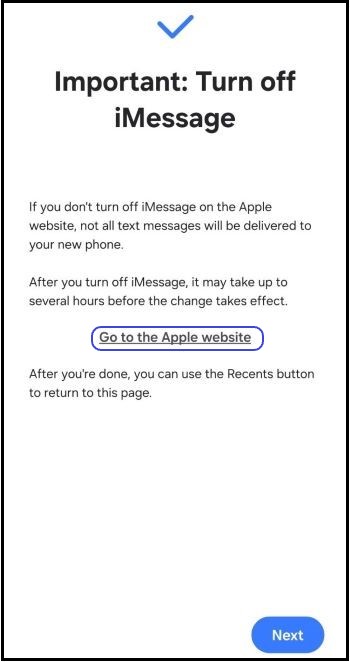
Turn off iMessage
After transferring from iPhone to Android, you may need to deregister from iMessages to avoid any issues with receiving text messages.
Smart Switch will remind you to do this and provide a link. If you've closed the app without clicking the link, you can deregister here.

Other cloud storage options
While using Google Photos and Smart Switch are the most convenient options, you can use other methods.
To use OneDrive, Amazon Photos, Dropbox, or another cloud-storage option, you will need to log into iCloud onto your phone, computer, or tablet, download your photos and videos onto the device, and then upload them to your preferred cloud storage account.
What types of data can I transfer wirelessly?
On One UI 9.0 or newer:
- Contacts (with photos)
- Messages (SMS, MMS, iMessages)
- Photos (Directly taken and downloaded)
- Music (DRM-free files and playlists)
- Videos (Recorded and DRM-free)
- Documents (Pages, Keynote, Numbers, PPT, XLS, Doc, PDF)
- Calls (Call logs, missed calls)
- Alarms and clock
- Voice memos
- Calendar schedule
- Notes
- Home layout and lock screen
- Installed apps and folders for compatible apps
- Passwords and passkeys
- Connected Wi-Fi information
On One UI 8.5 or older:
A wireless connection on this version supports a minimum amount of data transfer, including:
- Contacts, including contact photos
- Photos and videos
- Calendar schedule (attachments not supported)
- Reminder pre-notifications (Repeat rule not supported)



