How to use Samsung DeX on the Galaxy Z TriFold

The Galaxy Z TriFold provides a desktop-style experience through Samsung DeX on One UI 8 (Android 16), allowing you to multitask seamlessly across multiple windows. You can easily add or remove desktops and run different apps on each one to work more efficiently.
Samsung DeX desktop view on the internal tri-fold screen of the Galaxy Z TriFold smartphone.

How to use Samsung DeX on the Galaxy Z TriFold

Note
  • The available features, menu paths, and screen layouts described may vary depending on the device model, software, or app version.
  • In DeX mode, you can create and use up to four desktop workspaces.
  • Certain apps may not run or require license (for purchase) on Samsung DeX.


How to switch to Samsung DeX

Switch to Samsung DeX while an app is running

When the Galaxy Z TriFold is unfolded, you can switch to Samsung DeX by swiping down on the Multi window handle at the top of a running app.

This provides a quick way to open a specific app directly in Samsung DeX.

  1. Open the app you want to use. 
    Home screen on the Galaxy Z TriFold with the Notes app icon highlighted in a blue circle
  2. Swipe down the Multi window handle at the top center of the app. 
    All notes screen on the Galaxy Z TriFold with a blue arrow pointing down from the top center
  3. The app will move into a desktop workspace in Samsung DeX.
    Home screen on the Galaxy Z TriFold with the Notes app displayed in a smaller window in the center
Note
By default, the DeX button in the Quick panel is set to “Connect wirelessly to a display.” To use a desktop workspace, you must change this option to “Switch to desktop workspace.”

Switch to Samsung DeX using the Quick panel

You can also activate Samsung DeX from the Quick panel to switch to a desktop workspace.

  1. Go to Settings > Connected devices > Samsung DeX.
    Settings screen on the Galaxy Z TriFold with Samsung DeX highlighted in a blue box under the Connected devices menu.
  2. Tap Quick panel button.
    Samsung DeX settings screen on the Galaxy Z TriFold with Quick panel button highlighted in a blue box.
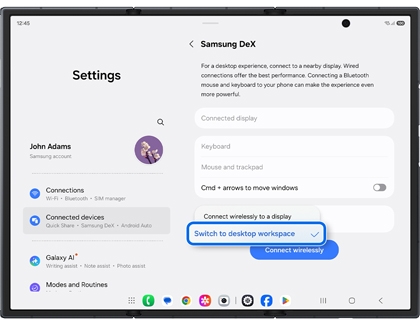
  3. Change the option to Switch to desktop workspace.
    Samsung DeX settings screen on the Galaxy Z TriFold with Switch to desktop workspace selected in a blue highlighted menu.
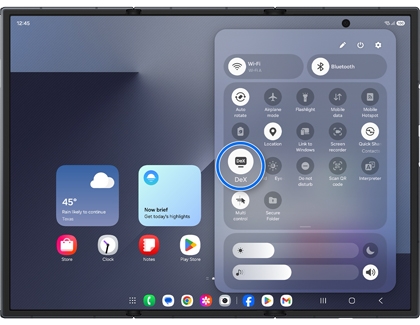
  4. Open the Quick panel and tap the DeX icon to activate it.
    Home screen on the Galaxy Z TriFold with the Quick panel open and DeX highlighted in a blue circle
Read less

How to add and remove a desktop

Add a desktop

  1. Tap the Recent apps button.
    Home screen on the Galaxy Z TriFold with the Recents button highlighted in a blue circle.
  2. Tap the Add desktop button displayed on the right side. A new desktop workspace will be created.
    Recents screen on the Galaxy Z TriFold with an icon showing a monitor and a plus sign highlighted in a blue circle.

Switch between desktops

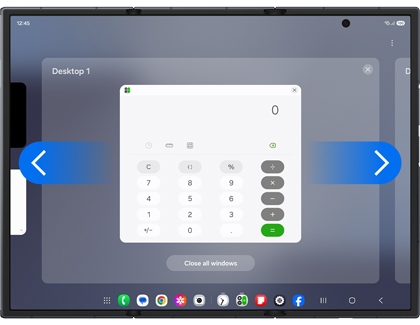
Samsung DeX supports up to four desktop workspaces, and you can swipe left or right to switch between them.

Desktop 1 view on the Galaxy Z TriFold with blue left and right navigation arrows shown on either side of a calculator window.

Remove a desktop

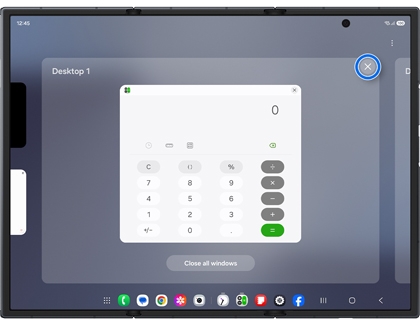
After tapping the Recent apps button, tap the X on the desktop workspace you want to remove.

Desktop 1 view on the Galaxy Z TriFold with an X icon highlighted in a blue circle.

Read less

How to exit Samsung DeX

You can quickly exit Samsung DeX from the Home screen or by using the Quick panel.

Exit Samsung DeX while an app is running

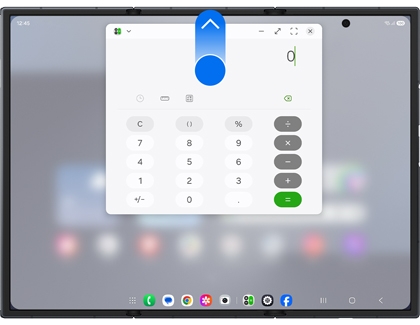
Press and hold the Multi window handle of an app running in DeX and move it to the top of the screen. Samsung DeX will close, and the device will return to normal mode.

Calculator app window on the Galaxy Z TriFold with a blue arrow pointing up from a blue circle at the top center.

Exit Samsung DeX from the Quick panel

Open the Quick panel and tap the active DeX button to exit Samsung DeX.

Home screen on the Galaxy Z TriFold with the Quick panel open and DeX highlighted in a blue circle.

Exit Samsung DeX from the Recent apps view

  • Tap the Recent apps button, and then tap the Home button.Desktop 1 view on the Galaxy Z TriFold with a home icon highlighted in a blue circle on the left edge.
  • Tap the Recent apps button, and then tap an empty area on the left side of the screen to exit Samsung DeX.
Read less

Frequently asked questions

Samsung DeX is running, but the DeX icon in the Quick panel is not activated. I am currently in Desktop mode, but only the Wireless DeX icon appears in the Quick panel. Why is this happening?

Check the Quick panel button settings. Go to Settings > Connected devices > Samsung DeX > Quick panel button, and change the option to Switch to desktop workspace. After updating the setting, verify the Quick panel again.

Samsung DeX settings screen on the Galaxy Z TriFold with Switch to desktop workspace selected in a blue highlighted menu.

When I open an app, it launches in a pop-up window.

When Samsung DeX is active while the Galaxy Z TriFold is unfolded, apps may open in pop-up windows.

To exit DeX:

  • Touch and hold the Multi window handle of the pop-up window and move it to the top of the screen.Calculator app window on the Galaxy Z TriFold with a blue arrow pointing up from a blue circle at the top center.
  • Open the Recent apps view and tap the X on the desktop workspace to close it.Desktop 1 view on the Galaxy Z TriFold with an X icon highlighted in a blue circle

When I use Samsung DeX with the unfolded device, fold the device, and then unfold it again, the screen returns to the Home screen instead of the last Samsung DeX mode. Why does this happen?

When the device is folded, Samsung DeX automatically exits and the screen switches to Home screen mode.

Read less
Was this content helpful?
Table of contents
We're here for you

Contact Samsung Support

Contact us online through chat and get support from an expert on your computer, mobile device or tablet. Support is also available on your mobile device through the Samsung Members App.
auto-contact_us-pc-2x auto-contact_us-pc-2x


