Use multiple windows on the Galaxy Z TriFold

Unlock the full potential of your Galaxy Z TriFold with seamless multi-window functionality, designed to enhance productivity and multitasking. This guide will walk you through using pop-up view, split screen, and DeX features, including managing multiple desktops and connecting a second screen. Whether you're working, gaming, or streaming, these tools ensure a smooth and efficient experience.
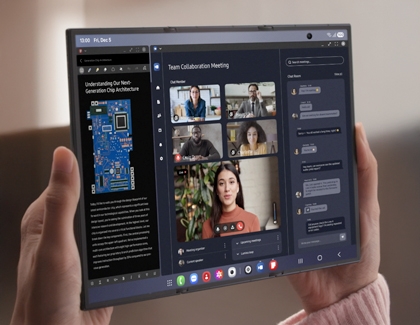
Multiple apps displayed across the unfolded internal screen of the Galaxy Z TriFold.

Use multiple windows on the Galaxy Z TriFold

Multi window

Note
Multi window works with select applications; compatible apps are growing through third party developers.

Hands holding the unfolded Galaxy Z TriFold displaying a video call window next to a document window with a diagram of a circuit board.

Customize your Edge panel for quick access to favorite apps, and use apps in split screen or pop-up view.

Use Multi window

  1. Swipe left from the right side of the screen to open the Edge Panel. 
  2. Tap the grid or three horizontal lines to view all current apps.
    The Home screen of an unfolded Galaxy Z TriFold with the Apps icon in the edge panel highlighted in a blue circle.

Alternatively, you can also tap the Recents icon, then tap an app’s icon to access Multi window options.

Use split screen view

  • Drag and drop an app from the Edge panel to the left, right, top, or bottom of the screen. Repeat for additional apps.
  • On the cover screen, drag apps from the Edge panel to the top or bottom.
  • From the Recents view, tap an app’s icon, and then tap Open in split screen view.
    The Recent apps screen on an unfolded Galaxy Z TriFold with Open in split screen view highlighted in a blue box.

Use pop-up view

  • Drag an app to the center of the screen. 
  • From the Recents view, tap an app’s icon, and then tap Open in pop-up view.
    The Recent apps screen on an unfolded Galaxy Z TriFold with Open in pop-up view highlighted in a blue box.

Manage pop-up view

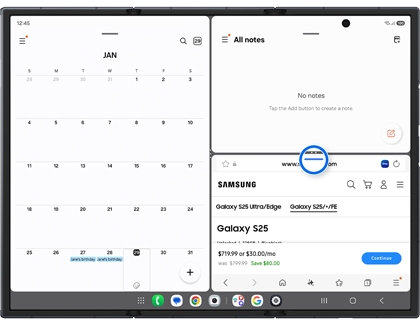
  • Drag a window to your preferred location to rearrange them.
  • Tap the expand icon at the top to expand a window.
    A split-screen view on an unfolded Galaxy Z TriFold with the Expand icon on a pop-up window highlighted in a blue circle.

Manage split screen

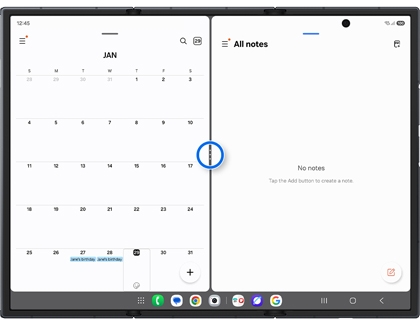
Use the dividers between apps to adjust window sizes.

A split-screen view on an unfolded Galaxy Z TriFold with the divider handle between two apps highlighted in a blue circle.

Create an app pair

  1. In split screen view, tap the dotted divider between apps.
  2. Tap the app pair icon (star).
    A multi-window view on an unfolded Galaxy Z TriFold with the star icon on the divider highlighted in a blue circle.
  3. Select a location to save the app pair.

Close apps

Tap the blue divider at the top of an app's screen, and then tap the X icon.

A multi-window view on an unfolded Galaxy Z TriFold with the blue devider of a specific app highlighted in a blue circle.

Read less

Desktop workspaces

Note
Certain apps may not run or require license (for purchase) on Samsung DeX.
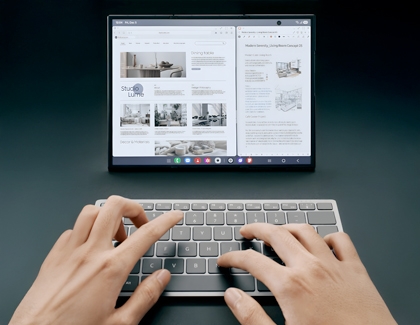
Unfolded internal screen of the Galaxy Z TriFold displaying two side by side browser windows behind a person typing on a gray wireless keyboard.

Transform your Galaxy Z TriFold into a desktop workspace with Samsung DeX. 

Key features:

  • Standalone DeX: No monitor required for a desktop-like experience.
  • Multiple desktops: Create and switch between up to four workspaces. 
  • Stacked windows: Easily move and resize pop-up windows for enhanced multitasking.

Activate standalone Samsung DeX mode


From a running app: Unfold the Galaxy Z TriFold. Swipe down the Multi window handle at the top of the app. The app will transition to Samsung DeX.
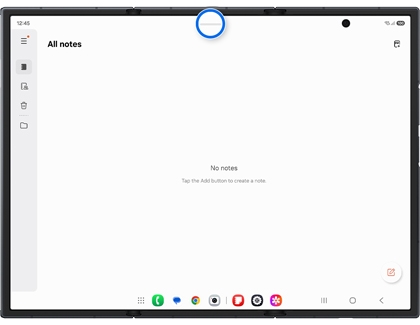
A blank Samsung Notes screen on an unfolded Galaxy Z TriFold with the top window handle highlighted in a blue circle.


From the Quick panel: Swipe down from the top right corner of the screen to open the Quick panel settings. Then, tap the DeX icon.
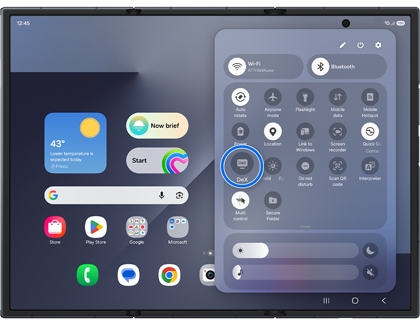
The Quick Settings panel on an unfolded Galaxy Z TriFold with the DeX icon highlighted in a blue circle.

Use desktop workspaces


Add a Desktop: Tap the Recents icon, and then tap the Add desktop (it looks like a monitor with a plus sign) icon on the right side.
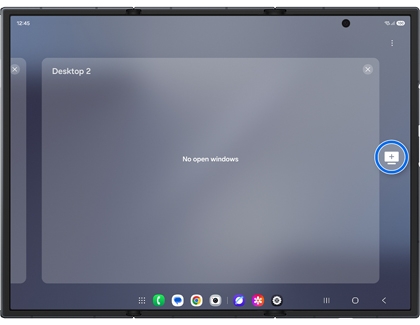
The desktop workspace overview on an unfolded Galaxy Z TriFold with the Add desktop icon highlighted in a blue circle.


Switch desktops: Swipe left or right to navigate between workspaces.
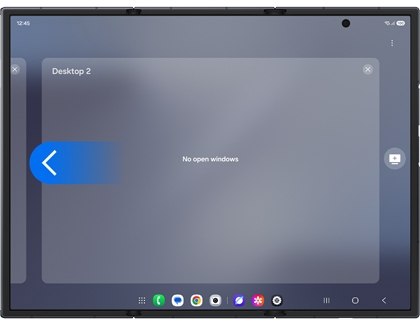
The desktop workspace overview on an unfolded Galaxy Z TriFold with a swipe gesture arrow indicating navigation between desktops.


Remove a desktop: Tap the Recents icon, then tap the X on the desktop you want to remove, and then tap Close to confirm.
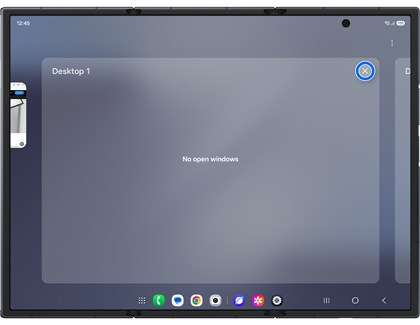
The desktop workspace overview on an unfolded Galaxy Z TriFold with the Close desktop X icon highlighted in a blue circle.

Move app windows


Drag and drop: Hold the title bar of the app window and drag the window to your desired location on the screen. Then, release to drop the window.
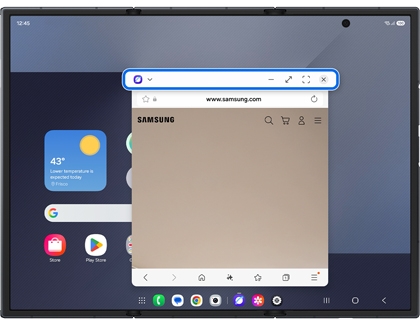
A pop-up Samsung Internet window on an unfolded Galaxy Z TriFold main screen with the top window handle highlighted in a blue box.


Resize windows:  Use the minimize, maximize/restore down, and Full screen icons in the right corner of the app window to adjust the window size.
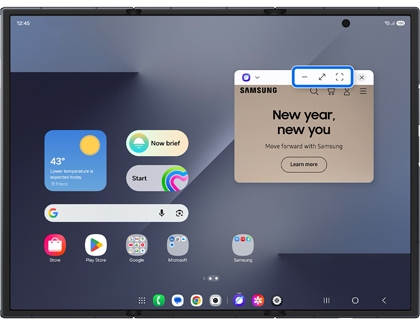
A pop-up Samsung Internet window on an unfolded Galaxy Z TriFold main screen with the Mimize, Maximize, and Full screen icon highlighted in a blue circle.


Close windows: Click the X icon at the top-right corner of the app window to exit.
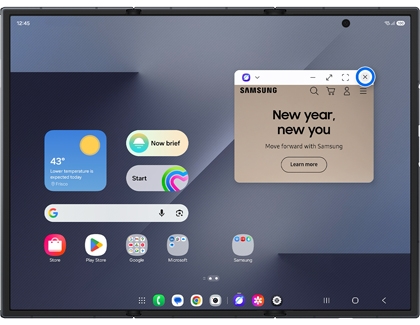
A pop-up Samsung Internet window on an unfolded Galaxy Z TriFold main screen with the X icon highlighted in a blue circle.

Exit Samsung DeX


From Quick panel: Swipe down from the top right corner of the screen to open the Quick panel settings. Then, tap the active DeX icon.
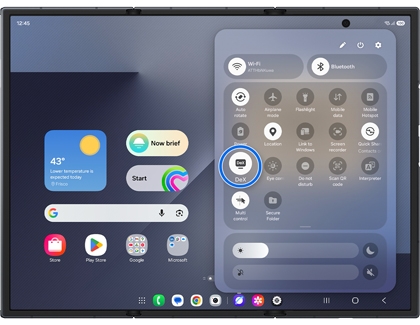
The Quick Settings panel on an unfolded Galaxy Z TriFold with the DeX icon highlighted in a blue circle.


From Recent apps view: Tap the Recents icon, then tap an empty area on the left side of the screen.
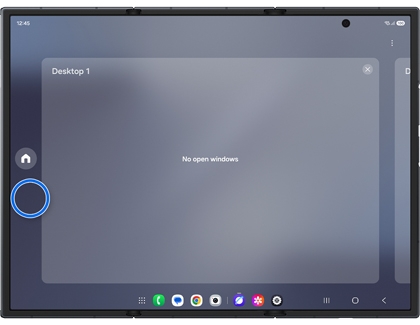
The desktop workspace overview on an unfolded Galaxy Z TriFold with the Exit home icon highlighted in a blue circle.


While an app is running: Press and hold the top bar of the app, and then move it to the top of the screen.
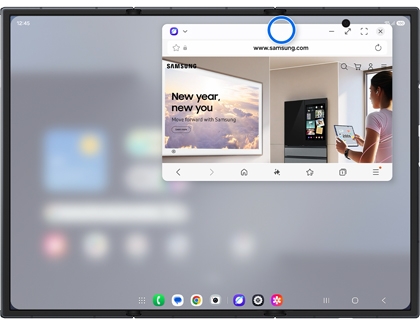
A pop-up Samsung Internet window on an unfolded Galaxy Z TriFold main screen with the top window handle highlighted in a blue circle.

Read less

Second screen

Note
  • Certain apps may not run or require license (for purchase) on Samsung DeX.
  • Wireless DeX requires display with Miracast support. Both devices must be on the same Wi-Fi network.
  • For wired connection, an HDMI adapter or cable is required.

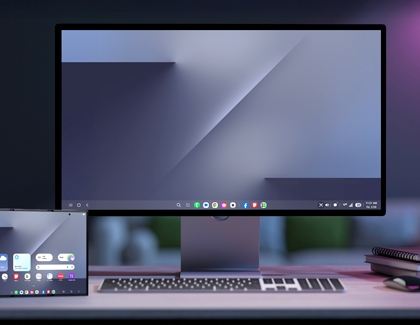
A monitor on a desk displaying the Samsung DeX desktop interface next to the Galaxy Z TriFold showing its home screen.

Connect a second monitor or TV (wired or wireless) to expand your Samsung DeX workspace.

Wired connection

  1. Connect the HDMI cable:
    Plug the USB-C end of the HDMI adapter or cable into your phone. Then, connect the HDMI end to the monitor or TV. 
  2. Unlock your phone:
    If prompted, unlock your phone to proceed.
  3. Start DeX mode:
    Tap "Start" on the pop-up message on your phone's Home screen. If no pop-up appears, open the Quick settings panel, and then tap the DeX icon.
    The Quick Settings panel on an unfolded Galaxy Z TriFold main screen with the DeX icon highlighted in a blue circle.
  4. Confirm and navigate:
    Tap Ok on any Samsung DeX pop-ups. Then, tap the Touchpad icon in the lower corner to control DeX on your monitor/TV with your device.
    The Home screen of an unfolded Galaxy Z TriFold with the Touchpad icon in the bottom left corner highlighted in a blue circle.
    Note: Double tap the Touchpad gesture icon (it looks like an exclamation mark) for helpful hints on how to use the touchpad.
  5. Customize the touchpad:
    Double tap the Rotate icon to change touchpad orientation.
    A black screen on an unfolded Galaxy Z TriFold with the Rotate icon in the top right corner highlighted in a blue circle.

Wireless connection

  1. Turn on your smart monitor or TV:
    Ensure the monitor or TV is powered on.
  2. Open the phone's Settings:
    Swipe down from the top of your phone's screen with two fingers, and then tap the Settings icon.
  3. Activate wireless DeX mode:
    Tap Connected devices, then tap Samsung DeX, and then tap Connect wirelessly.
  4. Select your display:
    Choose your smart monitor or TV from the list, and tap Start now.
  5. Allow the connection:
    On your smart monitor or TV, select Allow. Then, tap Start on your phone if prompted.
  6. Use the touchpad:
    Tap the Touchpad icon in the lower corner of the phone's screen.
    Note: Double tap the Touchpad gesture icon for usage tips.
  7. Customize the touchpad:
    Double tap the Rotate icon to change orientation.
Read less

Connect a keyboard and mouse

Note
Accessories sold separately.

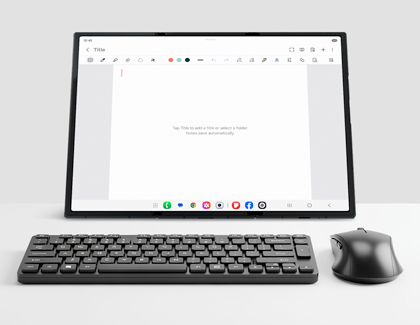
Unfolded Galaxy Z TriFold standing on a desk behind a black wireless keyboard and mouse.

Enhance your Multi-window experience by connecting a keyboard and mouse to your Galaxy Z TriFold.

  1. Swipe down from the top right corner of the screen to open the Quick settings panel.
  2. Touch and hold the Bluetooth icon to access the Bluetooth settings menu, and then turn on the Bluetooth switch.
    The Quick Settings panel on an unfolded Galaxy Z TriFold with the Bluetooth icon highlighted in a blue circle.
  3. Next, make sure your keyboard and mouse are in pairing mode, then select their names from the list to connect.
    The Bluetooth pairing menu on an unfolded Galaxy Z TriFold with Samsung mouse highlighted in a blue box.
  4. If prompted, enter or confirm an access code (e.g., using the keyboard's number keys).

Use the keyboard and mouse to navigate the screen, just like on a PC.

Read less
Was this content helpful?
Table of contents
We're here for you

Contact Samsung Support

Contact us online through chat and get support from an expert on your computer, mobile device or tablet. Support is also available on your mobile device through the Samsung Members App.
auto-contact_us-pc-2x auto-contact_us-pc-2x