Charge the Galaxy Z TriFold
Wired charging

The Galaxy Z TriFold is designed to last all day, but if you need a quick boost, there are plenty of charging options to keep you powered up. All Samsung wired chargers are dual voltage, making them perfect for travel worldwide.
Follow these steps to charge your Galaxy Z TriFold at top speed:
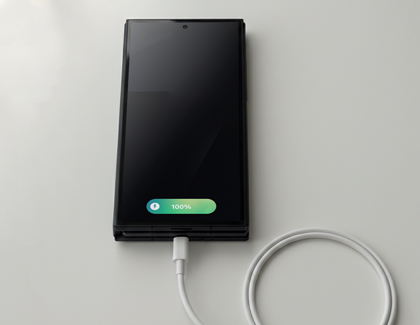
- Connect the USB cable to a charging adapter, then plug the other end into your device.
- Plug the adapter into a power outlet.
Note: For the fastest charging, use a power outlet—not a computer or other device.
When done, unplug the USB cable from your device and remove the adapter from the outlet.
Wireless charging

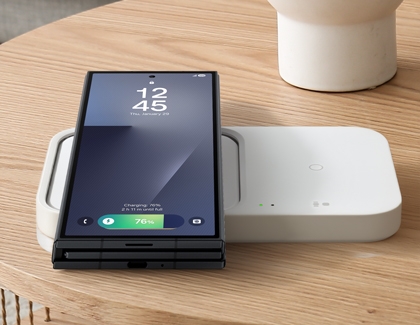
Wireless charging is incredibly convenient—just place your Galaxy Z TriFold on the charger and let the power flow! The Z TriFold is Qi-compatible and supports 15W wireless charging with a compatible charger or via PowerShare from a Galaxy phone. Enjoy effortless charging every time!
To wirelessly charge your Z TriFold:
- Connect the USB cable to a charging adapter, then plug the other end into your wireless charger.
- Plug the adapter into a power outlet. The indicator light on the base will flash when you first connect the cable.
- Fold your device closed and place it centered on the charger (back down).
Note: Remove thick cases if needed. - Ensure the back of the device makes contact with the wireless charger, and the device is centered.
- To stop charging, remove your device.
To charge another QI-compatible device using PowerShare on your Galaxy TriFold:
- Ensure your Z TriFold is charged to at least 30%.
- Fold it closed, and then swipe down from the top right to open Quick Settings, and then tap the PowerShare icon.
- Place a compatible device back-to-back with your TriFold.
Note: PowerShare auto-disables after 60 seconds if no device is detected. - To stop charging, separate the devices.
Note: You can also charge your phone while using PowerShare by plugging it into a cable.
Show charging information
Your device shows battery status and estimated charging time, letting you know how long until your battery is fully charged.
To enable this:
- Go to Settings > Display.
- Turn on the switch next to Show charging information.

You can also check your battery status anytime by going to Settings > Battery.
Access Fast charging settings
Power up in minutes with Super Fast Charging 2.0 (45W)—your Galaxy Z TriFold charges quickly, so you spend less time plugged in and more time enjoying your day.
To access fast charge settings:
- Navigate to Settings > Battery > Charging settings.
- Turn on or off the switch next to Fast charging or Fast wireless charging.

Best practices for charging

The following tips and instructions will help you get the most out of your device's battery.
- When using wireless charging accessories, please be aware that any metal or magnetic materials placed between the device and the wireless charger may decrease charging efficiency or cause damage.
- Charging may take longer when using adapters, charging wirelessly, or charging through another device like a PC.
- When using wired charging accessories, always check whether any foreign objects are in the connector or plug, as they may prevent charging or cause the charging accessories to overheat.
- Make sure your phone doesn't overheat. Keep it in a cool location, especially while charging.
- Don't let your battery completely drain. With new lithium-ion batteries being used, it is better to keep the battery partially charged, instead of letting it die. When possible, charge your device in small amounts to keep the battery from depleting. If the power has been depleted, the battery charging indicator may take up to 10 minutes to appear on the device's screen while charging.
- Use a genuine Samsung fast charger for the quickest charge. You can't use the fast charging feature if you're using a standard charger.
- If your phone is not charging, there are a couple of things that could be causing the problem. However, if your charger doesn't work at all, it should be replaced. If it's under warranty, then you can request service. If not, you will need to purchase a new one.
Contact Samsung Support



