Use Call screening on your Samsung phone

The Call screening feature on your Galaxy S26 uses AI to filter and manage calls. Follow these steps to enable and customize the feature.
A finger touches a purple Galaxy S26 Ultra screen showing an incoming call on a white cafe table.

Use Call screening on your Samsung phone

Enable Call screening

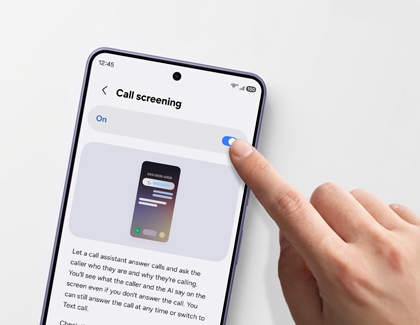
A finger toggles the Call screening switch to on, on a purple Galaxy S26 Ultra screen.

  1. Open the Phone app on your Galaxy phone.
  2. Tap the More options icon (three vertical dots) in the top right corner.
  3. Tap Settings > Call screening, then turn on the switch to activate the feature.
  • Auto screen calls: Enable automatic screening for unknown callers.
  • Language: Select or download your preferred language for transcription. 
  • Voice: Customize the assistant's voice and adjust speech speed.
Read more
Read less

How Call screening works

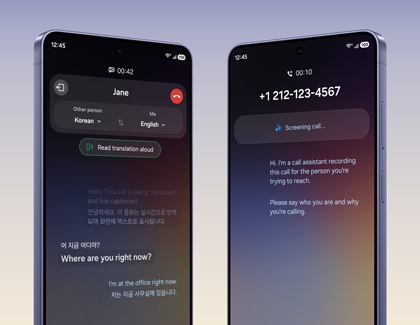
Two Galaxy S26 Ultra showing live translation and call assistant screening interfaces.

Answer or reject:

  • Swipe the green phone icon to answer the call.
  • Swipe the red phone icon to reject the call.

Use Call assist and Call screening:

  1. Tap Call assist, then select Call screening.
  2. Galaxy AI will vet the call and provide a live transcription.
  3. Decide to accept or reject the call during transcription.

Respond with text:

  • After Galaxy AI connects, tap Text call to respond with a preset or customized message.

Change Languages for Live Translation:

  1. Go to Settings Call assist Live Translate
  2. Choose your preferred languages in the drop-down menus.
  3. When a call comes in, tap Live translate to enable translation.
Read more
Read less

Additional tips

  • Ensure your phone is updated to the latest software version.
  • Standard call rates from your provider may apply during screening. 
  • The feature may not work if your phone's storage is nearly full.
  • Conversations and summaries will appear on your screen, even when locked.
Read more
Read less
Was this content helpful?
Table of contents
We're here for you

Contact Samsung Support

Contact us online through chat and get support from an expert on your computer, mobile device or tablet. Support is also available on your mobile device through the Samsung Members App.
auto-contact_us-pc-2x auto-contact_us-pc-2x


