Understand the Galaxy S26 display panel

The Galaxy S26 series utilizes an 8-bit display panel, consistent with the Galaxy S25 series. The reference to "10-bit" pertains to the 10-bit mDNIe color processing technology, which enhances color accuracy and image quality, delivering an improved viewing experience. This processing technology ensures vibrant colors and detailed visuals, even though the panel itself remains 8-bit.
A purple Galaxy S26 Ultra showing a skateboarder jumping over the edge of the screen.

Understand the Galaxy S26 display panel

Note
Available features and menu options may vary based on your device.

Key features of the Galaxy S26 display

  • 8-bit display panel: Offers vibrant colors and sharp details.
  • 10-bit mDNIe color processing: Enhances color accuracy and image quality.
  • Customized chipset: Provides up to 4x image processing power for improved performance.
Read more
Read less

Optimizing your display settings

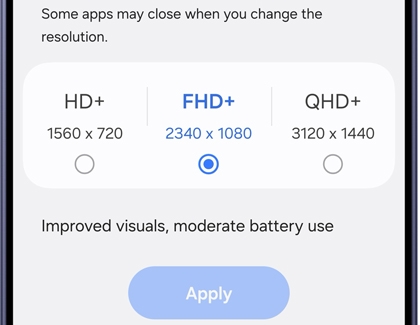
  1. Adjust Screen Resolution: Go to Settings > Display > Screen resolution, and then select your desired setting.

    A Galaxy S26 Ultra screen showing screen resolution options with FHD plus selected and an Apply button at the bottom.
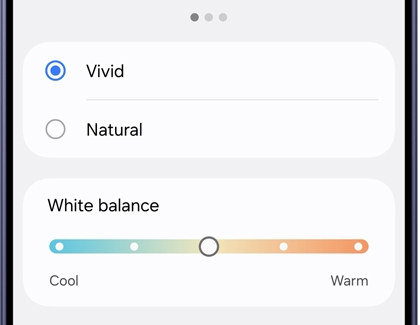
  2. Modify Color Settings: Navigate to Settings > Display > Screen mode, and then choose Vivid or Natural for optimal color representation.

    A Galaxy S26 Ultra screen showing display mode options with Vivid selected and a white balance slider ranging from cool to warm.
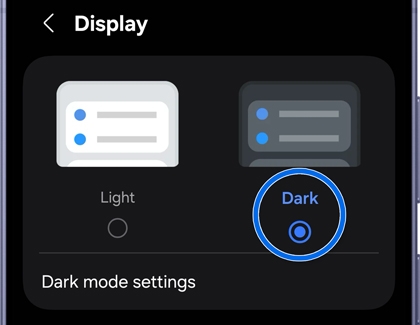
  3. Enable Dark Mode (Optional): Go to Settings > Display, then tap Dark to enable it for better visibility, if preferred.

    A Galaxy S26 Ultra screen showing display theme options with Dark mode highlighted in a blue circle and selected.
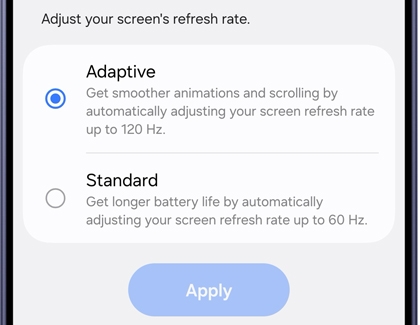
  4. Change Refresh Rate: Open Settings Display > Motion smoothness. Select Adaptive for battery efficiency, or select Standard for a smoother performance when gaming or scrolling through content.

    A Galaxy S26 Ultra screen showing refresh rate options with Adaptive selected to allow up to 120Hz and an Apply button.
Read more
Read less
Was this content helpful?
Table of contents
We're here for you

Contact Samsung Support

Contact us online through chat and get support from an expert on your computer, mobile device or tablet. Support is also available on your mobile device through the Samsung Members App.
auto-contact_us-pc-2x auto-contact_us-pc-2x

