Get the Samsung Sound app
The Samsung Sound app is now available for download on the Google Play Store and Apple App Store, offering enhanced control and functionality for Samsung Q-Series Soundbars, Wi-Fi Speakers, and Music Frame.

Get the Samsung Sound app
Download using a QR code
To install the Samsung Sound app using the QR code on the product manual or sticker:
- Open the Camera app on your device.
- Point the camera at the QR code.
- Tap the notification or pop-up that appears on your screen, such as Open link.
- Follow the on-screen instructions to download and install the app from the Google Play Store or Apple App Store.
Read more
Read less
Download from the Play Store
To download the Samsung Sound app from the Google Play Store:
- Open the Google Play Store on your phone or tablet.
- Tap the Search bar at the bottom, and then type Samsung Sound.
- Select the official Samsung Sound app from the search results.
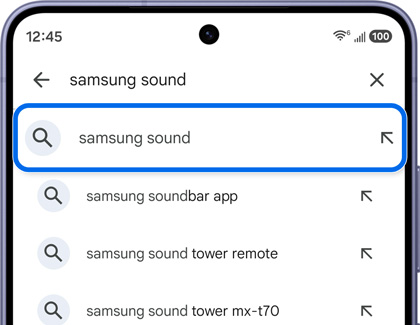
- Tap Install to download the app.
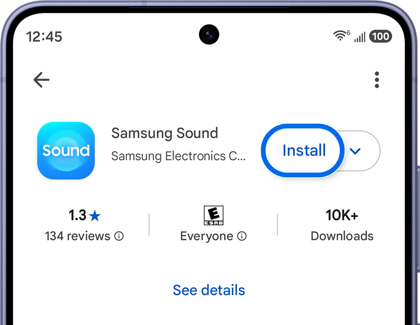
- Wait for the installation to complete, then open the app to start using it.
Read more
Read less
Download from the Apple App Store
To download the Samsung Sound app from the Apple App Store:
- Open the Apple App Store on your phone or tablet.
- Tap the Search icon (magnifying glass) at the bottom.
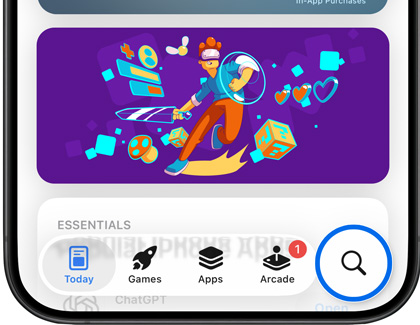
- Type Samsung Sound in the search bar, and then tap Search.
- Select the official Samsung Sound app from the search results.
- Tap Get to download the app.
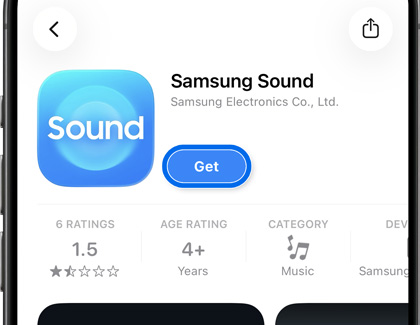
- Wait for the installation to complete, then open the app to start using it.
Read more
Read less
Device not compatible with the Samsung Sound app
If your audio device is compatible with the Sound app or the app is not available for download in the Play Store or Apple App Store, use the SmartThings app:
- First, make sure the SmartThings app is installed on your phone or tablet.
- Next, open the SmartThings app on your device.
- Select your desired location from the Location drop-down.
- Then, tap the Add icon (plus sign), then tap Add device.
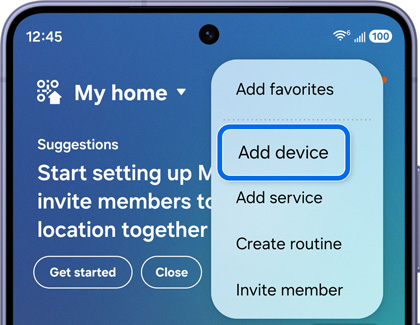
- Now, tap Add on the Samsung devices card, and select Soundbar or Speaker.
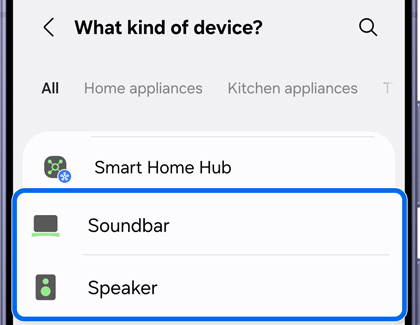
- Finally, SmartThings will scan for nearby devices. Once your audio device appears, select it and follow the on-screen instructions.
- Ensure the soundbar or speaker is powered on and within close range of your phone or tablet.
Read more
Read less
Recommended Articles
We're here for you
Contact Samsung Support
Contact us online through chat and get support from an expert on your computer, mobile device, or tablet. Support is also available on your mobile device through the Samsung Members App.

