How to use Google Assistant on your Galaxy phone or tablet
Google Assistant is a powerful digital assistant designed to make your life easier by providing quick access to information, managing tasks, and controlling smart devices with simple voice commands or taps. Whether you're setting it as your default assistant, fine-tuning voice recognition, or switching to it on your Galaxy device, this guide will walk you through every step to ensure a seamless experience.

How to use Google Assistant on your Galaxy phone or tablet
Note
Google Assistant is supported on Galaxy phones and tablets running Android 5.0 or higher. Seamless action across apps is not supported.
Set Google as your default digital assistant app
To set Google as your default digital assistant app on your device, follow these steps:
- Navigate to and open Settings on your device.
- Tap Apps, then select Choose default apps.

- Tap Digital assistant app, then tap Digital assistant app again.
- Select Google as your preferred assistant app.

If you'd like to launch Google using the Side button, adjust the settings as follows:
- Navigate back to Settings, then tap Advanced features
- Tap Side button, and then tap Long Press.

- Select Digital assistant, then tap the Settings icon next to Digital assistant and choose Google.


Read less
Switch to Google Assistant
To switch to Google Assistant on your device, follow these steps:
- Navigate to and open Settings on your device.
- Tap Google services, then tap the All services tab.
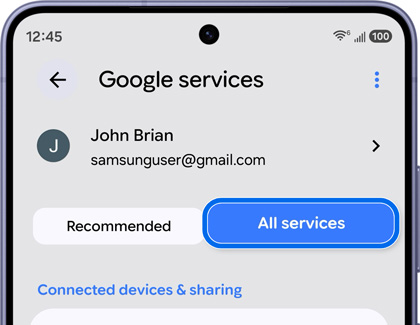
- Tap Search, Assistant & Voice, and then tap Google Assistant.
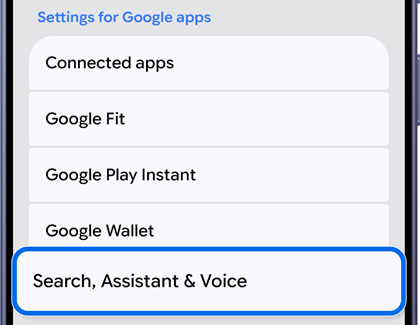
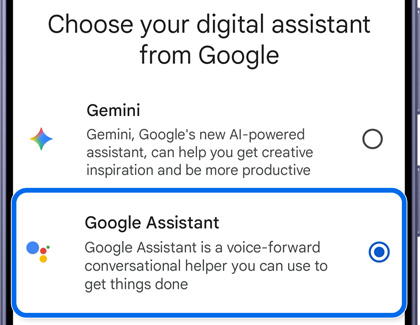
- Tap Digital assistant from Google, and then choose Google Assistant.
- Next, launch Google Assistant by pressing and holding the Side button or saying “Hey Google.”
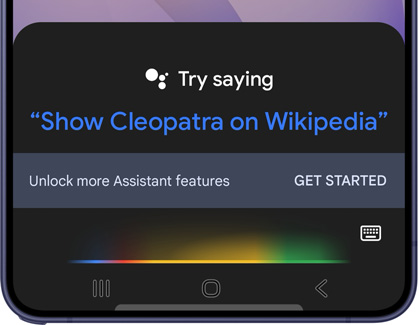
- Begin speaking or typing a question you’d like to ask.
Read less
Adjust the voice match for Hey Google
To optimize your 'Hey Google' voice settings for seamless interaction with Gemini or Google Assistant on your device, follow these steps:
- Navigate to and open Settings on your device.
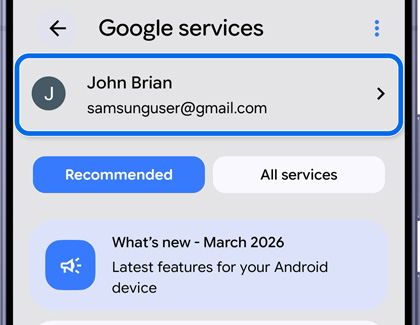
- Tap Google services, and then tap on your name and email address displayed at the top of the menu.
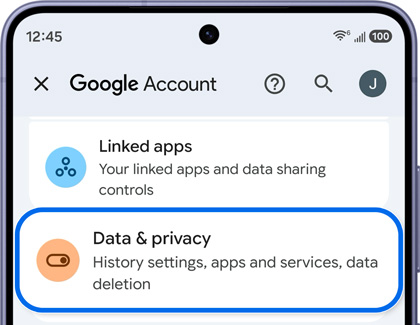
- Tap Manage your Google Account, and then tap Data & privacy.
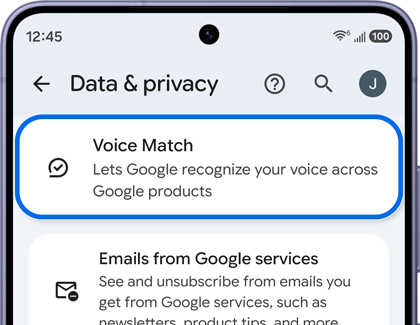
- Swipe to and tap Voice Match, and then tap Set up.
- Follow the on-screen instructions to complete the setup.
For more information about Voice Match, visit Google Help.
Read less
Recommended Articles
We're here for you
Contact Samsung Support
Contact us online through chat and get support from an expert on your computer, mobile device, or tablet. Support is also available on your mobile device through the Samsung Members App.

