How to use Seamless actions across apps on Galaxy devices

How to use Seamless actions across apps on Galaxy devices
Set Google as your default digital assistant app
To set Google as your default digital assistant app on your device, follow these steps:
- Navigate to and open Settings on your device.
- Tap Apps, then select Choose default apps.

- Tap Digital assistant app, then tap Digital assistant app again.
- Select Google as your preferred assistant app.

If you'd like to launch Google using the Side button, adjust the settings as follows:
- Navigate back to Settings, then tap Advanced features
- Tap Side button, and then tap Long Press.

- Select Digital assistant, then tap the Settings icon next to Digital assistant and choose Google.


Try Seamless actions across apps
Gemini enhances your Galaxy experience by enabling seamless actions across multiple apps, creating a more convenient and streamlined workflow. Here's how to get started:
Press and hold the Side button to activate Gemini.
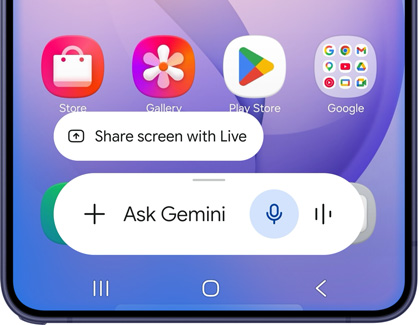
- Issue a Command: Use the keyboard or your voice to give a command, such as:
"Find a nearby Thai restaurant with outdoor seating and a casual dress code, and text the information to Mom."
"Look up the next ten Giants football games and add them to my calendar."
- Use Gemini While Watching Videos: If you want to make a quick note of a video's finer points, press and hold the Side button, then tap Ask about video.
- Issue a Video Command: For example, say, "Make a list of the locations mentioned in this video and save it as a note." Gemini will pull the relevant information and add it to a new note in Samsung Notes.
With Gemini, you can effortlessly integrate apps like Google Maps, Samsung Messages, YouTube, and Samsung Notes for a smarter, more connected experience.
Search and Messages
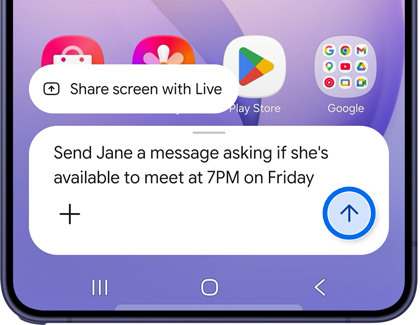
Try Search and Messages to find and send all in one go.
For example, looking for S26 Ultra features?
- Press and hold the Side button to activate Gemini.
- You can find input in two ways. You can either type your prompt or speak.
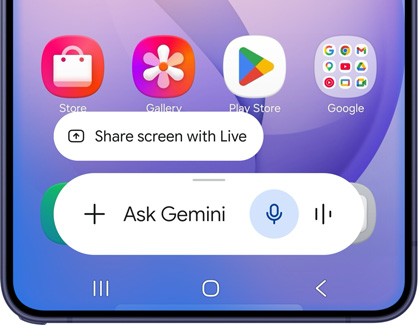
- Now, say your request.
- It automatically finds the request you just asked based on your needs and creates a message for you to send.
- Tap Send, and it's done!
YouTube and Notes
Capture key points from a video—YouTube and Notes will organize them for you.
- While you are watching a clip, press the Side button.
- Tap on Ask about this video.
- Say your request.
- Gemini extracts relevant information from the video and saves it into Notes.
Note: If the Closed caption [CC] symbol appears in a YouTube video, you can transcribe the video and save the transcription directly in the Samsung Notes app.
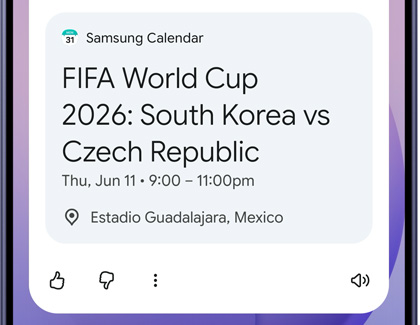
Search and Calendar
Save schedules effortlessly with Search and Calendar.
- Press and hold the Side button to activate Gemini.
- Tap mic icon and say your request.
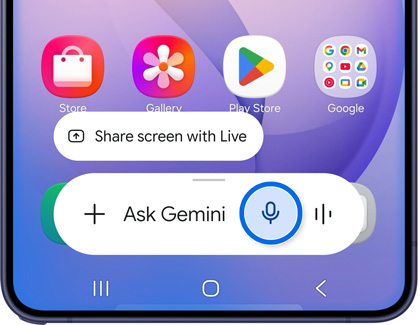
- It helps you to find the requested information.
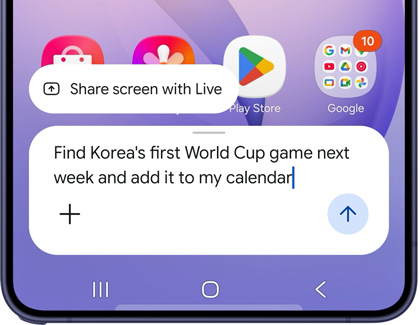
- The requested information has been saved successfully to your Calendar.