Use Browsing assist with Galaxy AI in Samsung Browser on your Galaxy phone or tablet

Use Browsing assist with Galaxy AI in Samsung Browser on your Galaxy phone or tablet
- Browsing assist with Galaxy AI is available on select phones and tablets running Android 14 with One UI 6.1 or higher. If the feature is not available on your device, it may not be compatible. Ensure your device is updated.
- Galaxy AI basic features provided by Samsung are free. Any Samsung enhanced AI features and all third party AI features are subject to different terms and may be subject to fees. (Galaxy AI basic features are listed under "Advanced intelligence" in Samsung Services Terms and Conditions.)
- Some webpages cannot be summarized, depending on the content.
- Supported languages: English, Portuguese, Spanish, French, Korean, German, Italian, Chinese (Traditional/Simplified), Japanese, Russian, Arabic, Hindi, Polish, Thai, Vietnamese, Indonesian, Turkish, Rumanian, Dutch, Swedish, Czech, Danish, Finnish, Hungarian, Ukrainian, Hebrew, Greek, Serbian, Bulgarian, Croatian, Norwegian, Slovak, Lithuanian, Slovenian, Latvian, Estonian, Bengali, Swahili (Africa).
- Translation: Supports English (US/India/Great Britain/Australia), Portuguese (Brazil), Spanish (Spain/Mexico/US), Chinese (Simplified/Hong Kong), French (France/Canada), Korean, German, Italian, Japanese, Thai, Polish, Arabic, Hindi, Vietnamese, Russian, Indonesian.
Summarize a webpage
When you come across a webpage that is dense with information, you can have Samsung Browser generate a summary of the contents. Tap the Browsing assist icon on any page, and then tap Summarize.
If you'd like to change the summary, tap the Summary style icon, and then choose Standard or Detailed.
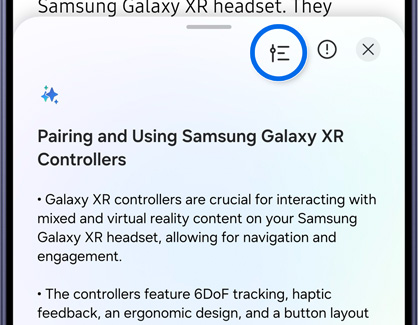
On newer Galaxy Z foldable phones and tablets, you can rotate the main screen to view the webpage and summary side by side.
Translate a webpage
Galaxy AI with Samsung Browser can also translate web pages into your native language, or any other supported language. Tap the Browsing assist icon on any page, and then tap Translate.
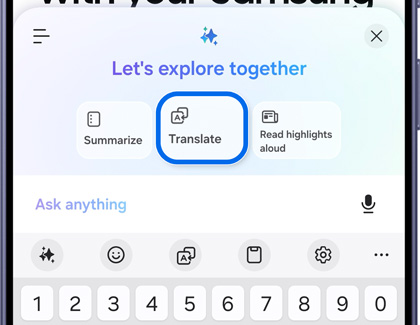
You may be prompted to download a language pack to support the language. If so, tap Download. If you’d like to translate into another language, tap the language drop-down menu at the top of the screen, and then tap the language you'd like to use. If you don’t see your preferred language, tap Add languages to check the list of supported languages. Tap the Download icon next to the language you'd like to use.
Read highlights aloud


