How to use Samsung Direct voicemail on Galaxy devices
The Direct voicemail feature allows callers to leave a voicemail message when you are unable to answer. With this feature, you can:
- Send incoming calls directly to voicemail.
- Automatically route calls to voicemail after they ring for a specified duration.
- Answer a call even while the caller is recording their voicemail message.

How to use Samsung Direct voicemail on Galaxy devices
Enable Direct voicemail feature
- Open the Phone app.
- Tap on the More options icon (the three vertical dots).
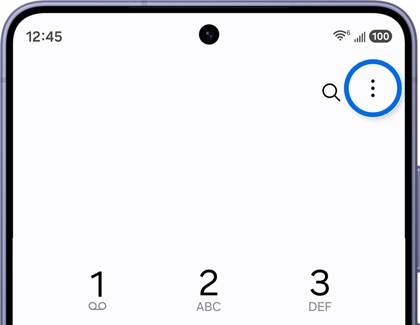
- Tap Settings.
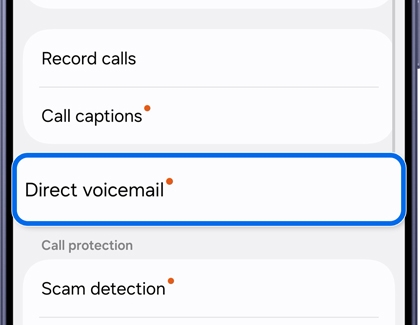
- Tap Direct voicemail.
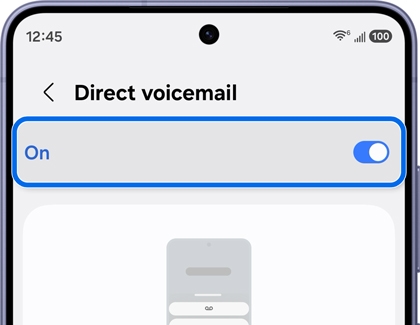
- Tap the switch at the top of the page to enable Direct voicemail.
- After enabling Direct voicemail, tap Agree to accept the terms and conditions.
- During an incoming call, swipe up to access More options.
- Select the Direct voicemail option.
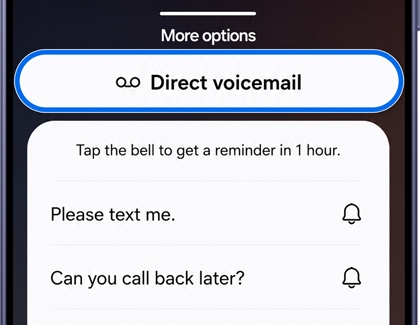
- The voicemail greeting will begin, allowing the caller to leave a message for you.
Read more
Read less
Enable Auto send to voicemail and Transcript assist options
You can configure calls to automatically go to voicemail after a set ringing duration. The Transcript assist option allows you to specify the time before sending incoming calls to voicemail.
- After enabling the Direct voicemail, tap on Auto send to voicemail and turn it ON.
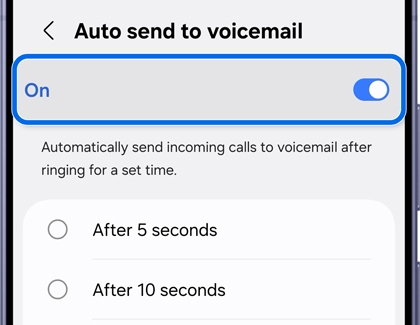
- Set the desired time for sending incoming calls to voicemail after ringing.
Read more
Read less
View what callers say while recording voicemail
You can view the voicemail messages left by callers during recording.
- Open the Phone app.
- Select the call from the Recent calls list.
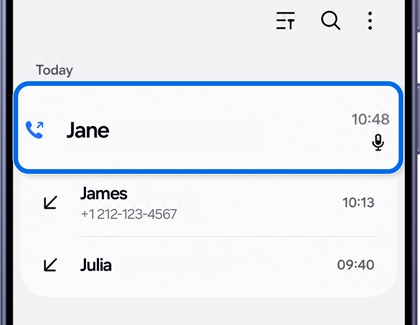
- Tap the Voicemail message.
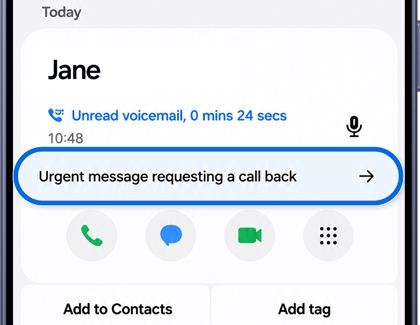
- View the recorded message, and optionally, add it to Reminder for future reference.
Read more
Read less
Get more info
For more information, visit the Samsung Support website or contact customer service.
Read more
Read less
Recommended Articles
We're here for you
Contact Samsung Support
Contact us online through chat and get support from an expert on your computer, mobile device, or tablet. Support is also available on your mobile device through the Samsung Members App.

