How to use AI Scam detection on your Galaxy phone
Protect yourself from scam calls with the AI Scam detection feature on your Galaxy phone. This built-in tool helps identify and block potential scam calls, ensuring your safety. This guide will walk you through enabling and customizing the feature to stay secure.

How to use AI Scam detection on your Galaxy phone
Note
Feature only available on Galaxy phones running Android 16 with One UI 8.5 or higher.
1
Access Scam detection.
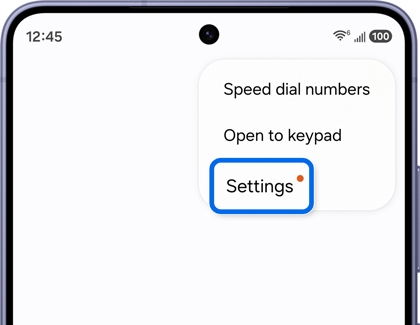
Navigate to and open the Phone app. Tap More options (the three vertical dots) in the top right corner, and then tap Settings from the menu.
2
Enable Scam detection.
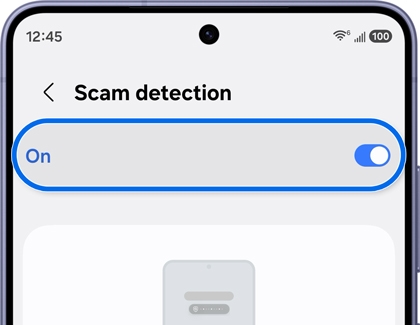
Tap Scam detection, and then ensure the switch at the top of the screen is enabled.
Note
The feature is on by default.
3
Customize notifications.
Adjust how you're notified when a scam is detected:
- Play tone: Enable to hear a tone during a scam call.
- Vibrate: Enable to receive a vibration alert during a scam call.
4
Use the feature.
When a potential scam call is detected, your phone will notify you with the selected alert (tone or vibration). You can choose to block or answer the call based on the alert.
Recommended Articles
We're here for you
Contact Samsung Support
Contact us online through chat and get support from an expert on your computer, mobile device, or tablet. Support is also available on your mobile device through the Samsung Members App.

