Understanding Finder on Galaxy phones

Understanding Finder on Galaxy phones
Check the software version:
- Swipe down from the top right corner of the screen to open the Quick panel, and then tap the Settings icon (gear).
- Swipe to and tap About phone, then tap Software information.
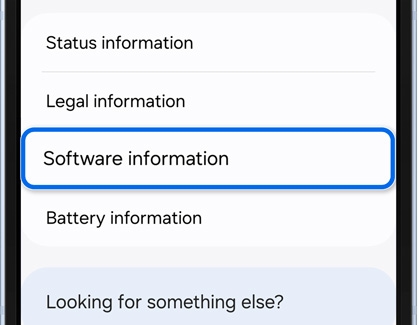
- Look for the One UI version to confirm your device's current software.
How to enable Home Finder:
Finder can be enabled on Galaxy phones running One UI 8.5 or higher, though the steps may vary slightly depending on your device's software version. Follow the instructions below to ensure Finder is activated on your Home screen.
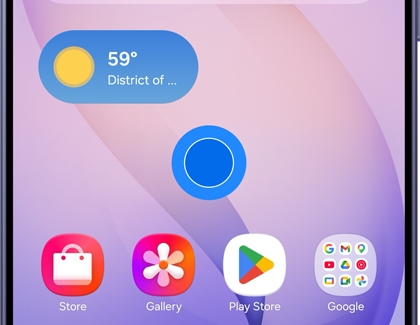
- Pinch, or touch and hold the center of the Home screen, and then tap Settings.
- Enable the switch next to Show Finder on Home screen. If your device runs One UI 9 or higher, tap Show search on Home screen first, then enable the switch next to Finder.
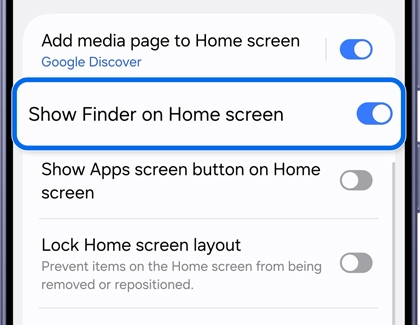
- The Finder icon will now appear on the Home screen.
Key features of updated Finder:
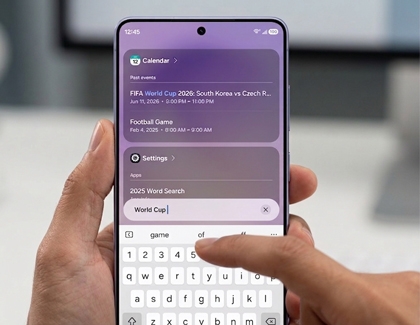
- Search suggestions and recall cards: When you search for a keyword or phrase, relevant reservation information is displayed in a card format at the top.
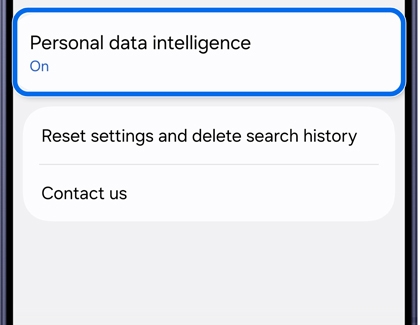
- Personal data intelligence (PDI): This feature collects reservation details from notifications in apps like Messages, Gmail, Naver, Line, WhatsApp, KakaoTalk, and Wallet.
Natural language search:
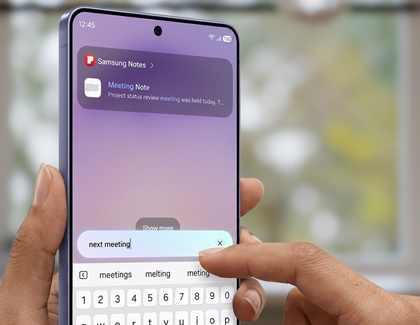
- Natural language search is activated for queries of 5 characters or longer or full sentences.
- Supported content includes Voice Recorder, Recorded Calls, Calendar, Notes, Reminders, and My Files.
Customizing Finder:
To disable reservation information and recall cards:
- Tap the Finder icon on the Home screen.
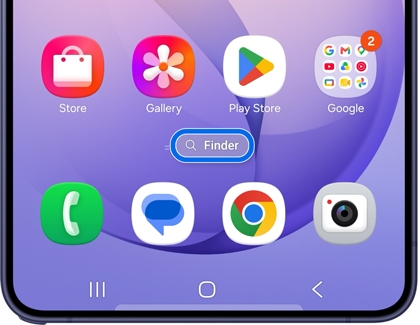
- Tap More options, and then tap Settings.
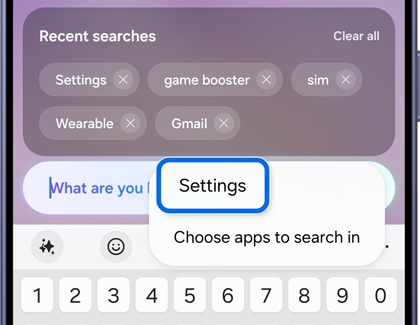
- Swipe to the bottom and turn off Personal data intelligence under Finder settings.
App searches in Finder:
- The Choose apps to search in menu has moved in Finder starting with One UI 9.0.
- Home Finder does not provide Suggested apps. For app searches, use the search bar directly from the Apps Finder for more efficient results.
- Other entry points, such as DeX, Keyboard, and GoodLock OHO+, continue to provide the same results as Apps Finder.
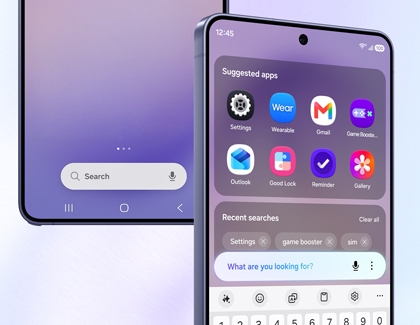
The Choose apps to search in feature in Finder lets you customize which apps appear in your search results.
- Tap Finder from the Home screen.
- Tap the More options icon (three vertical dots) in the corner of the search bar, and then tap Choose apps to search in. For devices running One UI 9 or higher, tap Settings, and then tap Choose apps to search in.
- Enable the switch next to the app(s) you want to include in your search results.
By following these steps, you can customize which apps are searched when using Finder, ensuring your search results are tailored to your needs.
Finder icon disappeared
If the Finder icon disappears from the Home screen after setup, you can re-enable it from the Home screen settings.
- Pinch, or touch and hold the center of the Home screen.
- Tap Settings, and then enable Show Finder on Home screen. If your device runs One UI 9 or higher, tap Show search on Home screen first, then enable the switch next to Finder.
With these insights, you can make the most of Finder on your Galaxy phone. Whether you're using Home Finder or exploring natural language search, these features enhance your device's functionality and convenience.

