Change the USB connection mode on your Galaxy phone or tablet
Starting with One UI 8.0, the default USB connection mode on Galaxy devices is set to "Charging phone only." This change ensures efficient charging but may affect connectivity with your PC or vehicle for tasks like file transfer or Android Auto. Learn how to change the USB connection mode to "Transferring files / Android Auto" for seamless functionality.

Change the USB connection mode on your Galaxy phone or tablet
Change the USB connection mode
- Pull down the Quick panel by swiping from the top of the screen.
- Tap the USB for charging phone notification.
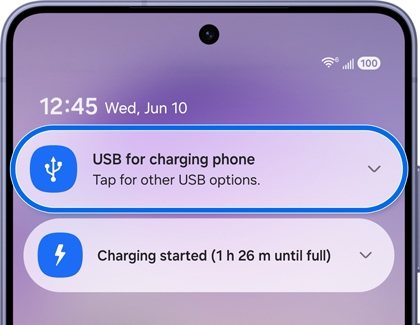
- Tap again to select other USB options.
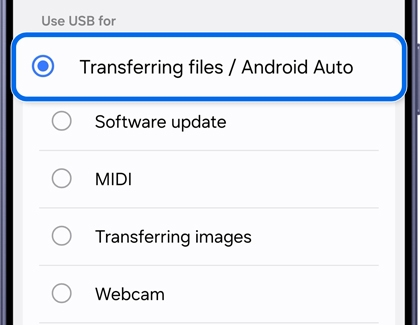
- In the USB settings menu, select Transferring files / Android Auto mode.
Recommended Articles
We're here for you
Contact Samsung Support
Contact us online through chat and get support from an expert on your computer, mobile device, or tablet. Support is also available on your mobile device through the Samsung Members App.

