How to use Lockdown mode on your Galaxy phone
Lockdown mode is a security feature on Galaxy phones that enhances protection by disabling biometric unlocking, blocking notifications, and preventing USB connections. This guide explains how to access, enable, and unlock your phone when Lockdown mode is active.

How to use Lockdown mode on your Galaxy phone
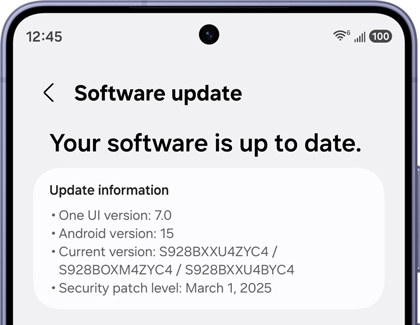
Check the One UI version running on your phone
To ensure compatibility, check the software version on your phone:
Phones with One UI 8.5 or later
- Open Settings, then tap Software update.
- Tap Check for updates.
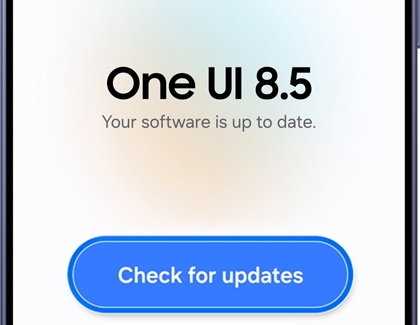
- Follow the on-screen instructions if an update is available.
Phones with One UI 8.0 or earlier
- Open Settings, then tap Software update.
- Tap Download and install.
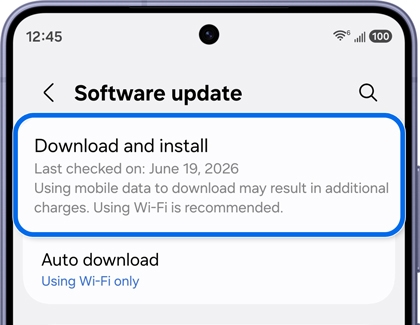
- Follow the on-screen instructions if an update is available.
Read more
Read less
What is Lockdown mode?
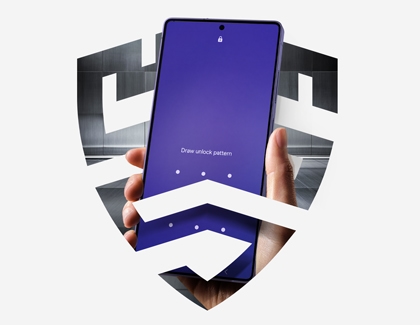
Lockdown mode enhances your phone's security by:
- Disabling biometric unlocking
- Blocking notifications
- Preventing USB connections
Read more
Read less
How can I access Lockdown mode?
Starting with One UI 8.5 and higher, the Show Lockdown mode option has been redesigned and is now enabled by default.
To access it:
- Press and hold the Volume down button and Power button simultaneously.
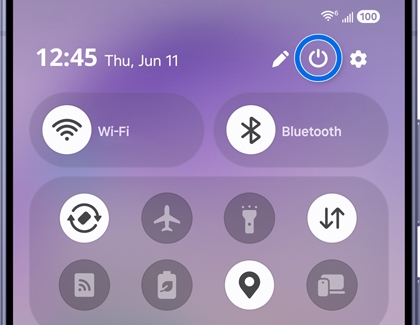
- For phones running One UI 9.0 or later, Lockdown mode is enabled automatically. For phones running One UI 8.5, tap Lockdown mode to enable it.
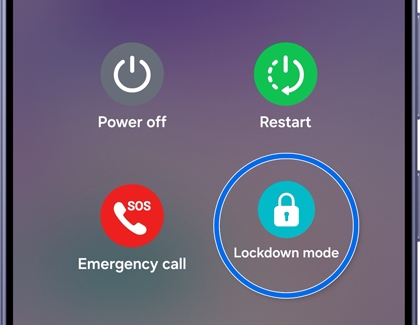
- To unlock your phone, double-tap the screen, and then enter your PIN, Password, or Pattern.
For phones running One UI 8.0 and lower, Lockdown mode options must be enabled first.
- Go to Settings > Lock screen and AOD > Secure lock settings.
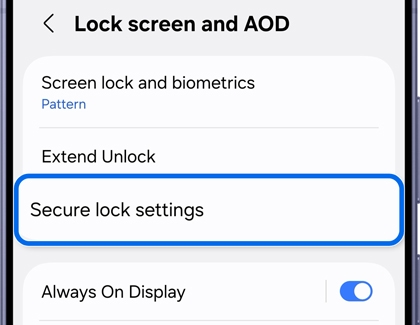
- Enter your PIN, Password, or Pattern, and then tap Show Lockdown mode option.
- Open the Power menu, and then tap the Lockdown mode icon to enable it.
- To unlock your phone, double-tap the screen, and then enter your PIN, Password, or Pattern.
Read more
Read less
How do I unlock my phone when Lockdown mode is enabled?

To unlock your phone:
- Double-tap the screen.
- Enter your PIN, Password, or Pattern.
Once Lockdown mode is unlocked, biometric unlocking (fingerprint or face recognition) will work normally the next time you lock your phone without using Lockdown mode.
Read more
Read less
How do I fix issues with Lockdown mode?
- Lockdown mode doesn't work when activated: If you try to unlock your device five times and fail, a security feature is triggered, and you won't be able to use Lockdown mode. To use Lockdown mode again, you need to unlock your device correctly after those failed attempts.
- Biometric unlocking still works: Lockdown mode disables biometric unlocking. Use a PIN, password, or pattern to unlock.
- Notifications or Now Bar are visible: Ensure Lockdown mode is properly activated. If issues persist, restart your device and try again.
- Device locks immediately without a screen lock: When triggered (via the Power button, or Volume down and Power button), the device enters a secure locked state without requiring an additional tap.
Regularly update your device's software to ensure compatibility with the latest features.
Read more
Read less
Recommended Articles
We're here for you
Contact Samsung Support
Contact us online through chat and get support from an expert on your computer, mobile device, or tablet. Support is also available on your mobile device through the Samsung Members App.

