Billing & Payments
View your monthly statements, pay your bill, set up automatic payments, and keep your card current.

Billing & Payments
Where can I view my monthly statement?
In Samsung Wallet:
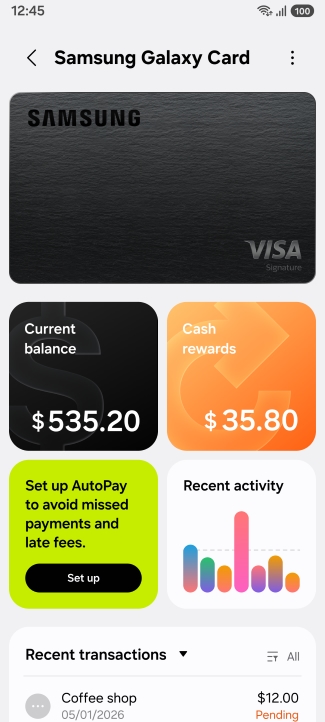
- Open the Samsung Wallet app and tap Samsung Galaxy Card.
- Tap 'Current balance.'
- Scroll down and you will see 'Statements' with a list of your previous statements within the last 2 years below.
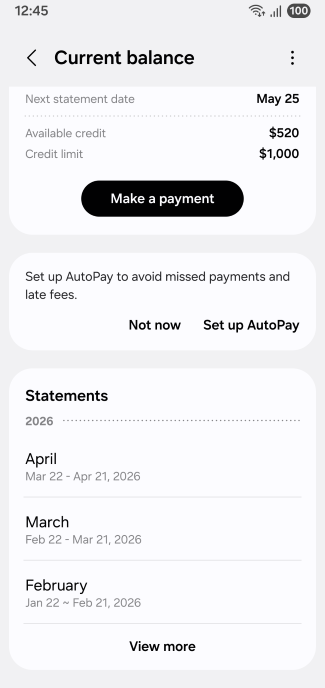
- Tap 'View more' to load more statements.
- Tap on a month to view your statement for that statement cycle and download a PDF version.
In browser:
- Sign into your account at https://card.samsung.com.
- Click 'Statements & Activity' in the sidebar.
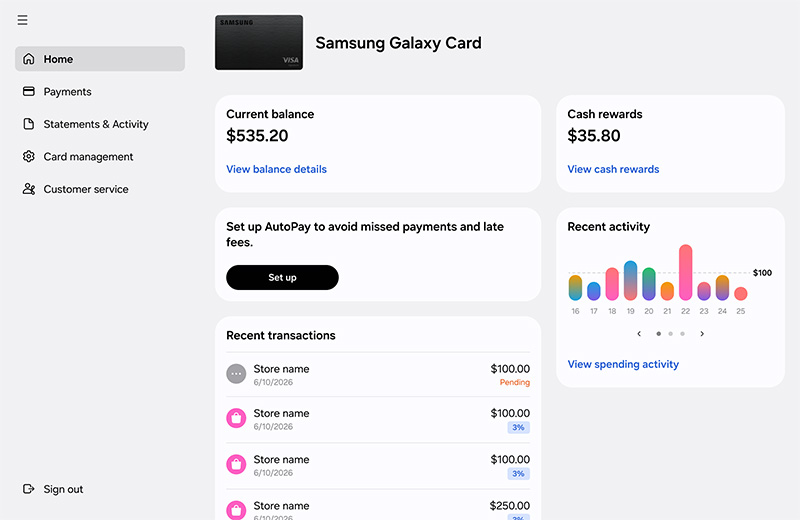
- You will see 'Statements' with a list of your previous statements within the last 2 years below. To view your statements from the previous year (if available), click the current year and select a different option.
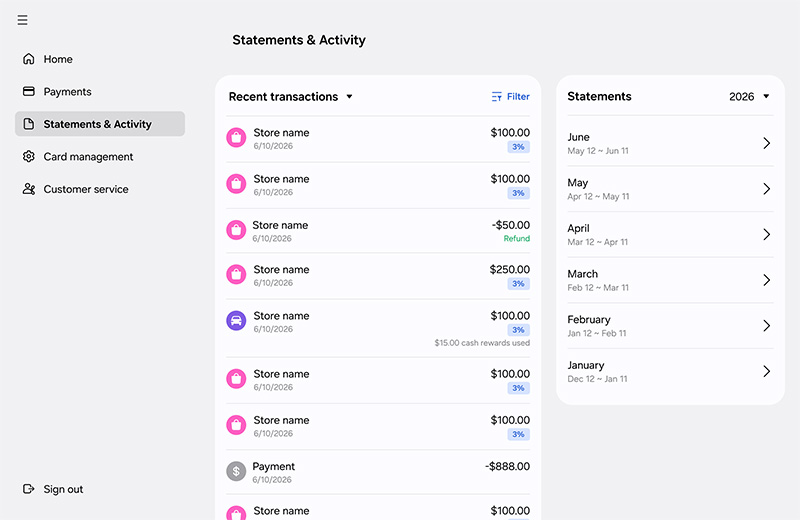
- Click on a month to download your statement for that statement cycle to your device.
Read less
What are my options for making a payment?
Samsung: Make a payment in your Samsung Wallet or online at card.samsung.com.
Barclays: Barclays US App or website visit Barclays US.
By Mail: Send your payment, including account number, to the address on your statement.
Read less
How do I make or schedule a payment?
In Samsung Wallet:
- Open the Samsung Wallet app and tap Samsung Galaxy Card.
- Tap 'Current balance.'
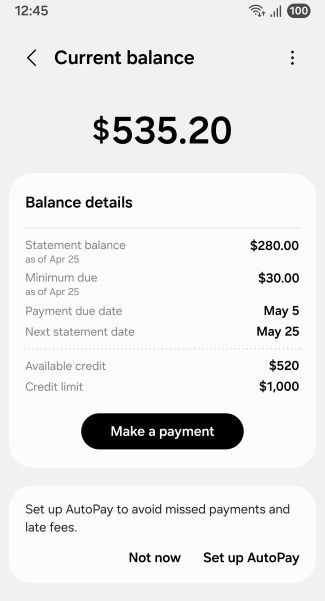
- Tap the ‘Make a payment’ button.
- Choose a suggested amount or enter an amount by dragging the slider or tapping 'Other amount.'
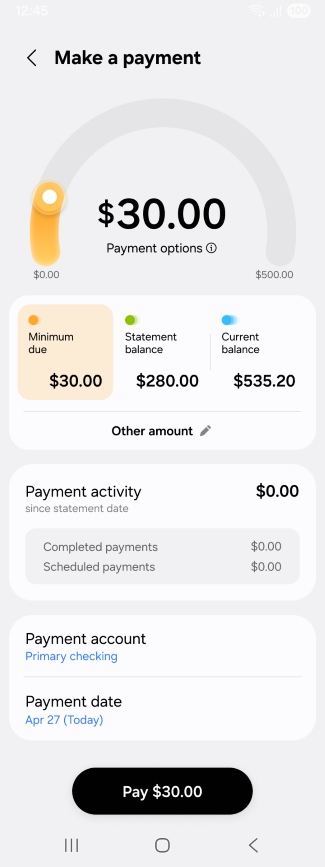
- Tap 'Payment account' to add a new bank account if you haven't added any yet or to choose from your accounts if you have added multiple.
- Tap 'Payment date' to change the selection.
- Tap the ‘Pay’ button.
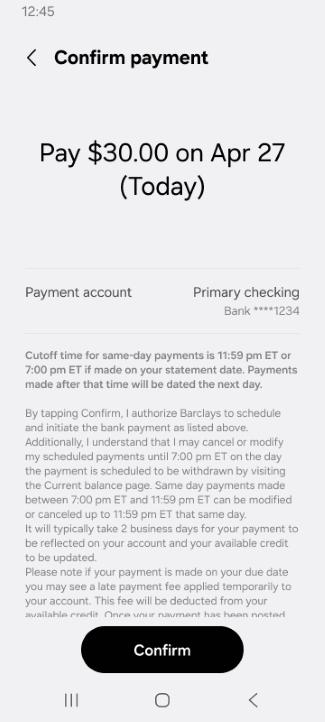
- Review your payment details and tap the ‘Confirm’ button.
In browser:
- Sign into your account at https://card.samsung.com.
- Click 'Payments' in the sidebar.
- Choose a suggested amount or enter an amount by selecting 'Other amount.'
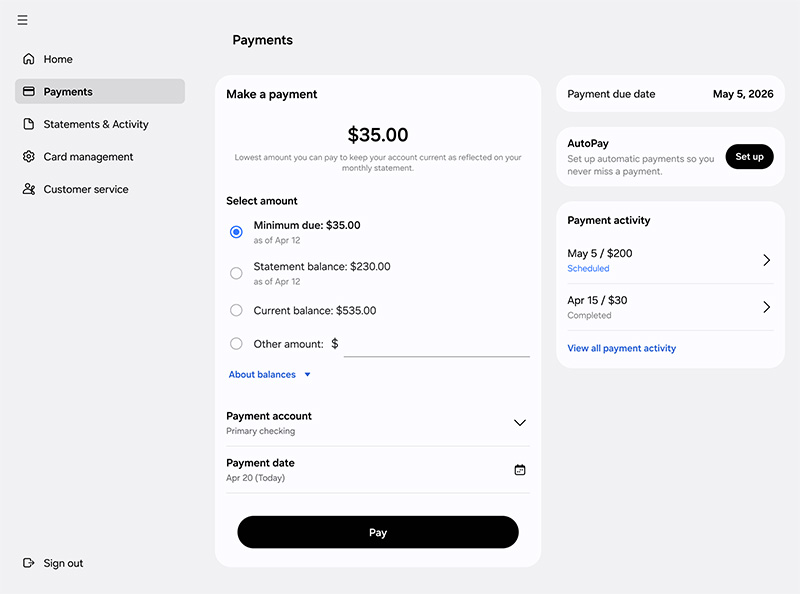
- Click 'Payment account' to add a new bank account if none has been added yet or choose from the existing accounts if you have added multiple.
- Click 'Payment date' to change the selection.
- Click the ‘Pay’ button.
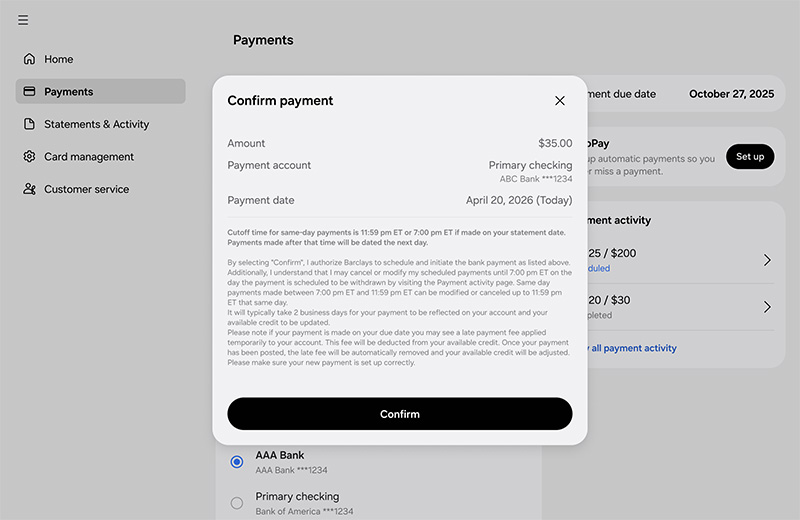
- Review your payment details and click the ‘Confirm’ button.
Read less
How can I edit or cancel a scheduled online payment
In Samsung Wallet:
- Open the Samsung Wallet app and tap Samsung Galaxy Card.
- Tap 'Current balance.'
- You can find your scheduled payments under 'Scheduled payments.'
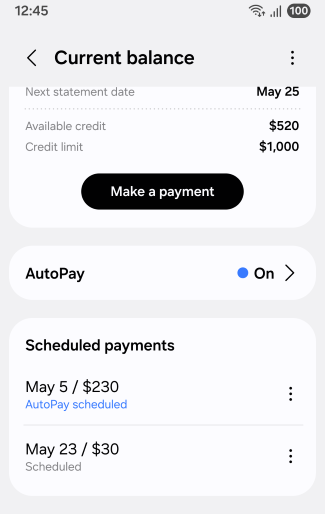
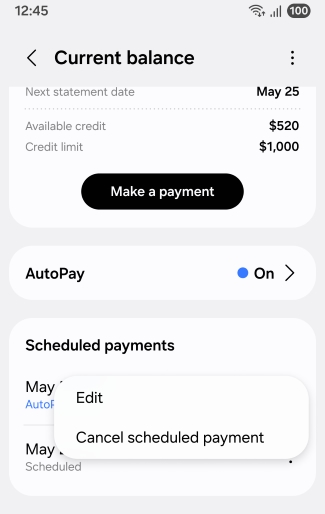
- To cancel or edit a payment, tap on the three dots next to the payment. A menu with options will open.
- Select 'Edit' or 'Cancel scheduled payment.'
In browser:
- Sign into your account at https://card.samsung.com.
- Click 'Payments' in the sidebar.
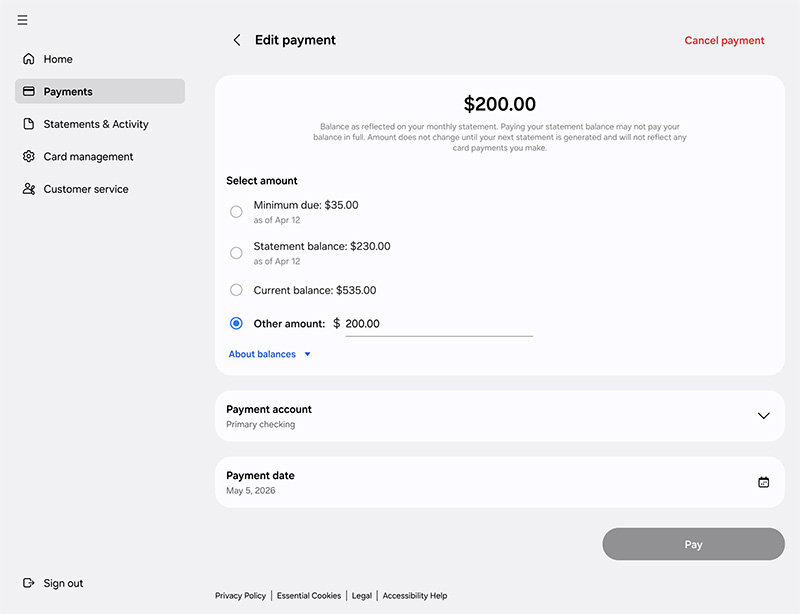
- You can find your scheduled payments under 'Payment activity.'
- Click on a payment to edit it.
- If you want to cancel the payment, click the ‘Cancel payment’ button.
Read less
How do I make a payment to avoid a late fee?
To avoid a late fee, make your monthly payment by your due date.
You can:
- Pay from the Samsung Wallet App or https://card.samsung.com or Barclays US App or visit Barclays US before 11:59 pm ET. If your payment reaches Barclays after 7:00 pm ET, you may see a late fee, but Barclays will reverse it automatically when the payment posts in one or two days.
- Call the number on the back of your card and pay before 11:59 pm ET.
- Mail a check or money order to the address on your statement so it arrives before 5:00 PM local time.
Read less
Can I add multiple bank accounts to make payments? and how do I manage my bank accounts?
Yes, you can add multiple bank accounts.
To manage your bank accounts
In Samsung Wallet:
- Open the Samsung Wallet app and tap Samsung Galaxy Card.
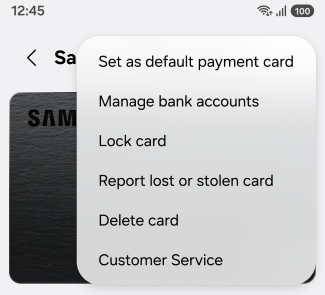
- Tap the 3 dots in the upper right corner and tap 'Manage bank accounts.'
- To edit or remove an added bank account, tap 'Manage bank accounts.' To add a new bank account, tap 'Add bank account.'
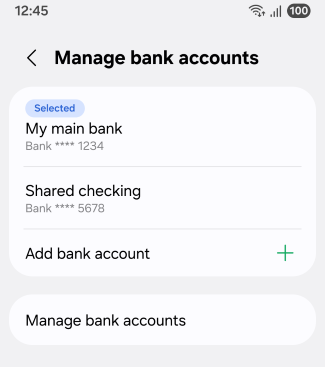
- Follow the steps on the Barclays website.
In browser:
- Sign into your account at https://card.samsung.com.
- Click 'Card management' in the sidebar.
- To edit or remove an added bank account, click 'Manage bank accounts' To add a new bank account, click 'Add bank account.'
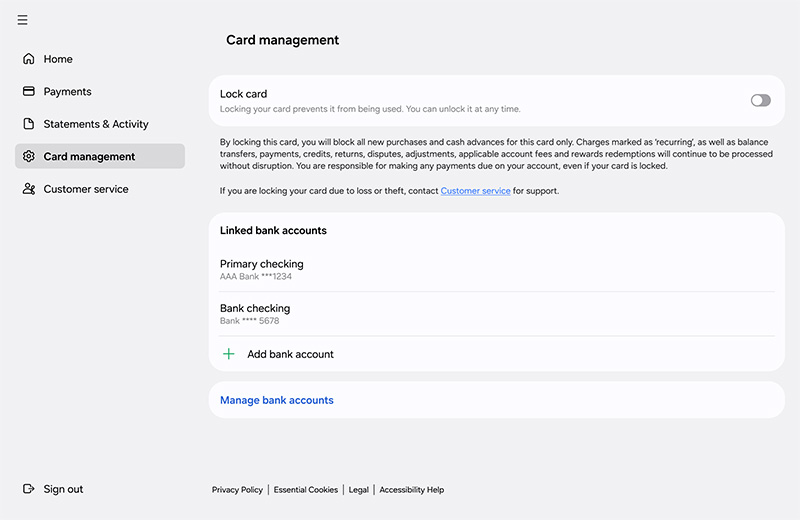
- Follow the steps on the Barclays website.
Read less
Recommended Articles
We're here for you
Contact Samsung Support
Contact us online through chat and get support from an expert on your computer, mobile device, or tablet. Support is also available on your mobile device through the Samsung Members App.