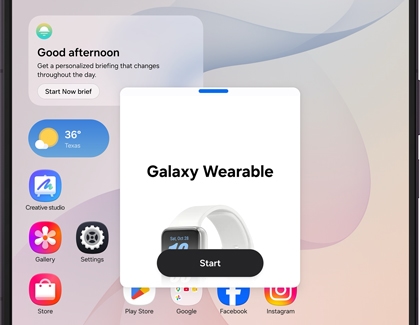
Use Multi Window and multitasking features on your Galaxy Z Fold8 Ultra

Use Multi Window and multitasking features on your Galaxy Z Fold8 Ultra
Get started with Now nudge
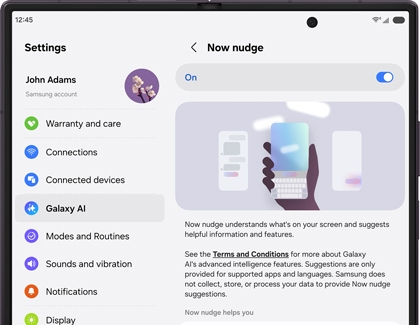
Turn on Now nudge
- Open the Settings menu, then tap Galaxy AI.
- Tap Now nudge.
- Tap the switch to turn the feature on.
Use Now nudge
When Now nudge detects information it can help with, a suggestion appears while you're using a supported app. Simply tap the suggestion to complete the recommended action.
For example, Now nudge can help you:
- Open a shared address in Maps.
- Add an event from a message to your Calendar.
- Share photos more quickly.
- Recall useful information from previous chats, screenshots, and other supported content.
Use apps side by side
Multi Window lets you use two supported apps at the same time in a split screen layout. This makes it easy to compare information, reply to messages while browsing the web, take notes during a video call, or switch between tasks without constantly opening and closing apps.
On your Galaxy Z Fold8 Ultra, you can also adjust the size of each app window, making it easier to focus on the content that matters most.
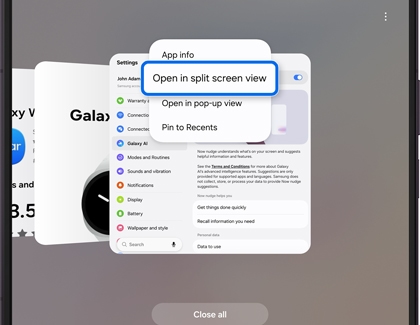
- Tap the Recent apps button.
- Tap the app icon above the first app you want to use, then tap Open in split screen view.
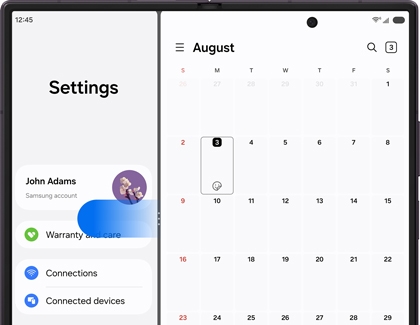
- Select another supported app to open in the second window.
- Drag the divider between the two apps to adjust how much space each app uses.
Open an app in Pop-up view
Pop-up view lets you open a supported app in a floating window that stays on top of other apps. This makes it easy to keep a conversation, calculator, or another app within easy reach while continuing to use your main app underneath.
You can move the floating window around the screen and resize it to suit your needs, making multitasking even more flexible on your Galaxy Z Fold8 Ultra.
- Tap the Recent apps button.
- Tap the app icon above the app you want to use, then tap Open in pop-up view.
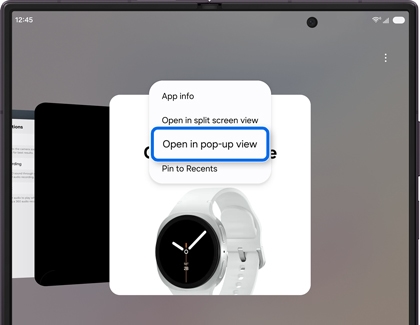
- Move or resize the floating window as needed while continuing to use the app underneath.