Use Flex mode on your Galaxy Z Fold8 Ultra

Use Flex mode on your Galaxy Z Fold8 Ultra
Use Flex mode
When your Galaxy Z Fold8 Ultra is partially folded, supported apps can automatically adjust to the screen layout. Instead of using the entire display as one screen, the app moves its main content to the upper half while controls appear on the lower half, making it more comfortable to watch videos, join video calls, browse the web, and perform other tasks without holding your device.
Some supported apps can also display the Flex mode panel, giving you quick access to helpful tools and controls while your phone is positioned on a flat surface.
- Open a supported app, such as YouTube.
- Partially fold your Galaxy Z Fold8 Ultra and place it on a stable, flat surface.
- Adjust the angle until the app automatically switches to the Flex mode layout.
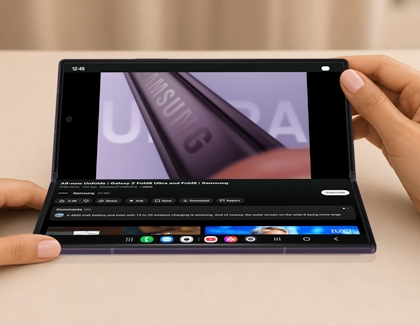
- Continue using the app with the main content displayed on the upper half of the screen while using the tools available in the Flex mode panel on the lower half.
- Flex mode and the Flex mode panel are available only in supported apps.
- The Flex mode panel must be turned on before you can use it. Open the Settings menu, tap Advanced features, and then tap Flex mode panel to enable the feature. Also make sure Auto rotate is enabled in the Quick settings panel.
Control apps with the Touchpad
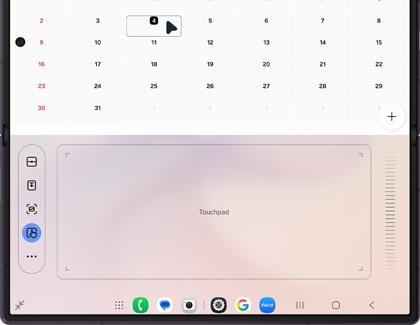
The Touchpad is one of the tools available in the Flex mode panel. It lets you control supported apps on the upper half of the screen without reaching up to touch the display. This can make it more comfortable to browse content, interact with on-screen controls, and navigate your phone while it's resting on a table or other flat surface.
- Open a supported app and partially fold your Galaxy Z Fold8 Ultra.
- If necessary, tap the Flex mode panel icon in the bottom-left corner of the screen to display the Flex mode panel.
- Tap the Touchpad icon.
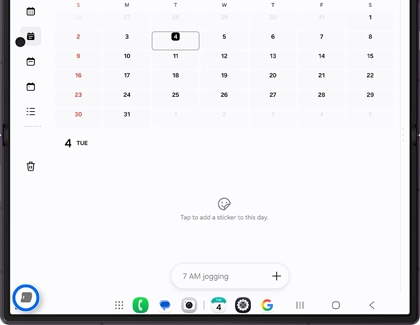
- Use the Touchpad to move the pointer, tap items, or control supported content.
Customize the Flex mode panel and Touchpad
Customize the Flex mode panel
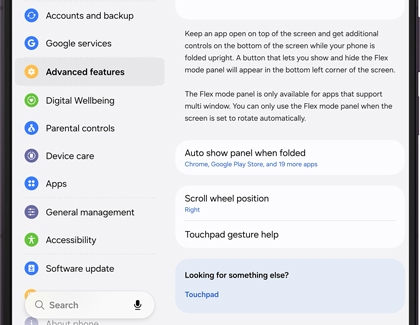
- Open the Settings menu, then tap Advanced features.
- Tap Flex mode panel.
- Adjust the available settings, such as when the panel appears or the scroll wheel position.
Customize the Touchpad
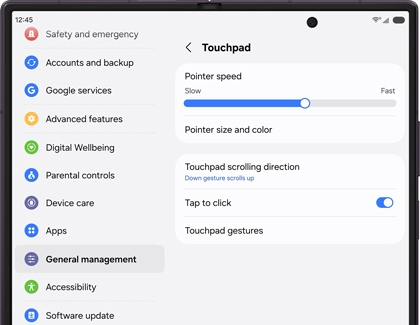
- Open the Settings menu, then tap General management.
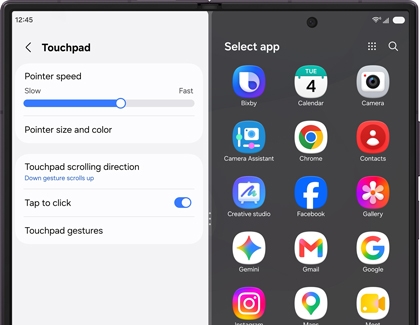
- Tap Touchpad.
- Adjust the available settings, such as pointer speed, pointer size and color, scrolling direction, tap to click, and Touchpad gestures.
Use multiple apps at the same time
Multi Window lets you use two supported apps side by side, making it easier to multitask on your Galaxy Z Fold8 Ultra. For example, you can browse the web while taking notes, compare information between two apps, or join a video call while checking your calendar.
Although Multi Window is not exclusive to Flex mode, partially folding your Galaxy Z Fold8 Ultra lets you enjoy a more comfortable hands-free multitasking experience while taking advantage of your phone's large foldable display.
- Tap the Recent apps button.
- Tap the app icon above the first app, then tap Open in split screen view.
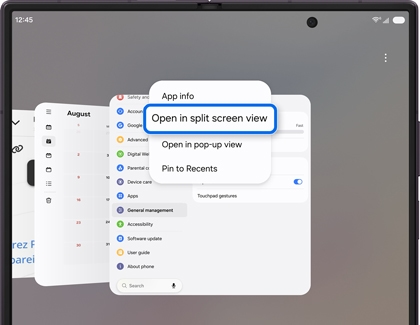
- Select another supported app to open in the second window.