Use multiple apps and multitask on your Galaxy Z Fold8

Use multiple apps and multitask on your Galaxy Z Fold8
Use two apps side by side with Split screen
Split screen lets you use two supported apps side by side, making the most of the large display on your Galaxy Z Fold8. Whether you're comparing information, taking notes while browsing the web, or watching a video while replying to messages, Split screen helps you work more efficiently without constantly switching between apps.
- Tap the Recent apps button.
- Tap the app icon above the first app you want to use, then tap Open in split screen view.
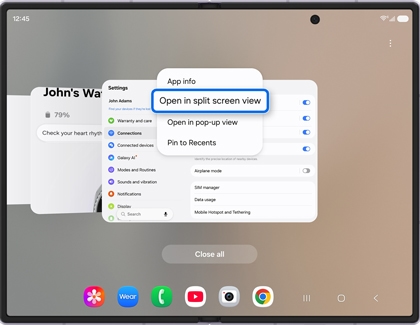
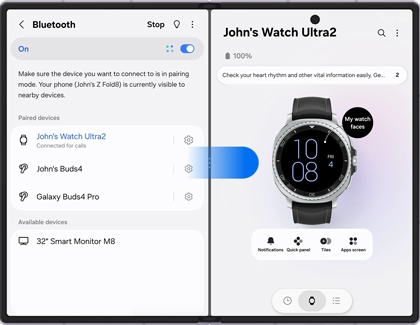
- Select another supported app to open in the second window.
- Drag the divider between the two apps to adjust how much space each app uses.
Open an app in a floating window with Pop-up view
Pop-up view lets you keep a supported app available in a floating window while continuing to use another app underneath. It's a convenient way to reference information, reply to messages, or perform quick tasks without interrupting what you're already doing. You can move the floating window around the screen or resize it to fit your workflow.
- Tap the Recent apps button.
- Tap the app icon above the first app you want to use, then tap Open in pop-up view.
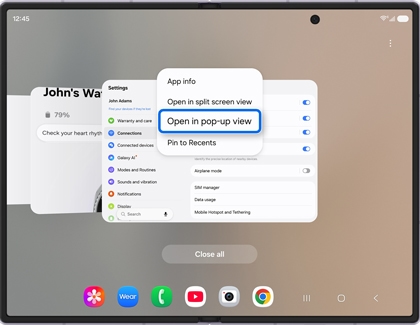
- The app opens in a floating window above your current screen.
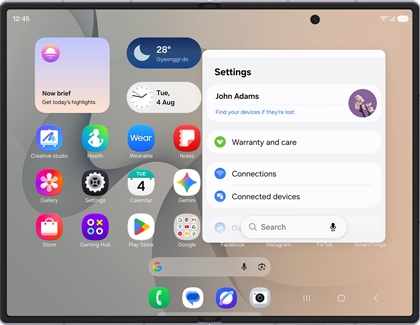
- Drag the multi window handle to move the floating window. You can also tap the handle to access additional options.
Personalize Multi Window
Multi Window includes settings that let you personalize how you use Split screen and Pop-up view on your Galaxy Z Fold8. You can enable convenient gestures to launch these features more quickly and adjust additional options to make multitasking even more efficient.
- Open the Settings menu, then tap Advanced features.
- Tap Multi window.
- Turn on or adjust the Multi Window options that best fit how you use your phone, such as:
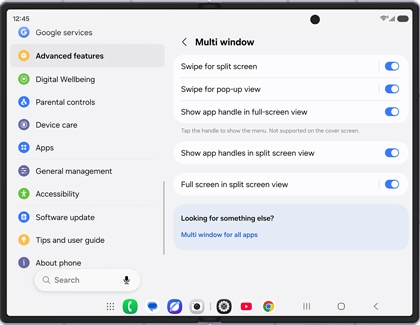
- Swipe for split screen to open two apps side by side using a swipe gesture.
- Swipe for pop-up view to open an app in a floating window using a swipe gesture.
- Full screen in split screen view for a more immersive Split screen experience.
Use the Taskbar to access apps faster
The Taskbar gives you quick access to your favorite and recently used apps while you're using your Galaxy Z Fold8. Instead of returning to the Home screen, you can switch between apps or quickly open two apps side by side, making multitasking even more convenient on the large display.
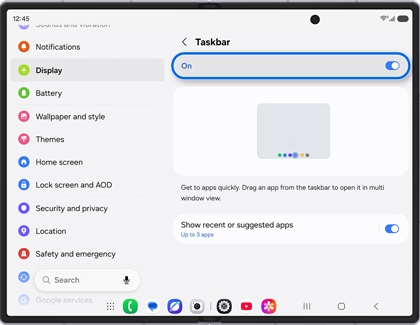
The Taskbar appears at the bottom of the screen while you're using apps, giving you quick access to your favorite apps, recently used apps, and App Pairs. If it isn't visible, you can enable it:
- Open the Settings menu, then tap Display.
- Tap Taskbar.
- Tap the switch at the top of the screen to turn it on.
Use Samsung DeX for a desktop-like experience
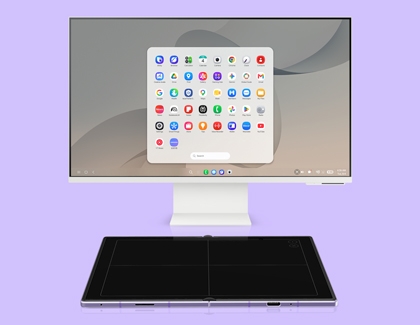
Samsung DeX extends the multitasking capabilities of your Galaxy Z Fold8 by providing a desktop-style interface on a compatible external display. You can work with multiple apps in separate windows, browse the web, create documents, and use a keyboard and mouse for a more comfortable and productive experience.
To learn how to connect your Galaxy Z Fold8 and start using Samsung DeX, refer to the following guides:

