Learn about camera modes and settings on your Samsung Galaxy Z Fold8

Learn about camera modes and settings on your Samsung Galaxy Z Fold8
Camera specifications
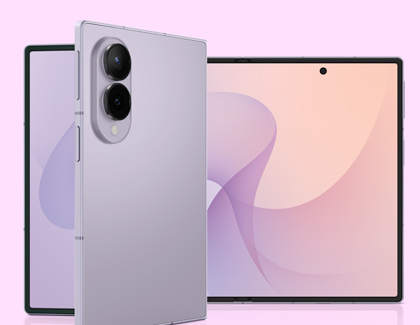
Your Samsung Galaxy Z Fold8 is equipped with versatile cameras designed for everyday photography, detailed close-ups, expansive landscapes, and high-quality video recording. The specifications below provide an overview of the available cameras, video recording capabilities, and key camera features to help you better understand what your device can do.
- Rear Wide camera: 50 MP with autofocus (AF) and Optical Image Stabilization (OIS).
- Rear Ultra Wide camera: 50 MP with autofocus (AF).
- Front camera: 10 MP.
- Rear video recording: Up to 4K UHD at 60 fps.
- Front video recording: Up to 4K UHD at 60 fps.
- Key camera features: Cover Screen Preview, Dual Screen, Video Reframe, Camera Assistant, 360 Audio Recording, Portrait, Hyperlapse, Super Steady, Single Take, and more.
Preview photos on the cover screen
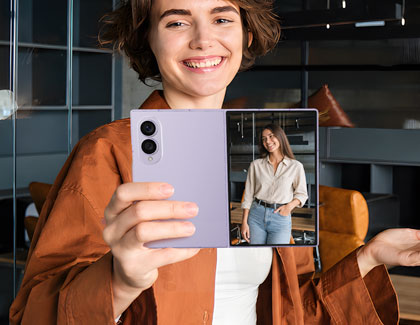
Cover Screen Preview lets the person you're photographing see a live preview of the shot on the cover screen while you use the rear cameras. Instead of wondering how they'll appear in the final photo, they can adjust their pose, smile naturally, and make sure they're in the frame before you press the shutter. It's a simple way to make group photos, portraits, and family pictures easier for everyone.
Let everyone see the shot with Dual Screen
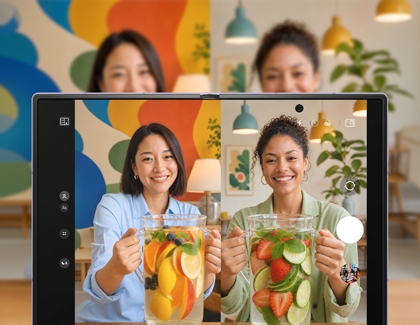
Dual Screen lets both you and your subject view the camera preview at the same time. While you frame the shot on the main screen, the person you're photographing can see a live preview on the cover screen to adjust their pose, expression, or position before you take the picture. This makes it easier to communicate, capture natural-looking photos, and help everyone feel confident they'll like the final result.
Reframe your videos after recording
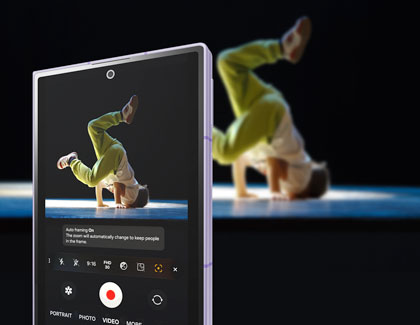
Video Reframe lets you adjust the framing of your videos after you've finished recording. Instead of trying to keep your subject perfectly centered while filming, you can capture a wider view and let Galaxy AI create a new video that follows the person you choose. It's an easy way to create polished, subject-focused videos without having to record the moment again.
Customize your camera with Camera Assistant
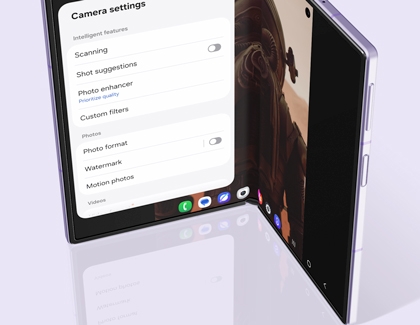
Camera Assistant gives you more control over how your Samsung Galaxy Z Fold8 camera works. Instead of changing how your photos look, it lets you customize your camera's behavior to match the way you like to take pictures and record videos. Whether you want faster shutter response, additional camera options, or more control over certain settings, Camera Assistant makes it easy to personalize your photography experience.
- Open the Camera app, then tap the Quick controls icon.
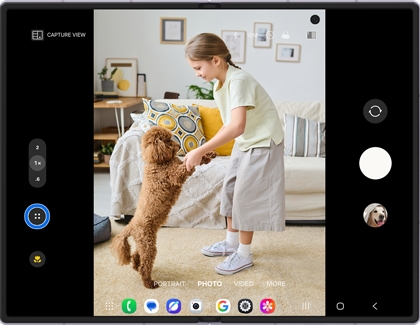
- Tap the Settings icon.
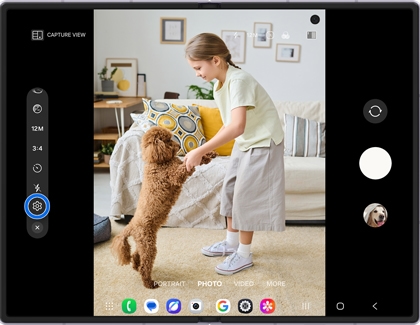
- Scroll to the bottom of the menu, then tap Camera Assistant.
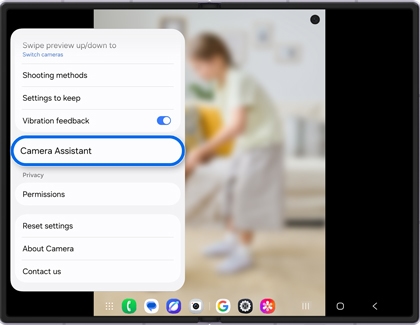
Note: If Camera Assistant isn't installed, tap Install and follow the on-screen instructions. Once the installation is complete, open Camera Assistant. - Camera Assistant includes a variety of settings that let you customize how your camera behaves. Some useful options include:
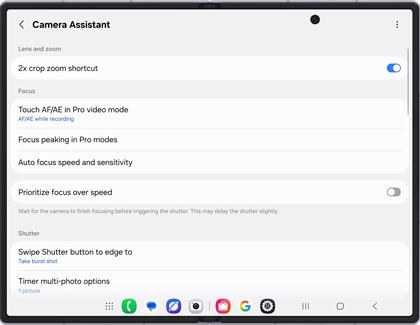
- Quick tap shutter: Take photos as soon as you tap the shutter button, reducing the delay before the picture is captured.
- Auto lens switching: Automatically switches between compatible camera lenses to help capture the best shot based on zoom level, lighting, and subject distance.
- Photo softening: Adjusts the amount of image sharpening to create a softer, more natural look.
- Auto HDR: Improves photos with bright highlights and dark shadows by capturing a wider range of detail in challenging lighting conditions.
- 24 MP resolution: Lets you capture higher-resolution photos when you want more image detail.
- Prioritize focus over speed: Waits for the camera to achieve focus before taking the picture, which can help produce sharper photos of stationary subjects.
- Timer multi-photo options: Captures multiple photos automatically when using the camera timer, giving you more shots to choose from.
- Swipe Shutter button to edge: Lets you choose what happens when you swipe the shutter button, such as taking burst shots.
Capture immersive sound with 360 Audio Recording
360 Audio Recording lets you capture realistic, three-dimensional sound when recording videos with compatible Galaxy Buds. Instead of recording audio only from your phone, your earbuds work together to capture sounds from around you, helping videos feel more immersive and true to the moment. It's a great option for concerts, travel, family gatherings, and other moments where you want to preserve both the sights and the sounds.
- Connect your compatible Galaxy Buds to your Galaxy Z Fold8.
- Open the Camera app, then tap the Quick controls icon.
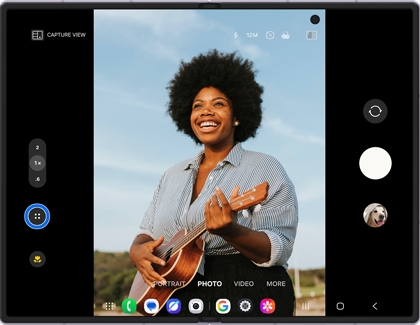
- Tap the Settings icon.
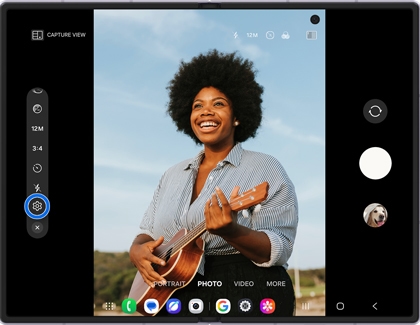
- Tap Audio options under Videos, and then turn on 360 audio recording.
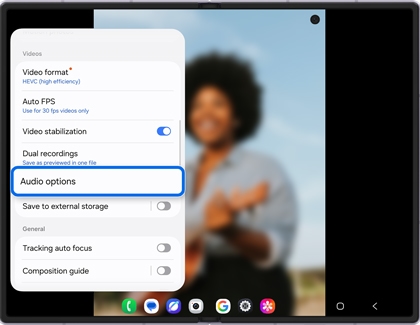
- Return to the camera and start recording your video. The 360 MIC indicator appears when the feature is active.

