Make the cover screen and main screen your own on your Galaxy Z Fold8

Make the cover screen and main screen your own on your Galaxy Z Fold8
Display specifications
Your Galaxy Z Fold8 includes two displays designed to make everyday tasks and entertainment more convenient. The cover screen lets you quickly check notifications, browse apps, and respond to messages while the device is folded, while the larger main screen gives you more room for watching videos, reading, gaming, and viewing content.
The specifications below provide an overview of each display.
Main screen
- 7.6-inch QXGA+ Dynamic AMOLED 2X display
- 120Hz Adaptive Refresh Rate
Cover screen
- 5.5-inch FHD+ Dynamic AMOLED 2X display
- 120Hz Adaptive Refresh Rate
Adjust display settings
Your Galaxy Z Fold8 includes a variety of display settings that let you personalize both the cover screen and the main screen for a more comfortable viewing experience. Whether you want smoother scrolling, larger text, or display settings that are easier on your eyes, you can adjust your phone to match the way you use it throughout the day.
You can also manage features such as the Taskbar and Continue apps on cover screen, giving you more control over how your Galaxy Z Fold8 behaves as you switch between its two displays.
- Open the Settings menu, then tap Display.
- Select the setting you want to customize, such as:
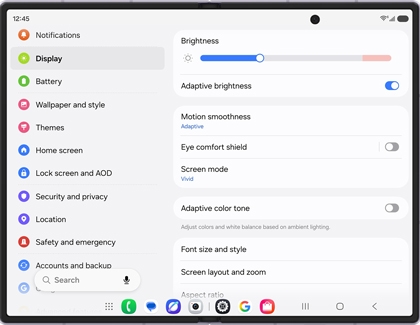
- Brightness: Change the screen brightness manually or enable adaptive brightness.
- Motion smoothness: Choose the refresh rate that best matches your preferences.
- Eye comfort shield: Reduce blue light and adjust the screen color temperature for more comfortable viewing.
- Screen mode: Adjust how colors appear on the display.
- Font size and style: Make text easier to read by changing the font size and appearance.
- Aspect ratio: Choose whether supported apps display in full screen or keep their original aspect ratio when using the main screen.
- Taskbar: Show or hide the Taskbar at the bottom of the main screen for quicker access to favorite and recently used apps.
- Continue apps on cover screen: Choose whether supported apps stay open on the cover screen after you fold your device.
Customize your Home screen
- Open the Settings menu, then tap Home screen.
- Select the setting you want to customize, such as:
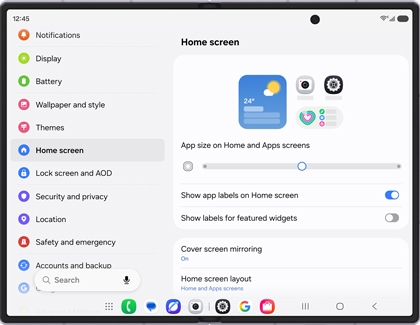
- Cover screen mirroring: Use the same Home screen layout on both the cover screen and the main screen.
Note: To use different Home screen layouts on the cover screen and the main screen, turn off Cover screen mirroring. When this option is turned on, changes made to one Home screen are automatically reflected on the other.
- Home screen layout: Choose whether to use a separate Apps screen or display all apps directly on the Home screen.
- Show Apps screen button on Home screen: Add or remove the Apps button from the Home screen.
- App icon badges: Show notification badges on supported app icons.
- Cover screen mirroring: Use the same Home screen layout on both the cover screen and the main screen.
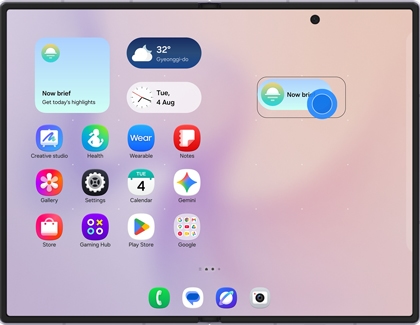
Add widgets to your Home screen
- Touch and hold an empty area of the Home screen.
- Tap Widgets.
- Select a widget category, choose the widget you want, and then tap Add.
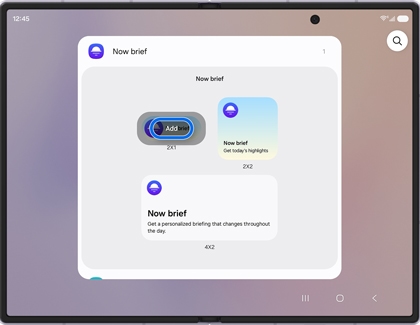
- Touch and hold the widget to move it to the desired location or resize it, if supported.
Change your theme
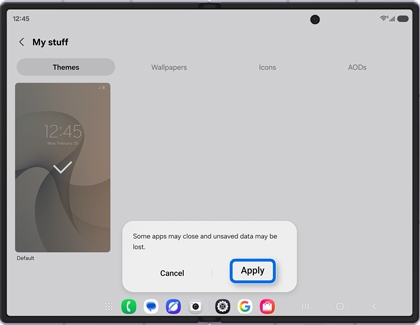
Themes let you quickly change the overall look of your Galaxy Z Fold8 by applying a coordinated combination of wallpapers, icons, colors, and other visual elements. Instead of customizing each setting individually, you can apply a complete theme to give your device a fresh new appearance.
You can browse available themes, download your favorites, and switch between them whenever you like.
- Touch and hold an empty area of the Home screen, then tap Themes.
- Browse the available themes and select the one you want.
- If necessary, download the theme, then tap Apply.
Customize your wallpaper and style
If you prefer to personalize your Galaxy Z Fold8 without applying a complete theme, you can customize the wallpaper and other visual elements separately. Choose different wallpapers for the cover screen and the main screen, create a matching color palette, or adjust how your wallpaper appears when using Dark mode.
These options let you give your Galaxy Z Fold8 a unique look while keeping the layout and settings you already like.
- Touch and hold an empty area of the Home screen, then tap Wallpaper and style.
- Select the setting you want to customize, such as:
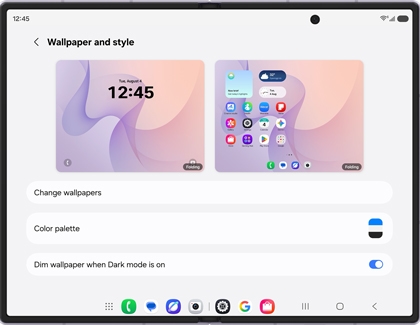
- Change wallpapers: Select a wallpaper for the cover screen, main screen, or Lock screen.
- Color palette: Apply colors based on your wallpaper throughout the interface.
- Dim wallpaper when Dark mode is on: Reduce the wallpaper brightness automatically when using Dark mode.
Continue apps between screens
- Open the Settings menu, then tap Display.
- Tap Continue apps on cover screen.
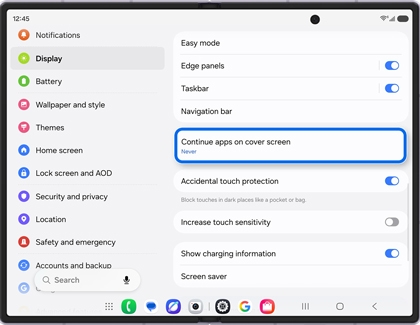
Select one of the available options:
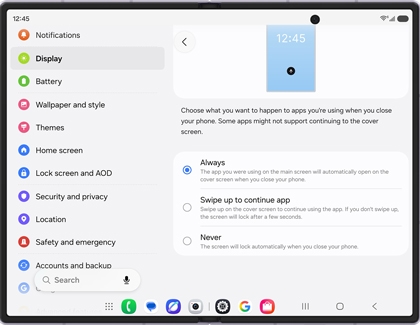
- Always: Continue using supported apps automatically on the cover screen after folding your phone.
- Swipe up to continue app: Swipe up on the cover screen to continue using the app after folding your phone.
- Never: Lock the cover screen instead of continuing the app.
Use One-handed mode
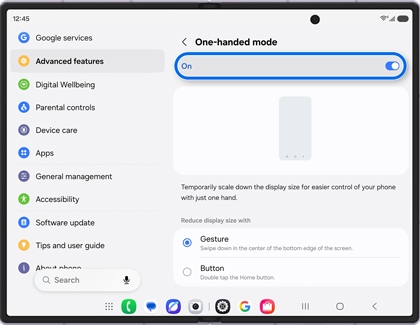
- Open the Settings menu, then tap Advanced features.
- Tap One-handed mode.
- Tap the switch to turn the feature on.
- Select your preferred activation method:
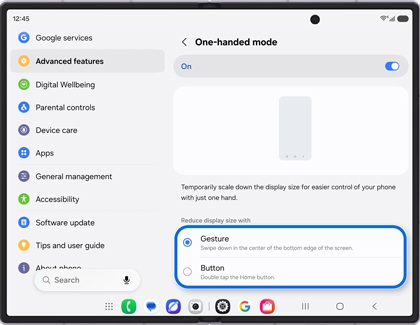
- Gesture: Swipe down in the center of the bottom edge of the screen.
- Button: Double-tap the Home button.