Transfer data to your new Galaxy Z Flip8

Transfer data to your new Galaxy Z Flip8
Get your devices ready
Before you begin, take a few moments to prepare both devices. This helps ensure your data transfer goes as smoothly as possible.
Prepare both devices
- Charge both devices: Data transfers can take several minutes depending on how much content you're moving. Make sure both devices are sufficiently charged before you begin.
- Keep both devices nearby: Place your old and new devices next to each other throughout the transfer to help maintain a stable connection.
Prepare your old device
- Connect to Wi-Fi: If you're transferring data wirelessly, make sure your old device is connected to a stable Wi-Fi network before you begin.
- Turn on Bluetooth: Bluetooth helps your new Samsung Galaxy discover your old device and start the transfer more quickly.
- Install or update Smart Switch: If Smart Switch is not installed or is out of date on your old device, install or update the app before you begin.
Transfer data to your new device during initial setup
- Turn on your new phone for the first time, and then select your preferred language.
- Tap Start, and then agree to the terms and conditions on the screen.
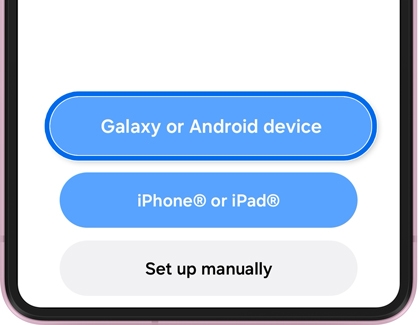
- Make sure your previous device is turned on and unlocked. When prompted, select Galaxy or Android device or iPhone or iPad on the new phone.
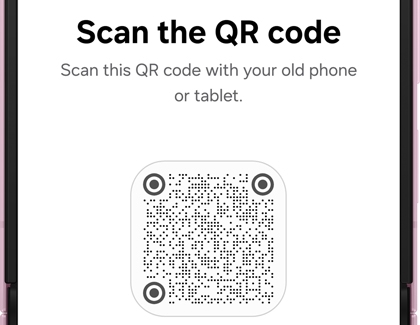
- Using your previous device, scan the QR code displayed on your new phone.
- Your new phone may automatically connect to the same Wi-Fi network. If not, enter your Wi-Fi password to continue.
Note: A wireless transfer is the easiest way to set up your new Samsung Galaxy and move your data. If you can't connect to Wi-Fi, you can also transfer your data using a USB cable by selecting that option during setup.
- Continue following the on-screen instructions until you reach the Copy apps & data screen, and then tap Next
- Continue following the on-screen instructions until you reach the Select data to transfer screen. Then, choose the option that best matches your needs:
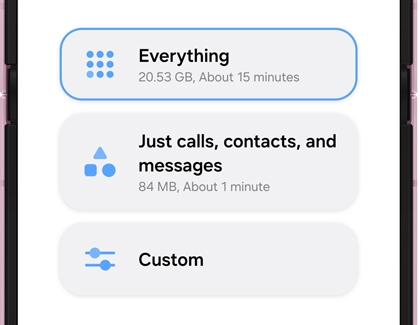
- Everything: Transfers all supported content.
- Just calls, contacts, and messages: Transfers only essential communication data.
- Custom: Lets you choose exactly what you want to transfer.
- Follow the on-screen instructions to start the transfer. Wait until the transfer is complete, and then tap Done on your older device.
- Finish setting up your new phone by following the on-screen instructions.
Transfer data from your previous device after initial setup
- During the transfer process, you may be prompted to turn on certain features, install or update Smart Switch, or grant permissions required to transfer your data. The prompts you see may vary depending on your previous device, software version, and current settings.
- A wireless transfer is the easiest way to move your data to your new Samsung Galaxy. If you're transferring data wirelessly, connect both phones to the same Wi-Fi network before you begin. If you can't use Wi-Fi, you can also transfer your data using a USB cable by selecting that option during the procedure.
- On your new phone, open Settings, and tap Accounts and backup.
- Tap Transfer data for device setup. If you haven't installed Smart Switch, you'll be prompted to do it now.
- Tap Receive on this phone.
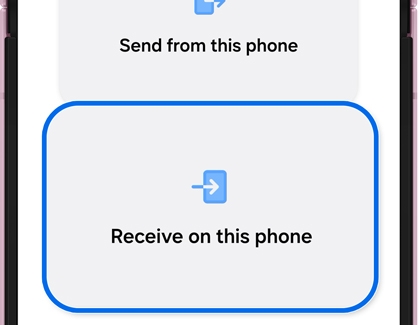
- Tap Galaxy or Android device or iPhone or iPad.
- Using your older device, scan the QR code displayed on your new phone.
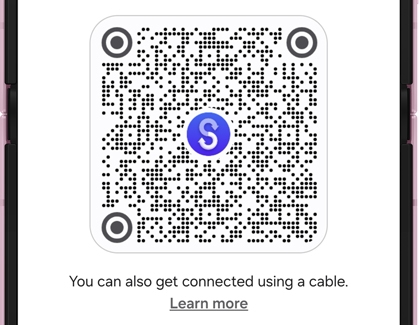
- On your older device, tap Connect when prompted.
- On your new phone, choose one of the following options:
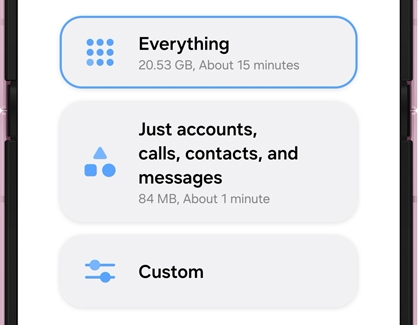
- Everything: Transfers all supported content.
- Just accounts, calls, contacts, and messages: Transfers only essential your accounts and communication data.
- Custom: Lets you choose exactly what you want to transfer.
- Follow the on-screen instructions to start the transfer. Wait until the transfer is complete, and then tap Done on both devices.
Restore data from your accounts
Smart Switch is the easiest way to move your data from your previous device to your new Galaxy Z Flip8. However, not everything needs to be transferred. Many apps and online services automatically restore your information when you sign in using the same account as on your previous device.
For example, your Samsung account can restore supported Samsung services and settings, while your Google Account can sync contacts, calendars, passwords, and other Google services. If you use cloud storage services such as Microsoft OneDrive, Dropbox, or Google Drive, signing in to those apps gives you access to your files again. Many other apps also store information online, so your data, preferences, and settings may automatically become available after you sign in.
Keeping your accounts up to date offers benefits beyond setting up your Galaxy Z Flip8. If your phone is ever lost, stolen, damaged, or replaced, your Samsung account, Google Account, and other supported services can help you recover your information more easily. Many accounts also include security features that help protect your data while making it easier to sign in to your apps and services across your devices.

