Use your Galaxy Z Flip8 partially folded

Use your Galaxy Z Flip8 partially folded
Experience Flex mode
When your Galaxy Z Flip8 is partially folded, supported apps can automatically adjust to the new screen layout. Instead of using the entire display as one screen, the app moves its main content to the upper half while controls appear on the lower half, making it easier to interact with your phone without holding it.
Whether you're watching a video, taking photos, or participating in a video call, Flex mode lets you place your phone on a flat surface for a more comfortable hands-free experience.
- Open a supported app, such as YouTube.
- Partially fold your Galaxy Z Flip8 and place it on a stable, flat surface.
- Adjust the angle until the app automatically switches to the Flex mode layout.
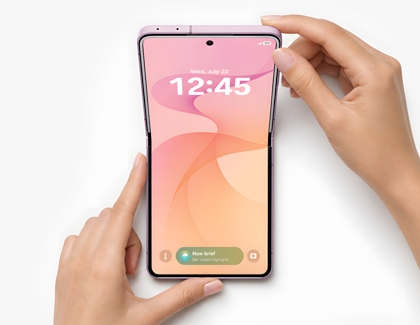
- Continue using the app with the main content displayed on the upper half of the screen and controls on the lower half.
Control supported apps with the Touchpad
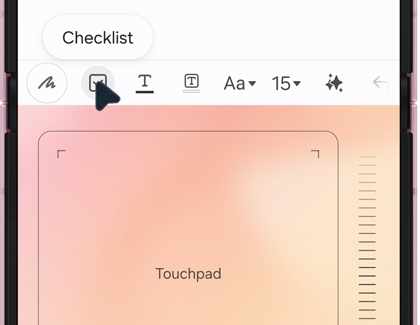
When using the Flex mode panel, you can turn the lower half of the screen into a Touchpad to control supported apps. This allows you to navigate content, interact with on-screen controls, and perform common actions without touching the upper half of the display, making it more comfortable to use your phone while it's resting on a flat surface.
- Open a supported app and partially fold your Galaxy Z Flip8.
- Tap the Touchpad icon that appears in the bottom-left corner of the screen.
- Use the Touchpad to move the pointer, tap items, or control supported content.
Capture hands-free photos with FlexCam
FlexCam lets you take photos and videos without holding your Galaxy Z Flip8. Simply partially fold your phone and place it on a stable surface to capture hands-free selfies, group photos, time-lapse videos, and more. It's a convenient way to keep everyone in the frame while reducing camera shake.
- Open the Camera app.
- Partially fold your Galaxy Z Flip8 and place it on a stable, flat surface.
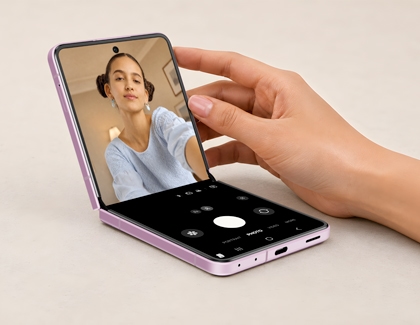
- Adjust the angle as needed to frame your subject.
- Tap the Capture button on the screen, or use another supported capture method, such as a hand gesture (showing your palm to the camera) or voice command.
Use multiple apps at the same time
Multi Window lets you use two supported apps side by side, making it easier to multitask on your Galaxy Z Flip8. For example, you can watch a video while replying to messages, browse the web while taking notes, or compare information between two apps.
Although Multi Window is not exclusive to Flex mode, partially folding your Galaxy Z Flip8 lets you enjoy a more comfortable, hands-free multitasking experience while taking advantage of its unique foldable design.
- Tap the Recent apps button.
- Tap the app icon above the first app, then tap Open in split screen view.
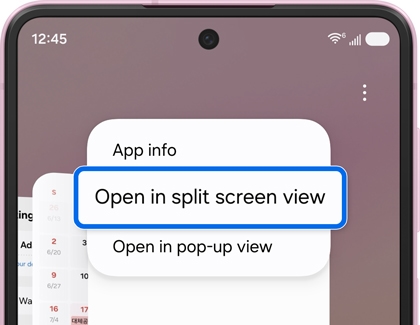
- Select another supported app to open in the second window.