Discover new lock screen features on your Samsung Galaxy device
You can now make your lock screen even more helpful on your Samsung Galaxy phone. You can also add your contact information, such as a phone number or email address, so it can be displayed on the lock screen if your phone is lost.

Discover new lock screen features on your Samsung Galaxy device
Set up a screen lock and add a hint
Set a screen lock on your Samsung Galaxy phone to protect your personal data.
- Open Settings, then tap Lock screen and AOD.
- Tap Screen lock and biometrics.
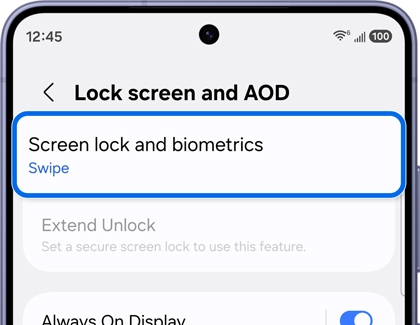
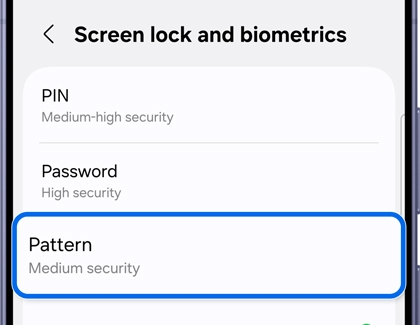
- Select the screen lock type.
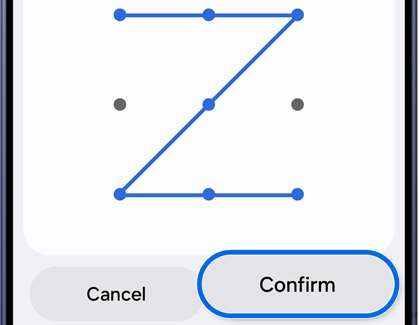
- Draw your pattern, then tap Continue. Draw the pattern again, then tap Confirm.
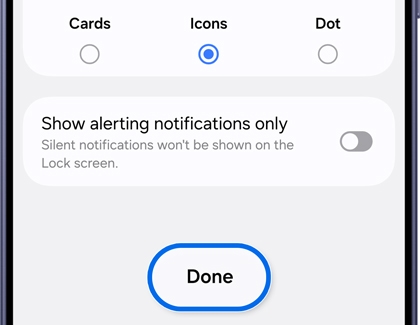
- Set your desired Lock screen notification style, then Done to complete the setup.
Read less
How to edit the lock screen
- Touch and hold the lock screen. You may need to unlock your device.
- Tap the Wallpaper icon.
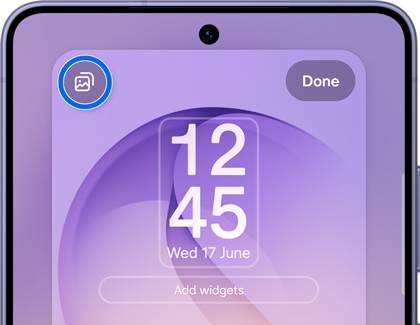
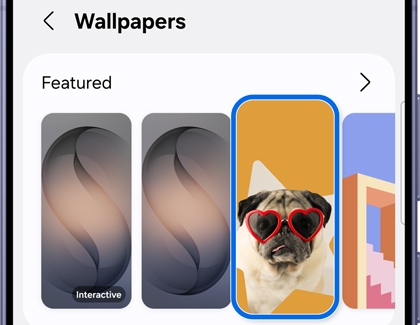
- Select your desired wallpaper to set.
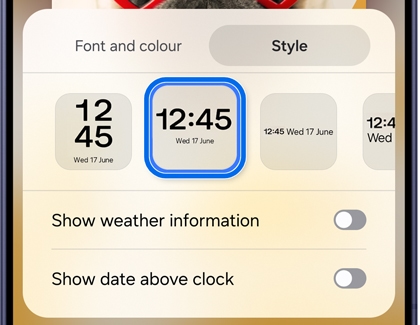
- Select the clock and change its style.
- Tap Add widgets.
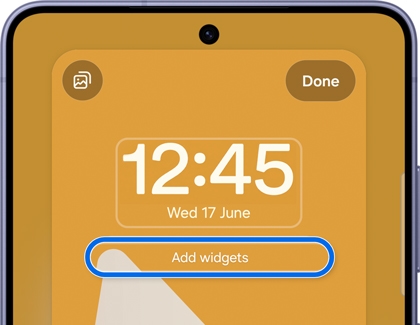
- Add the items you want.
- Select the icons at the bottom of the screen.
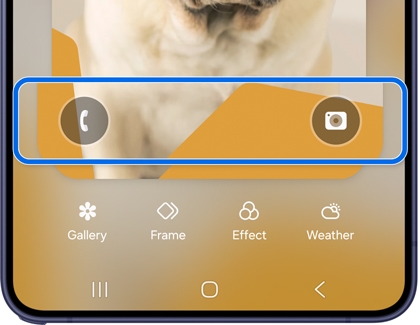
- Choose your desired feature to change the shortcut.
Read less
Add contact details to your lock screen to help recover your device
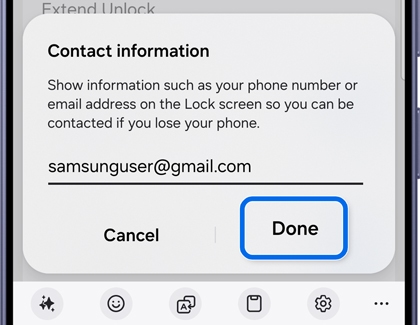
Add your contact details to your lock screen so someone can reach you if your phone is lost. You can enter information such as a phone number or email address that will be visible without unlocking the device.
- Open Settings, then tap Lock screen and AOD.
- Select Contact information.
- Enter your contact information, then tap Done.
Read less
Manage notifications on your lock screen
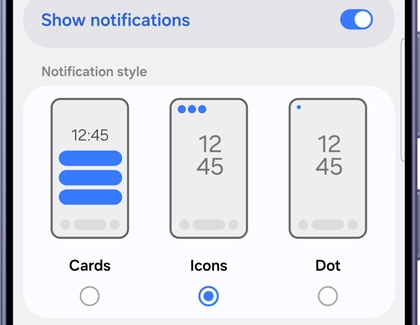
Choose how notifications appear on your lock screen to control what information is visible without unlocking your phone. You can adjust the display type to show more or less detail based on your preferences.
- Open Settings, then select Notifications.
- Select Lock screen.
- Select your desired notification display type.
Read less
Recommended Articles
We're here for you
Contact Samsung Support
Contact us online through chat and get support from an expert on your computer, mobile device, or tablet. Support is also available on your mobile device through the Samsung Members App.

